
What You Need
Before you start, make sure you have:- An 8x8 Connect account
- Access to your 8x8 Connect dashboard
- Company information for Sender ID registration
- Access to your COD King admin panel
Step 1: Log in to 8x8 Connect
Open the 8x8 Connect login page: https://connect.8x8.com/login Log in to your account. After logging in, you will see the 8x8 Connect dashboard.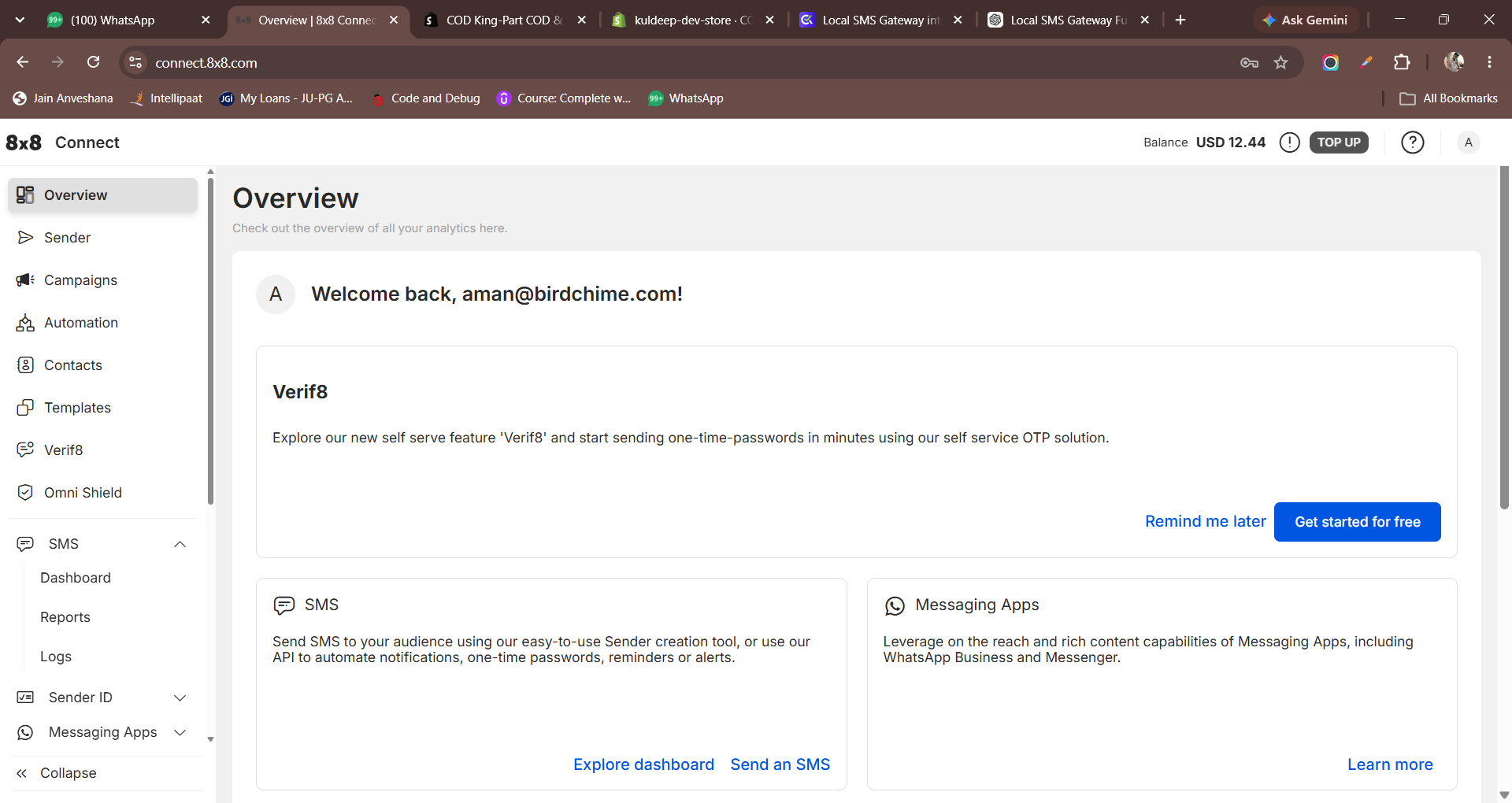
Step 2: Create an API Key
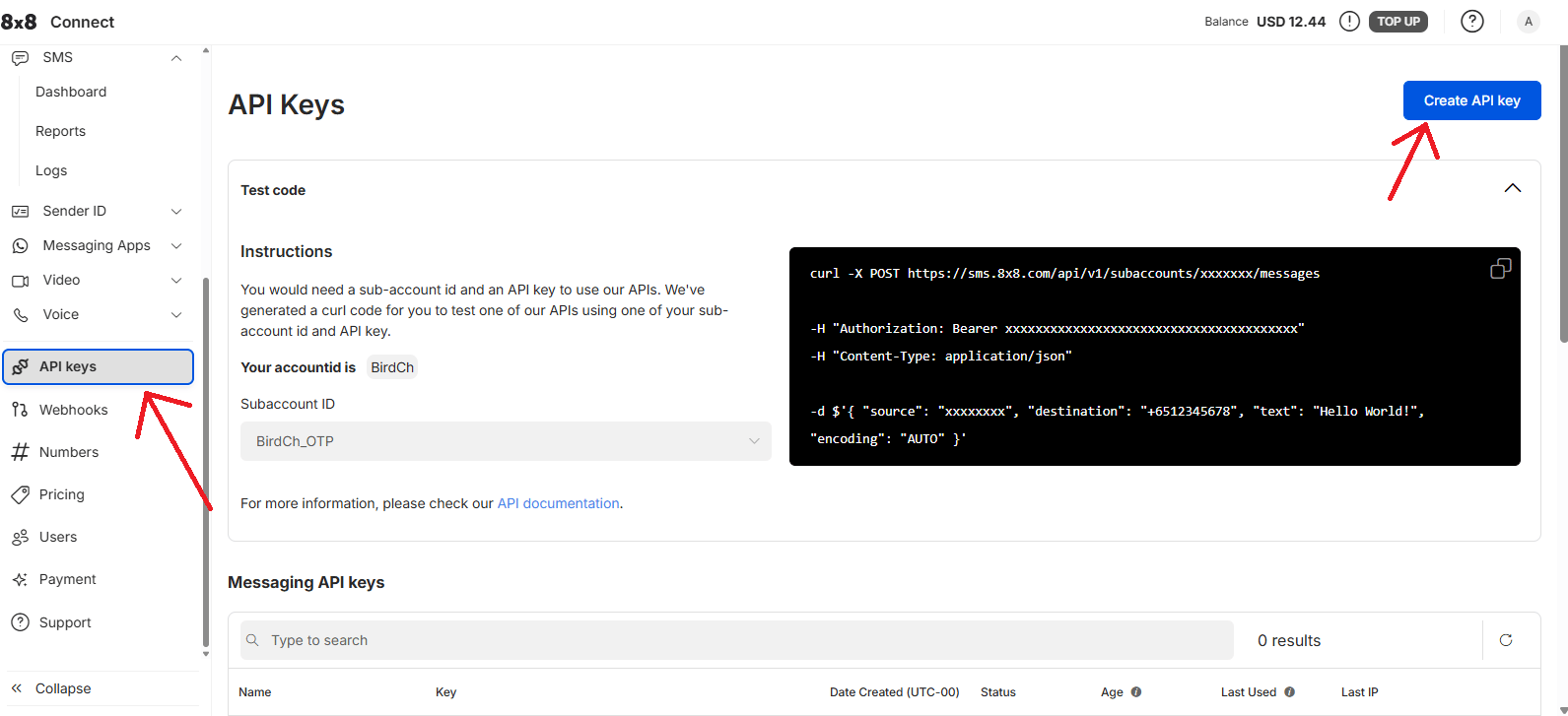
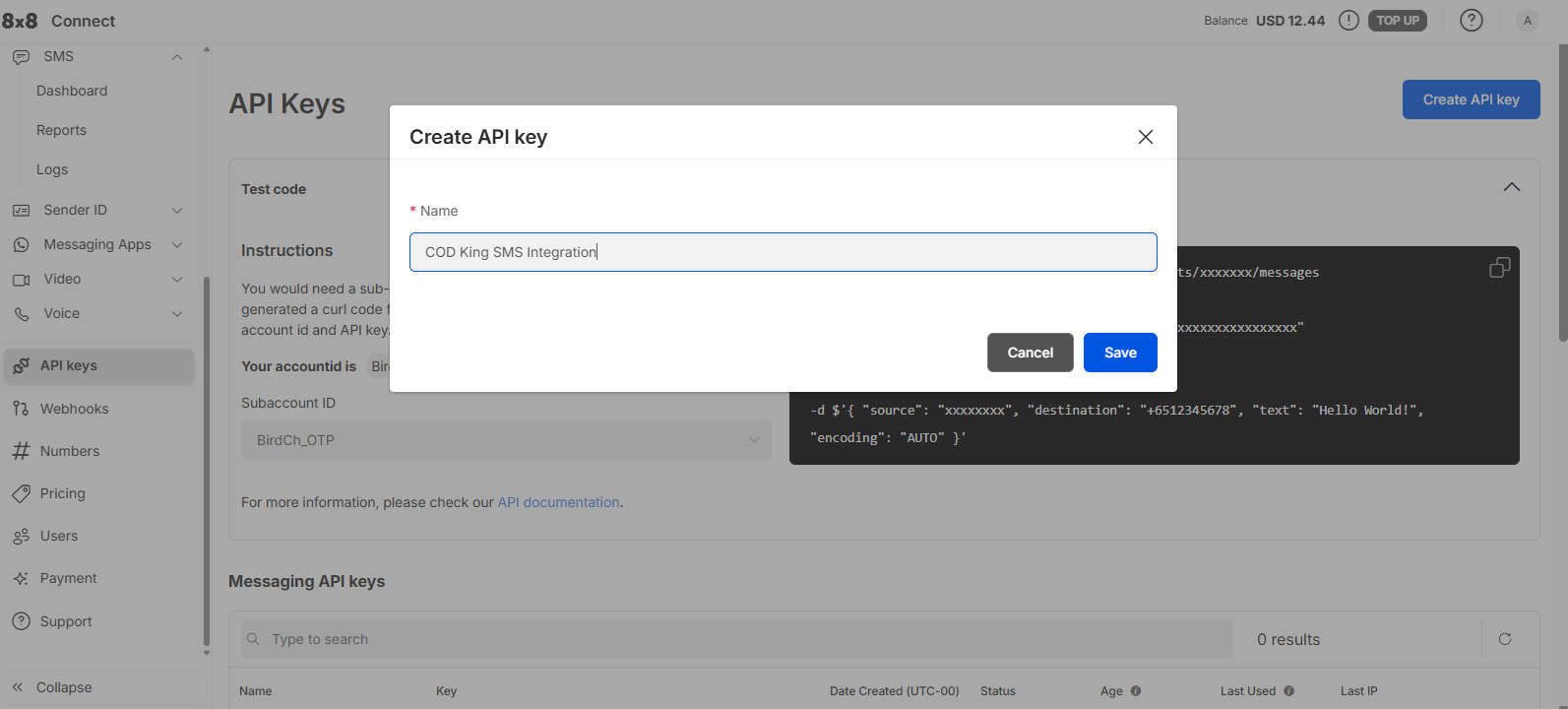
From the left-side menu, open API Keys. Click Create API key. Enter a name for the API key. For example:COD King SMS Integration
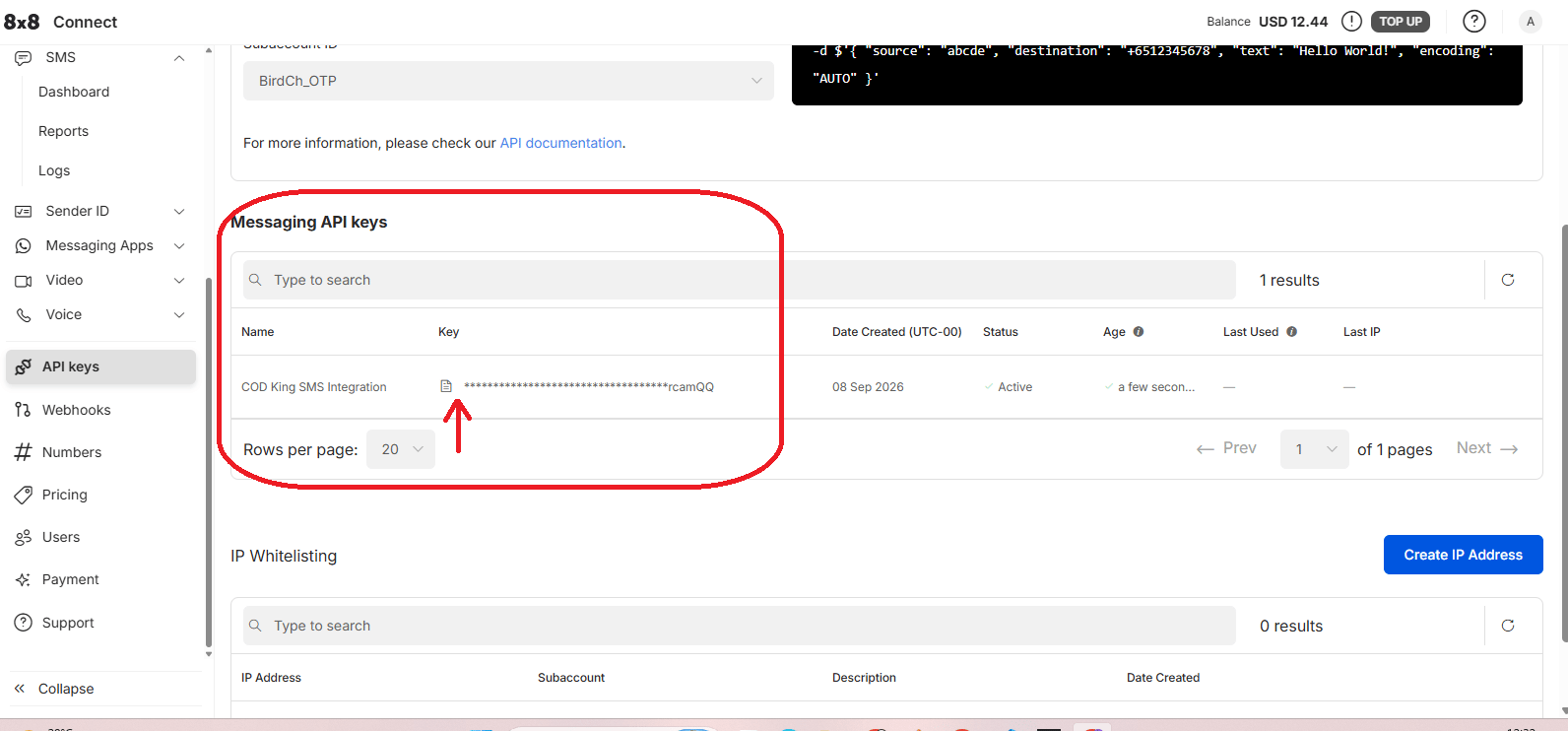
Then create the API key.
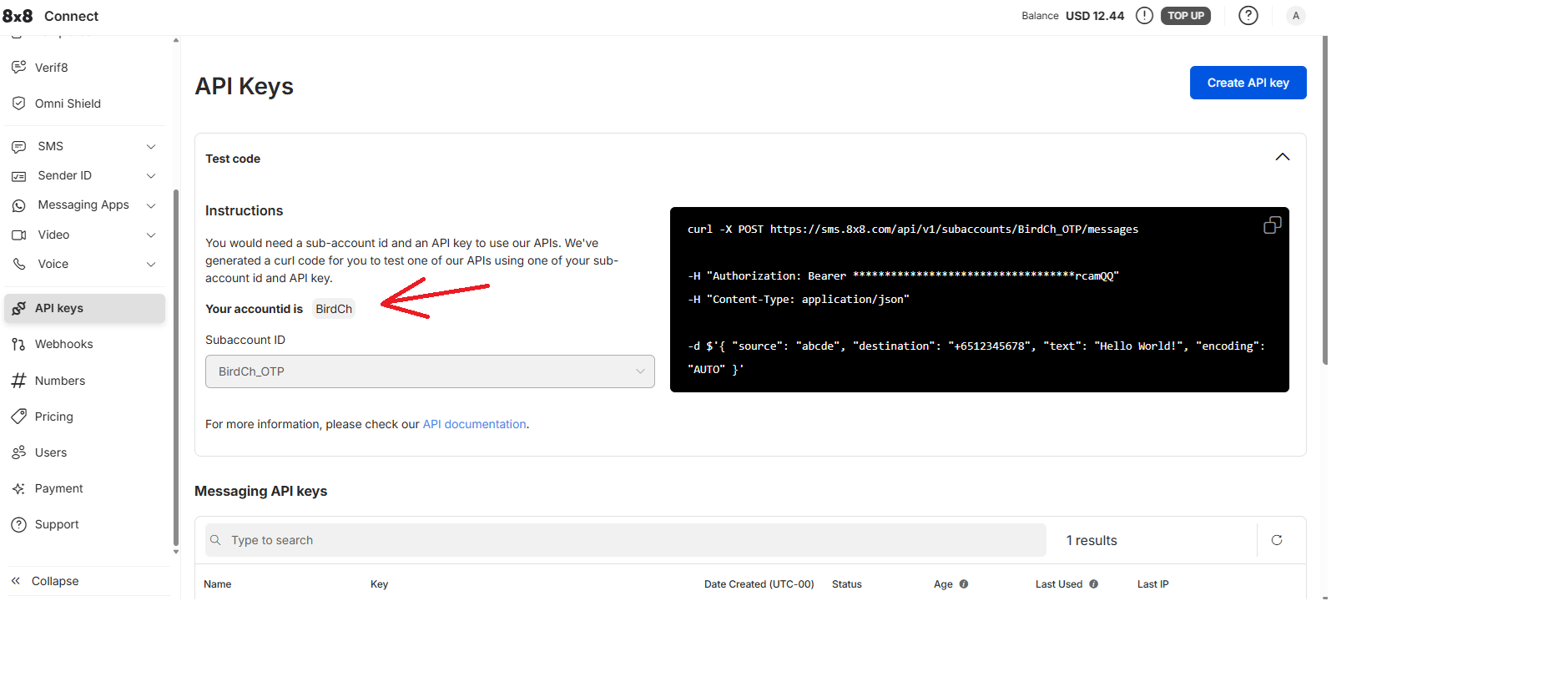
Step 3: Get the Sub Account ID
On the API Keys page, find the SMS Subaccount that you want to use. Copy the Subaccount ID. For example:BirdCh_OTP
Your Subaccount ID may be different.
You will enter this value in COD King’s Sub Account ID field.
Step 4: Register a Sender ID
From the 8x8 Connect menu, open: Sender ID → Registrations Click Register new sender ID.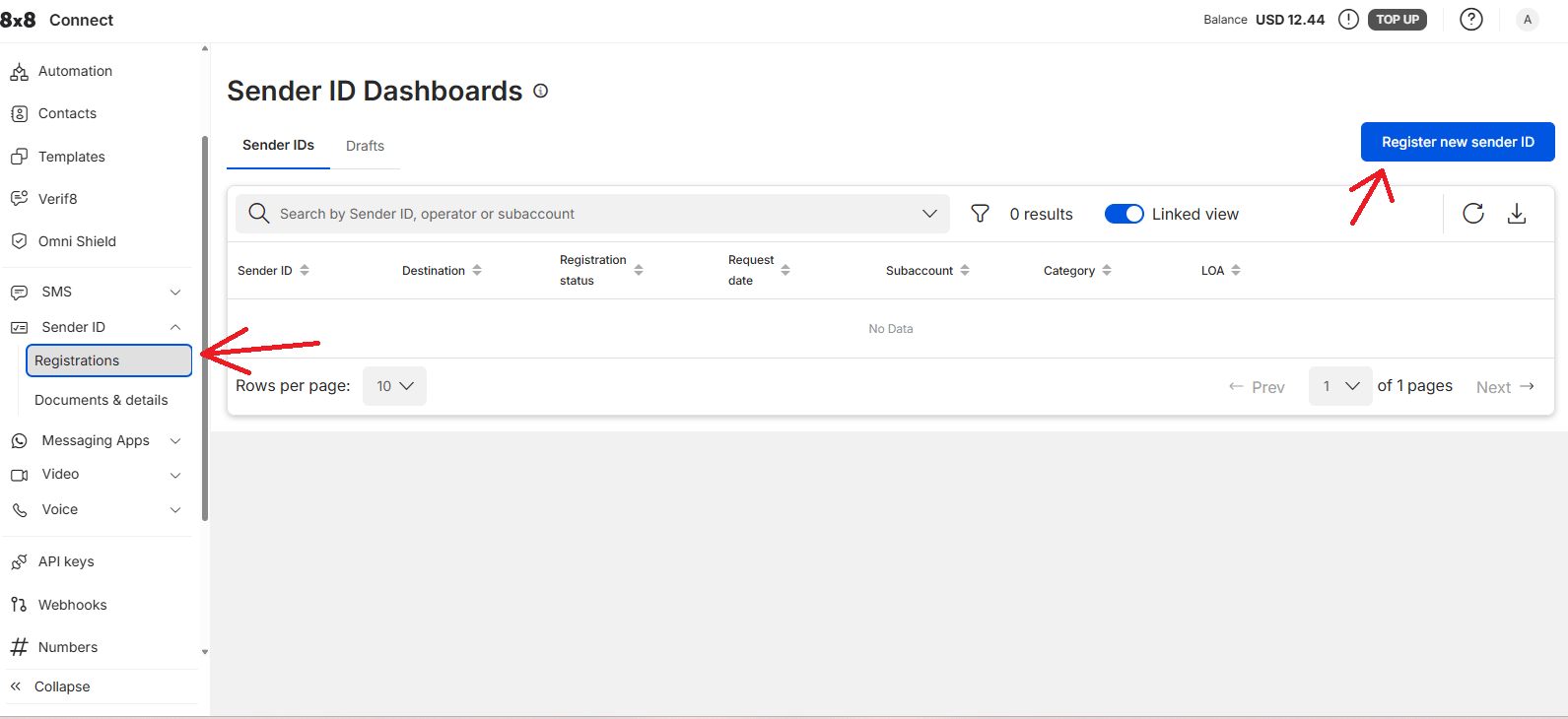
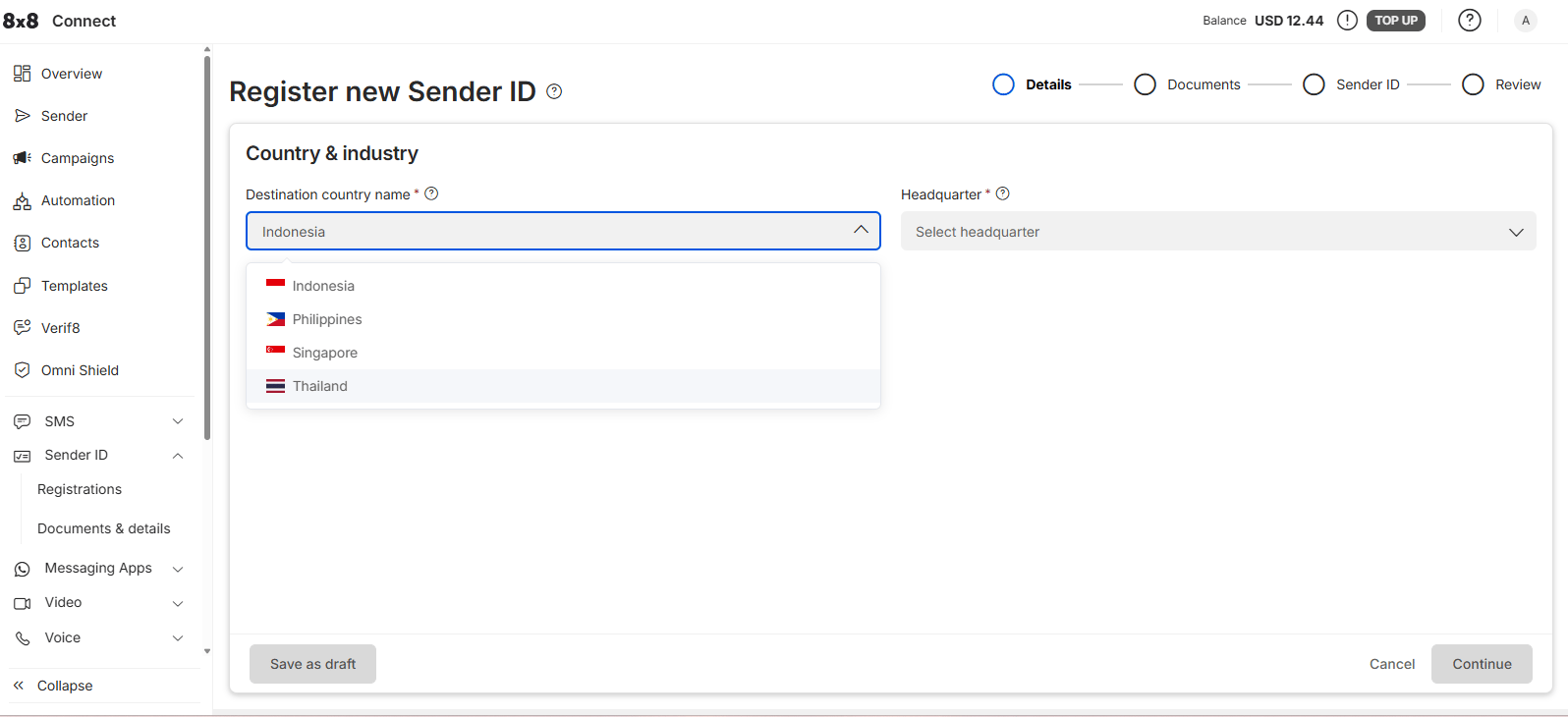
Step 5: Add Company Details
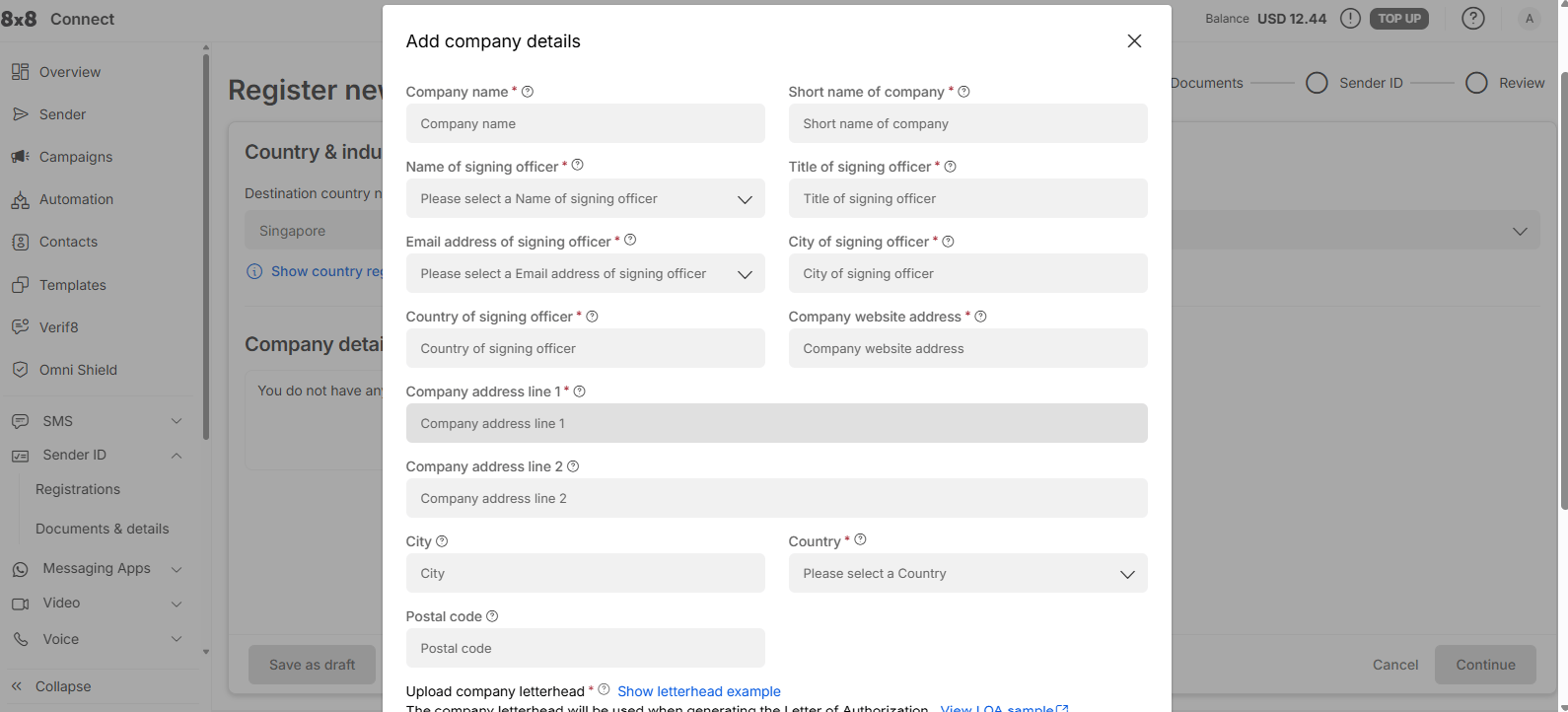
8x8 Connect will ask for your company and business information. Enter your actual:- Company name
- Signing officer details
- Company website
- Company address
- Country and city
- Other required business information
Upload the documents requested by 8x8 Connect. Use your real company information and documents. Do not use example information when submitting the registration.
Step 6: Add Your Sender ID
Enter the Sender ID that you want to use for sending SMS. For example:CODKING
Review the information and submit the registration.
Depending on the destination country, the Sender ID may need to be approved before it can be used.
Step 7: Open COD King
Once you have your:- Sub Account ID
- API Key
- Sender ID
Under Network Provider, select: Wavecell (Global)
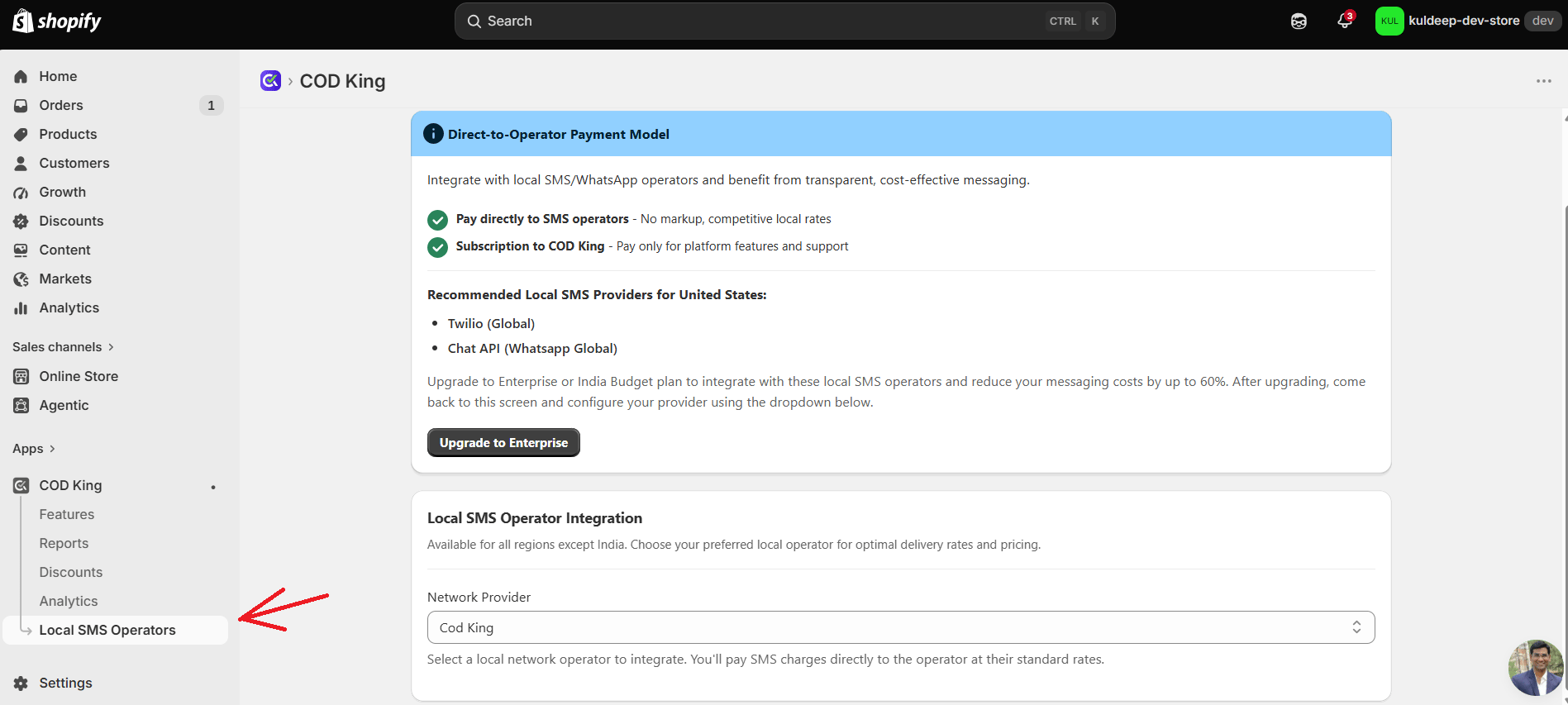
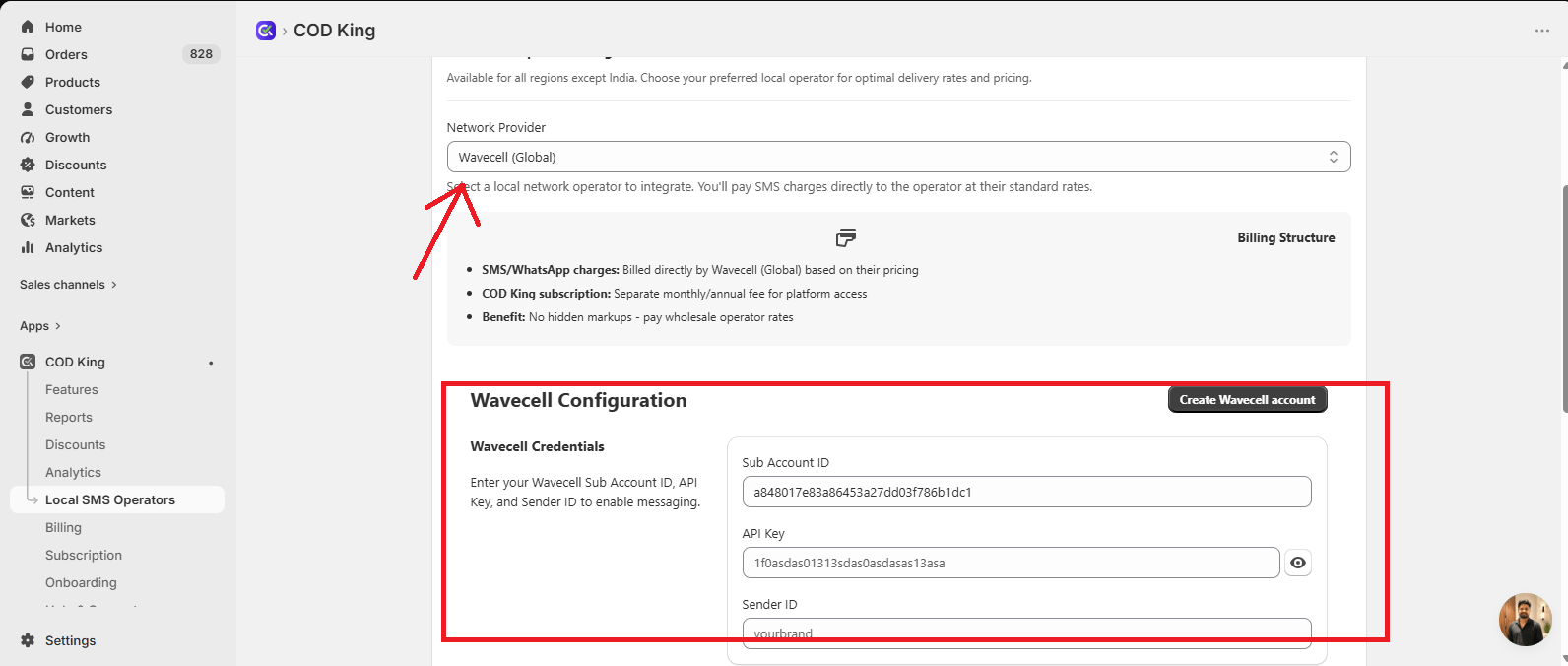
Step 8: Enter Wavecell Details
Enter the details obtained from 8x8 Connect.
Make sure all three values are entered correctly.
Then click Save.
Step 9: Test SMS
After saving the configuration, trigger an SMS notification from your Shopify store. For example :- Click Send Test SMS to send a test message to the entered phone number.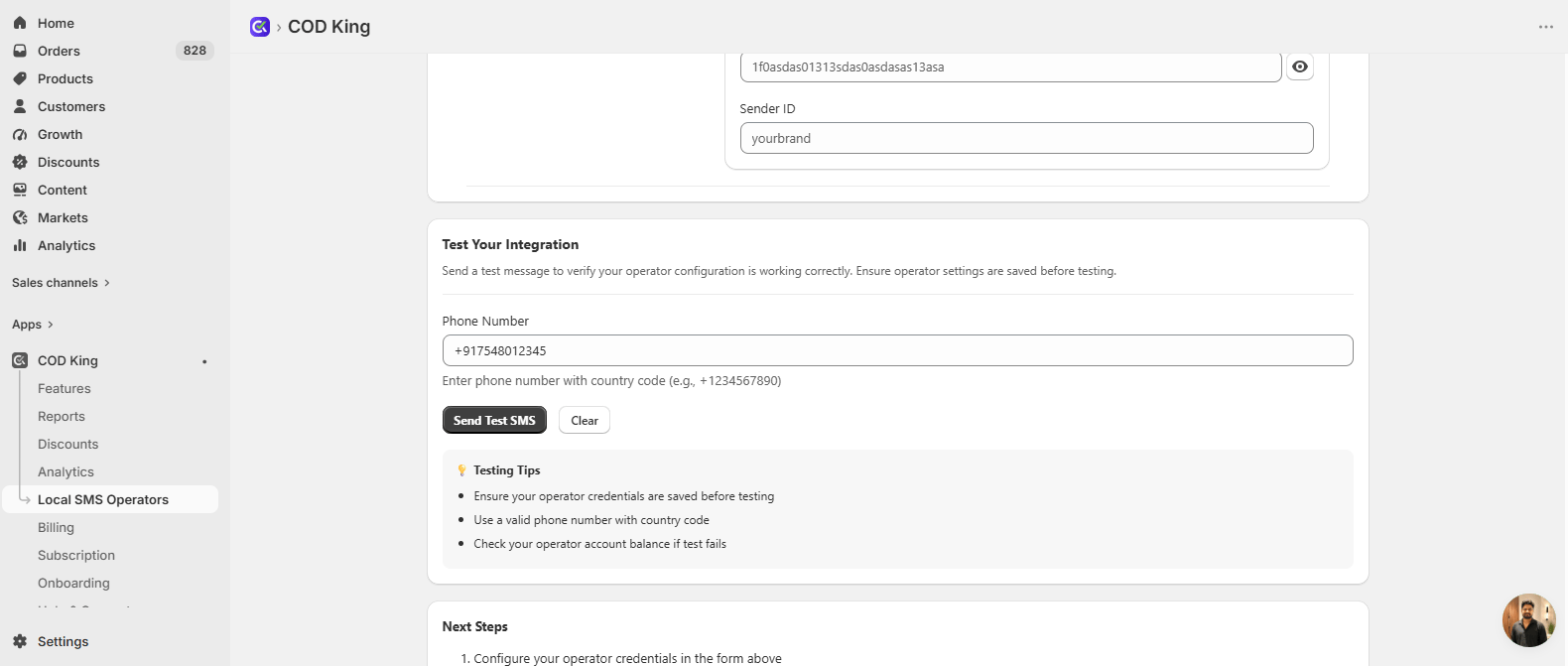
Testing Tips
- Ensure your operator credentials are saved before testing.
- Use a valid phone number with the country code.
- Check your wavecell account balance if the test message fails.
Wavecell Configuration Summary
To connect Wavecell with COD King, you need these three values:
Once these details are entered and saved in COD King, Wavecell (8x8 Connect) is ready to send SMS notifications.