1. What is COD to Prepaid Conversion ?
Turn COD orders into prepaid orders by giving customers a quick and secure way to pay online after placing their order. COD King sends WhatsApp or SMS messages with a secure payment link, allowing customers to complete their payment instantly.- 3–4% average COD → Prepaid conversion rate in India
- 2% conversion fee applies only to successful conversions
- Add a Thank You page banner to encourage customers to pay online
- Reduce COD-related returns and operational costs
- Improve cash flow by converting COD orders into prepaid payments
2. Why It Matters ?
- Over a 65% of e-commerce orders via COD, but many are returned due to non-acceptance.
- COD Prepaid helps balance trust and operational efficiency, especially for new or budget-conscious buyers.
3. Key Benefits to Merchants of COD to Prepaid
4. Step-By-Step Setup Guide :
Step 1 : Activate COD to Prepaid Conversion
- Go to the COD King Dashboard.
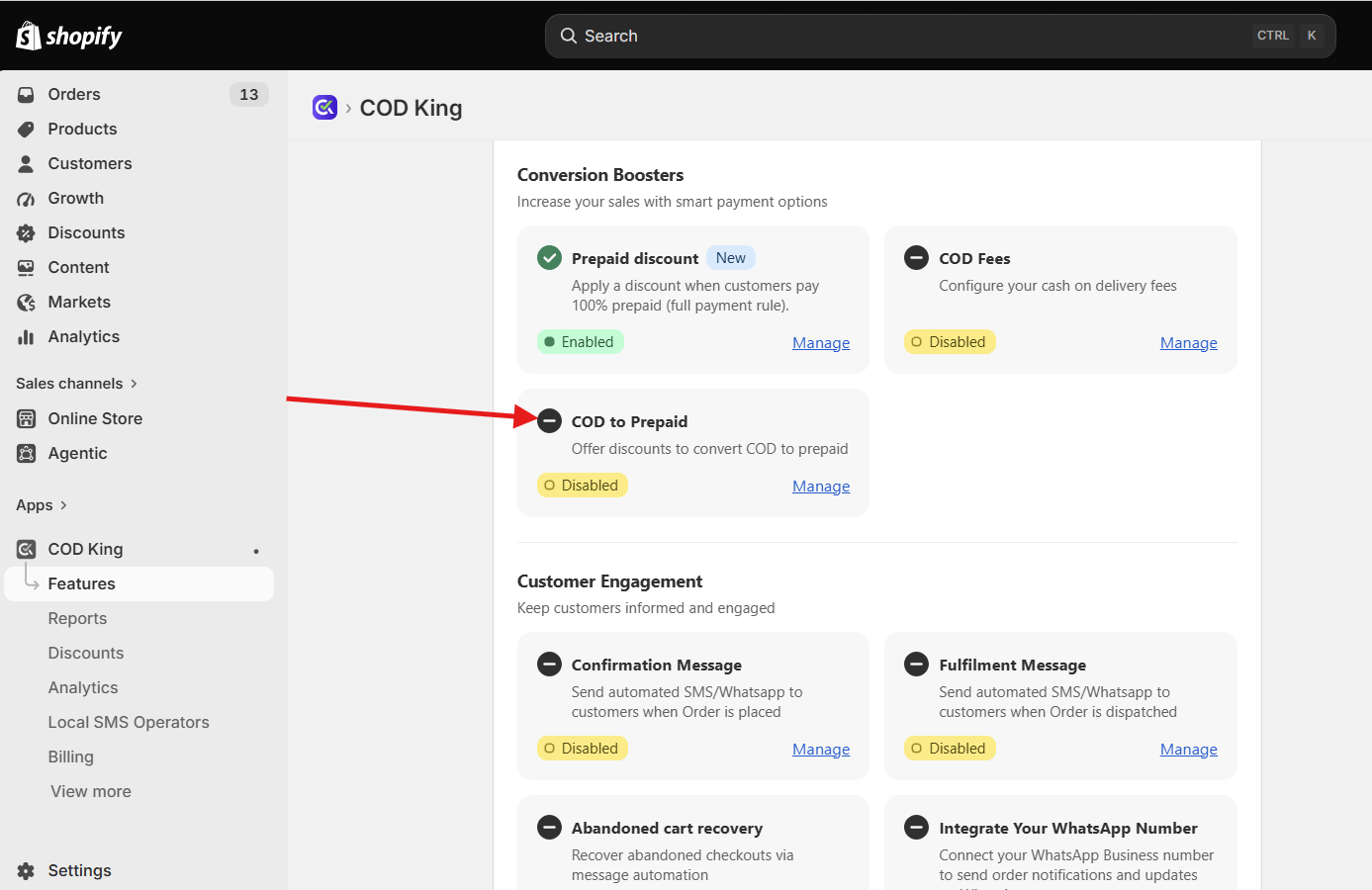
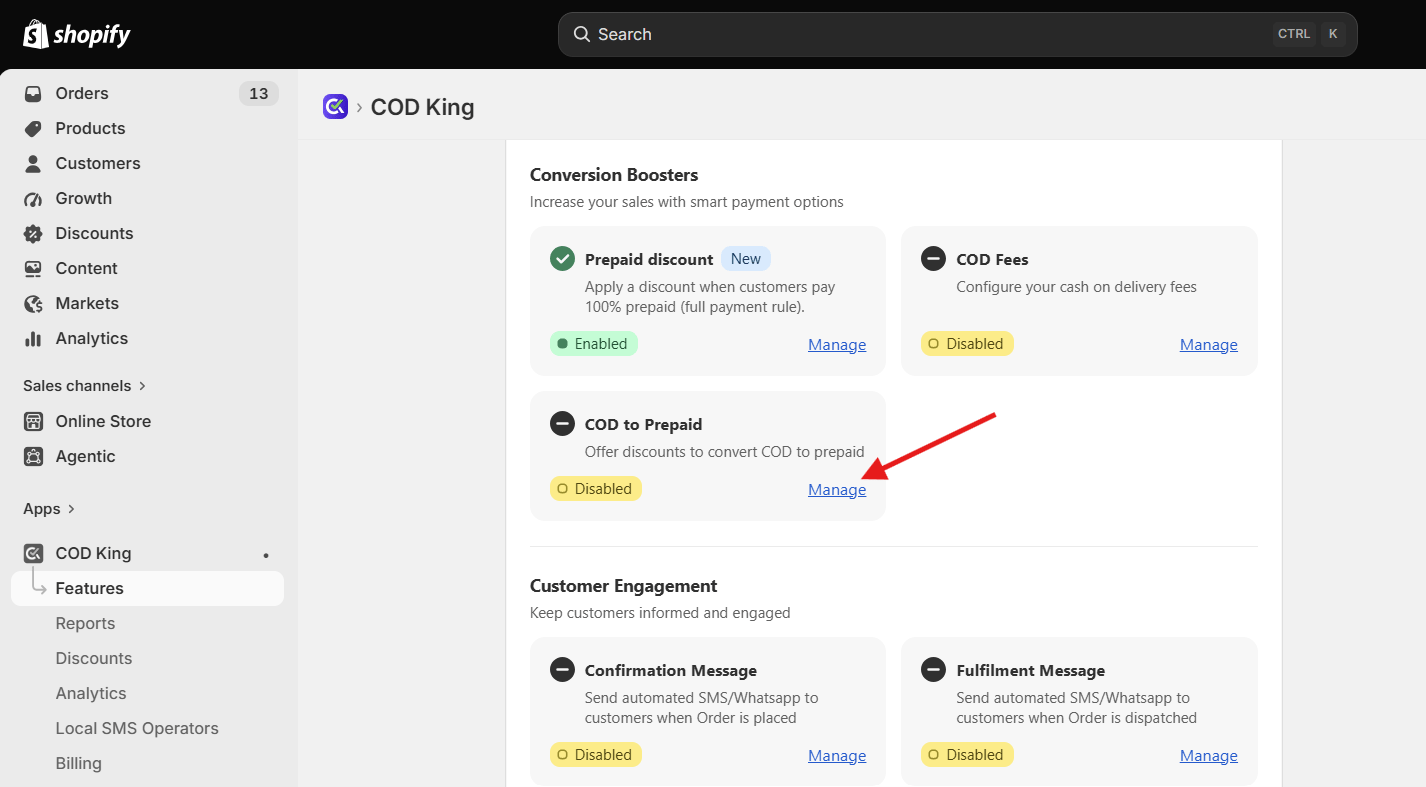
- Open COD To Prepaid by clicking on Manage.
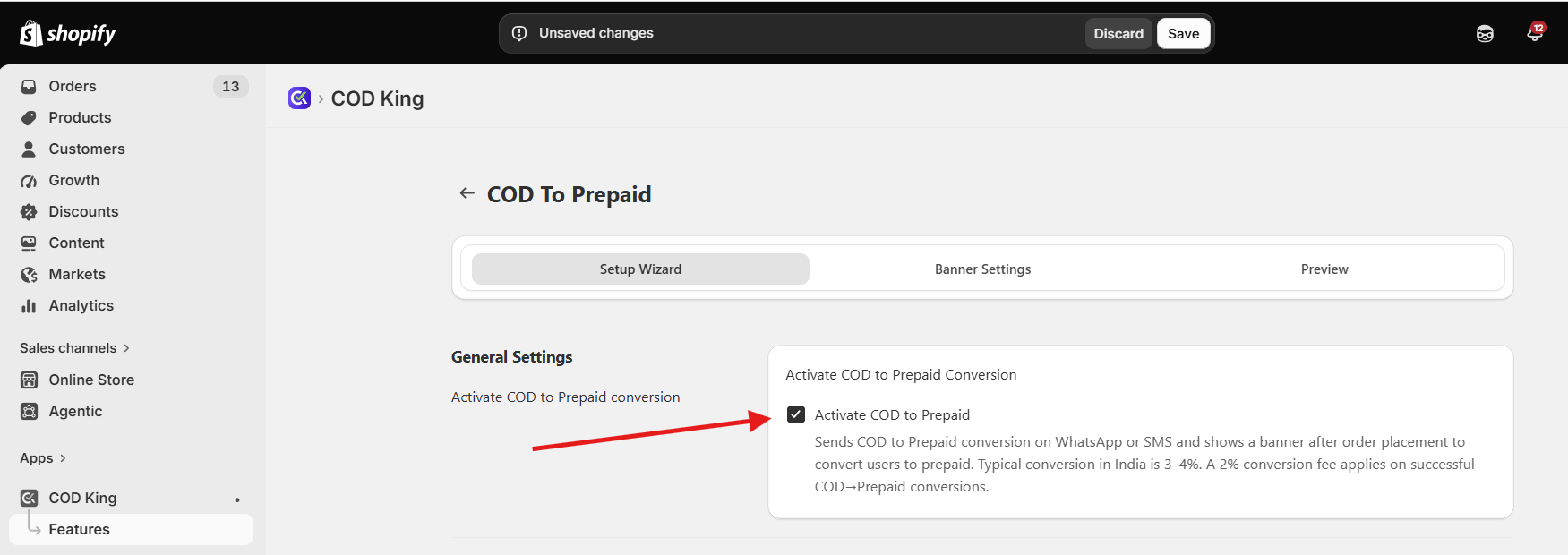
- Click Activate COD to Prepaid Conversion.
Step 2 : Enable Checkout Integration
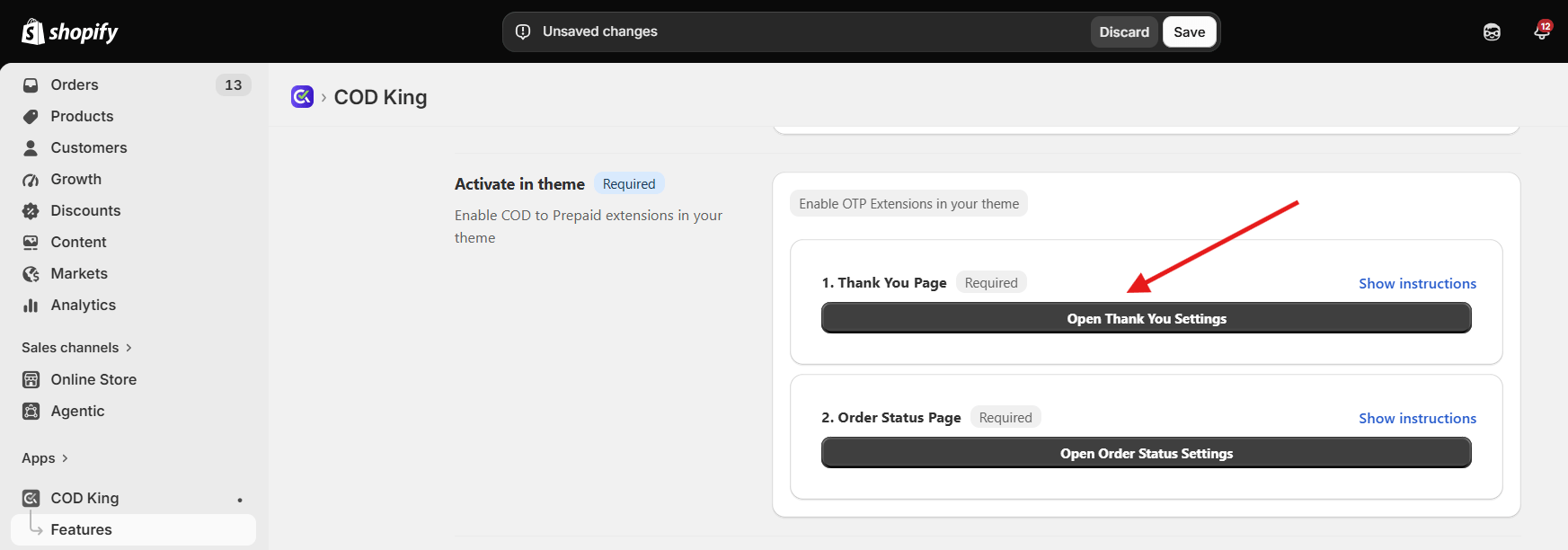
This step is required for showing the conversion banner on the Thank You and Order Status pages.1. Enable COD King Extension on the Thank You Page
- Open your Shopify Thank You Page settings.
- Go to App Blocks and Select otp-cod-king-thankyou.
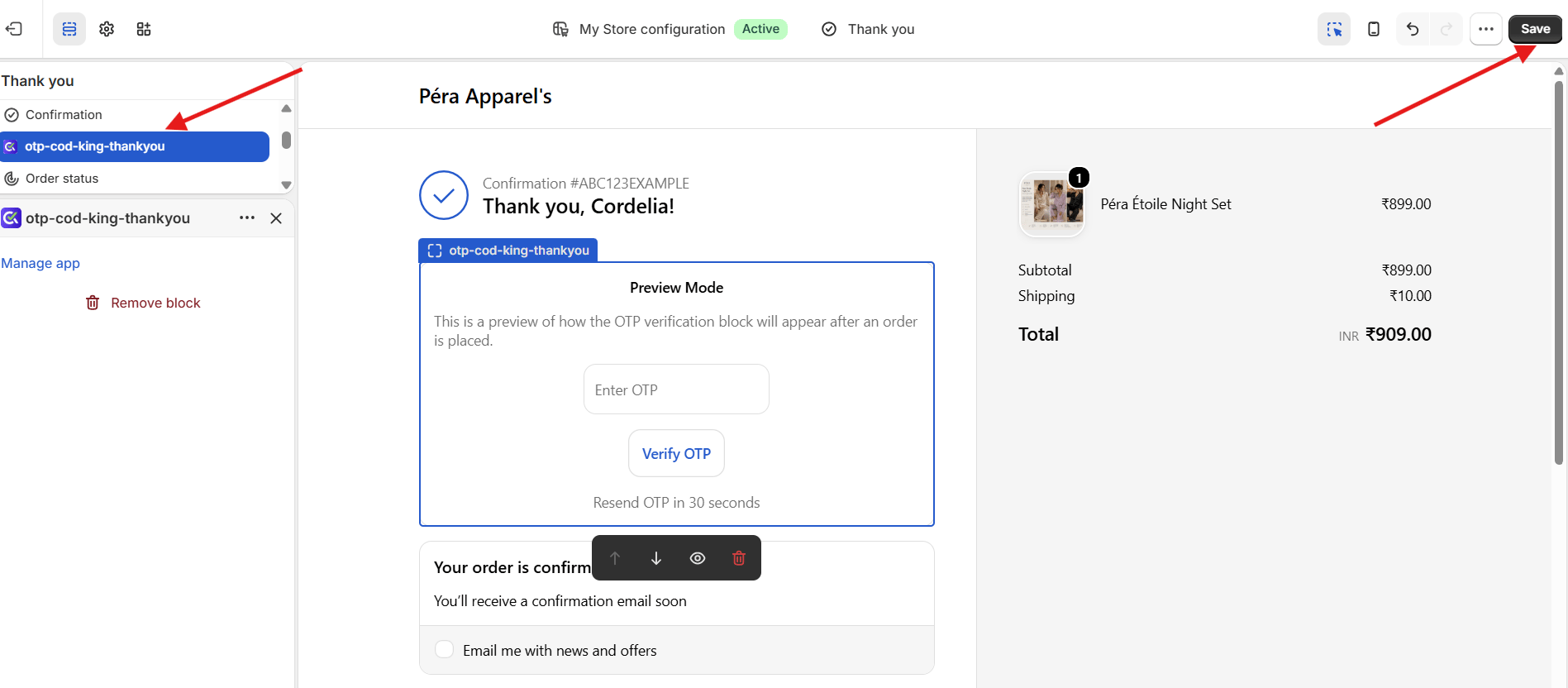
- Click Save.
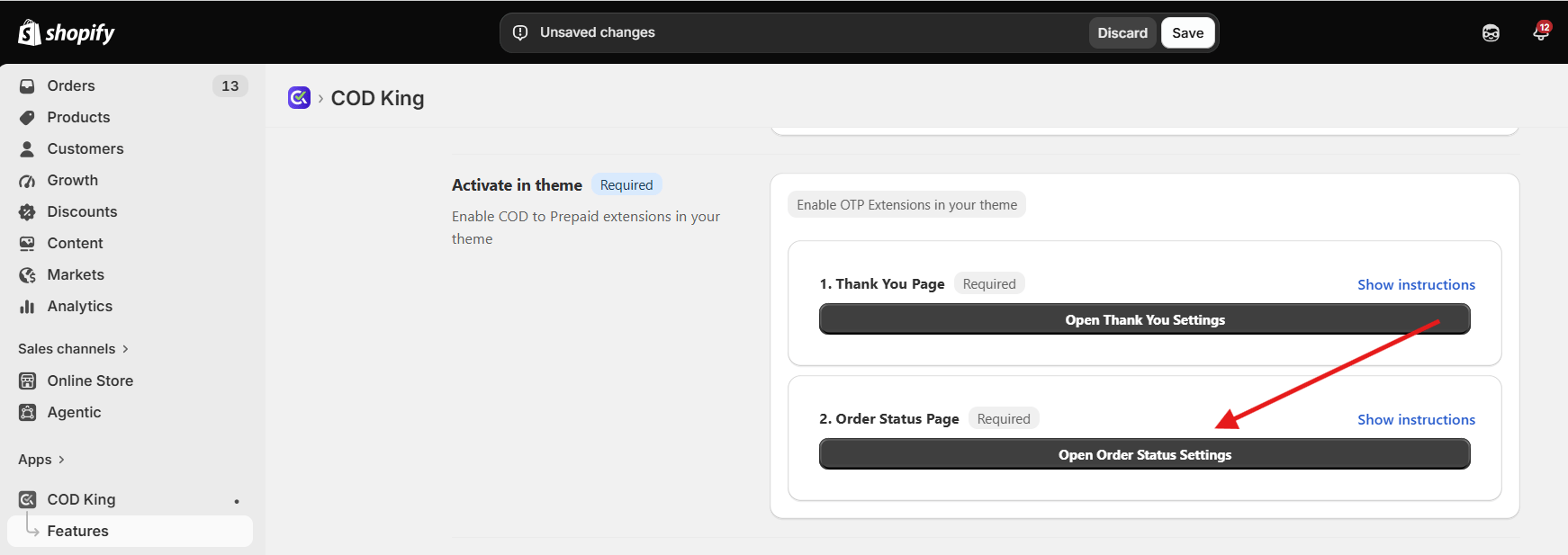
2. Enable COD King Extension on the Order Status Page
- Open Order Status Page settings.
- Go to App Blocks and Select otp-cod-king-thankyou.
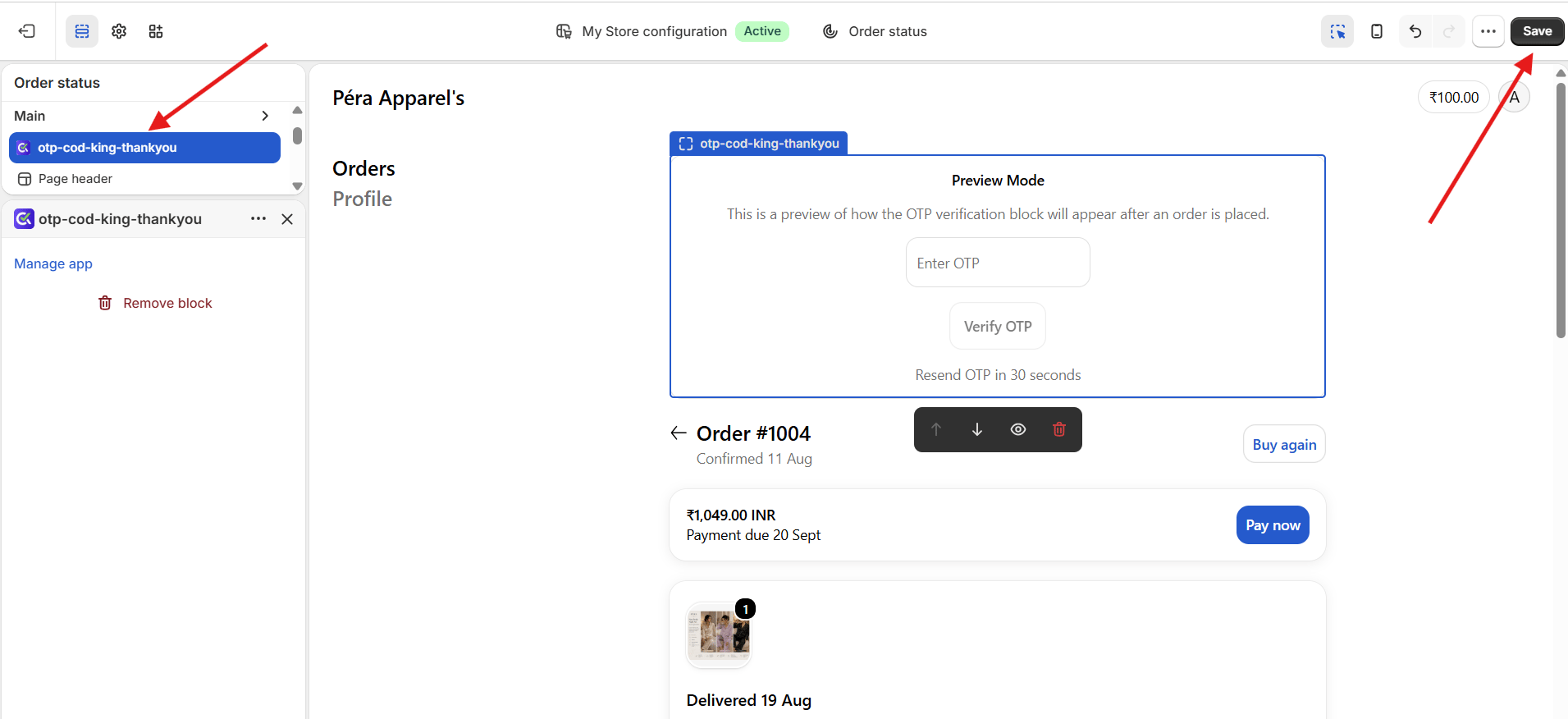
- Click Save.
Step 3: Connect Your Payment Gateway
Select your preferred payment gateway. Razorpay is a commonly used option.- Select Razorpay.
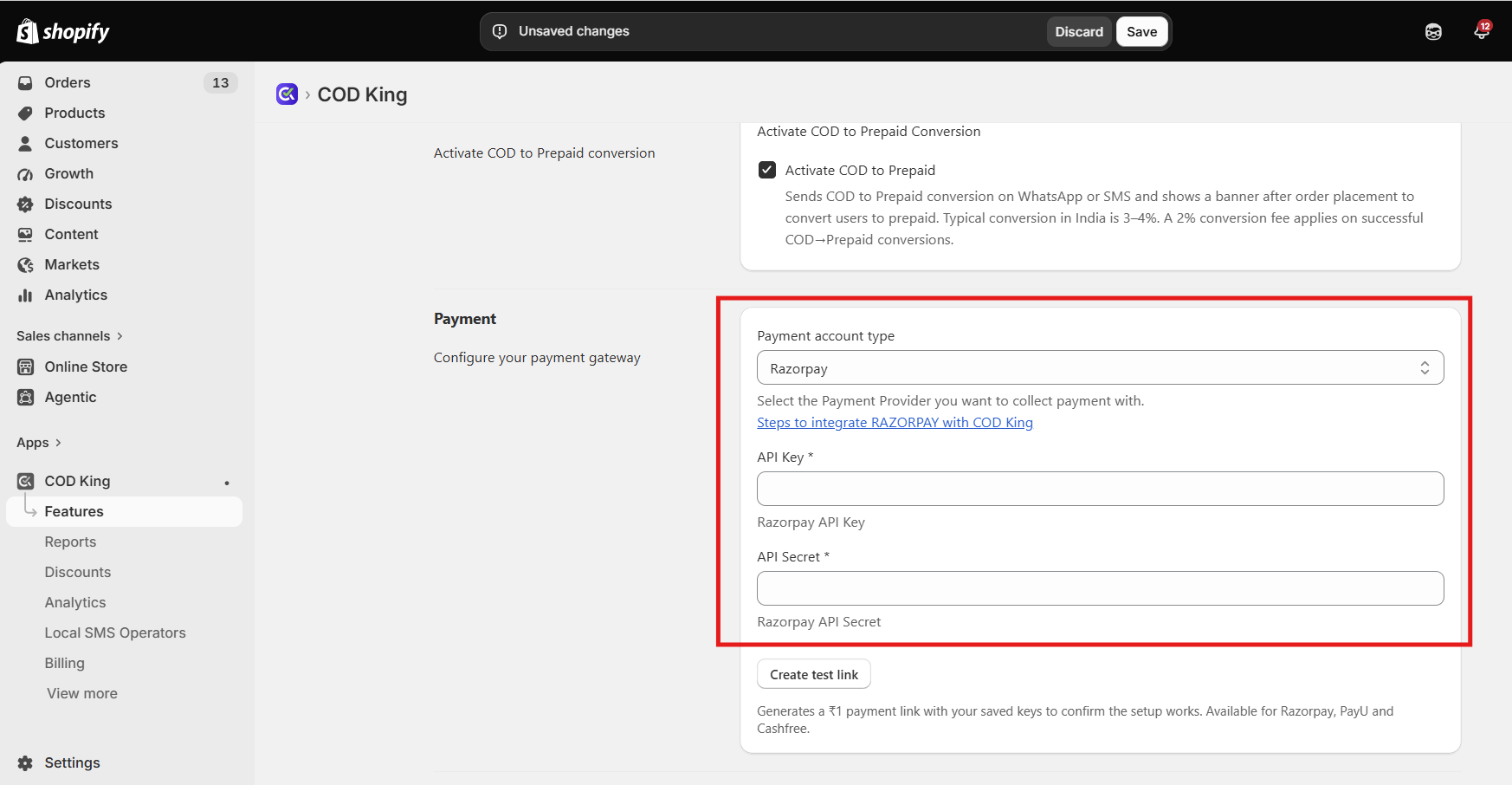
- Enter your API Key and API Secret.
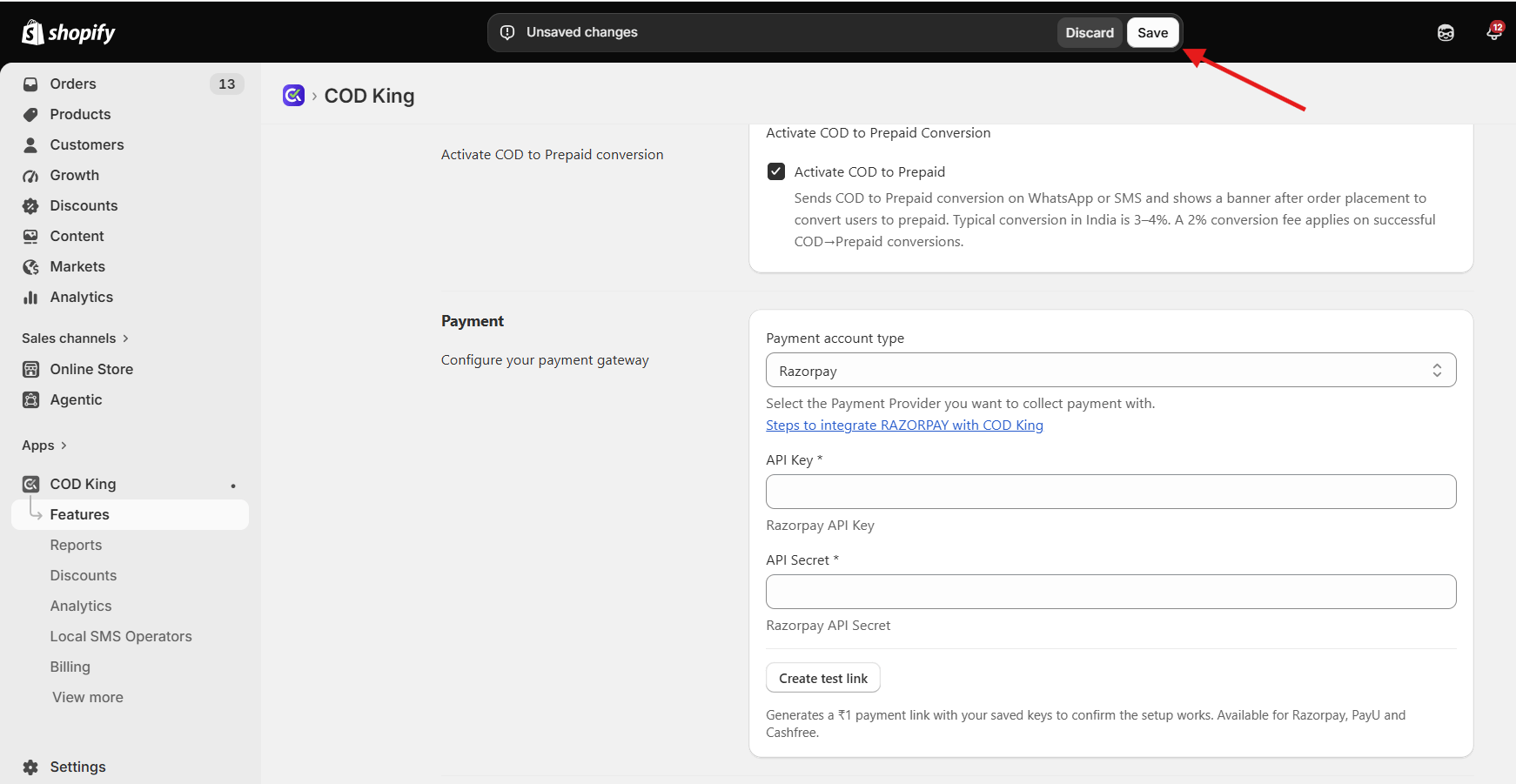
- Save the configuration.
Step 4: Add a Prepaid Discount
Encourage customers to convert by offering a small discount.- Select Flat Amount.
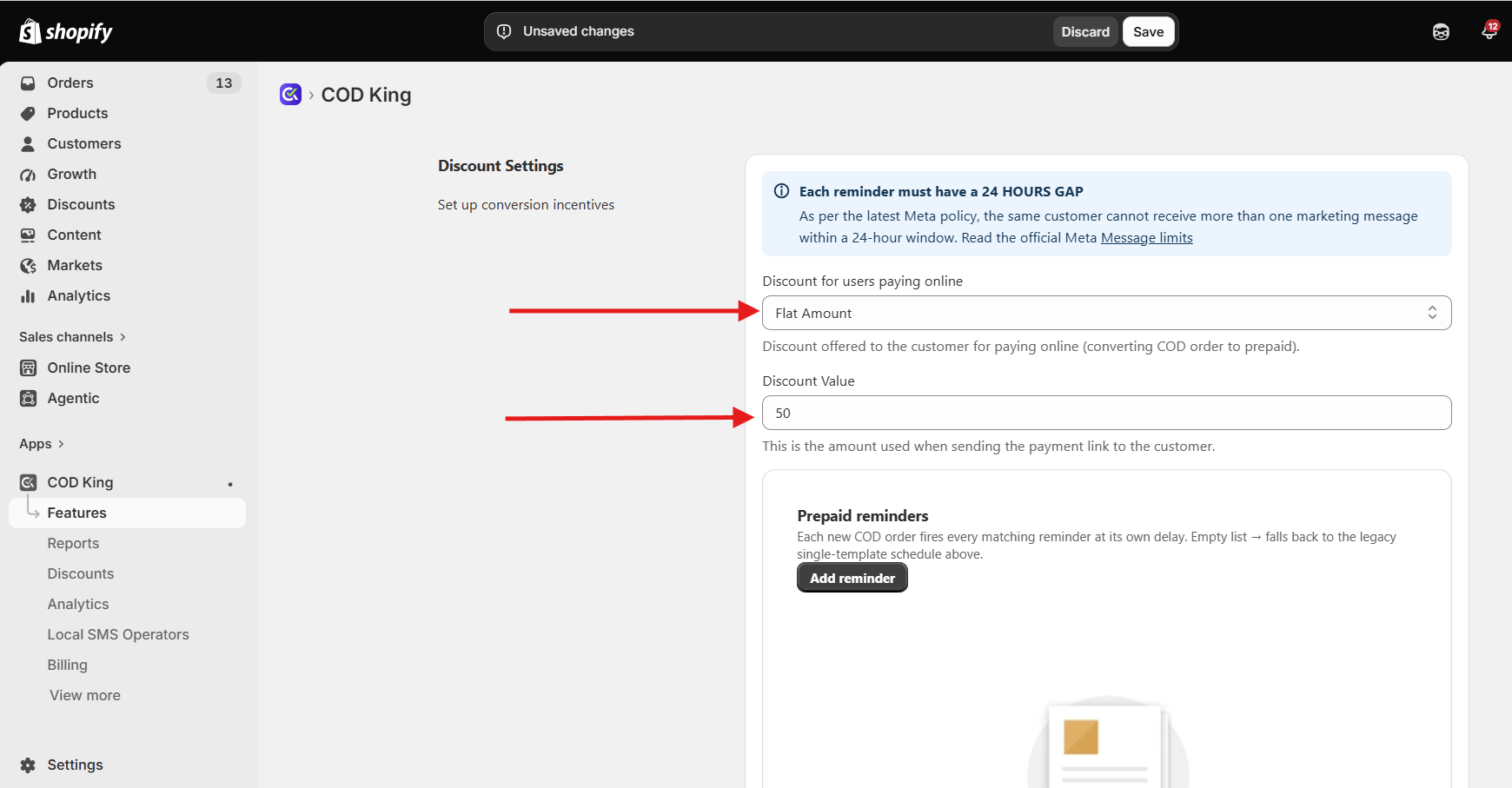
- Enter your discount value, such as ₹50.
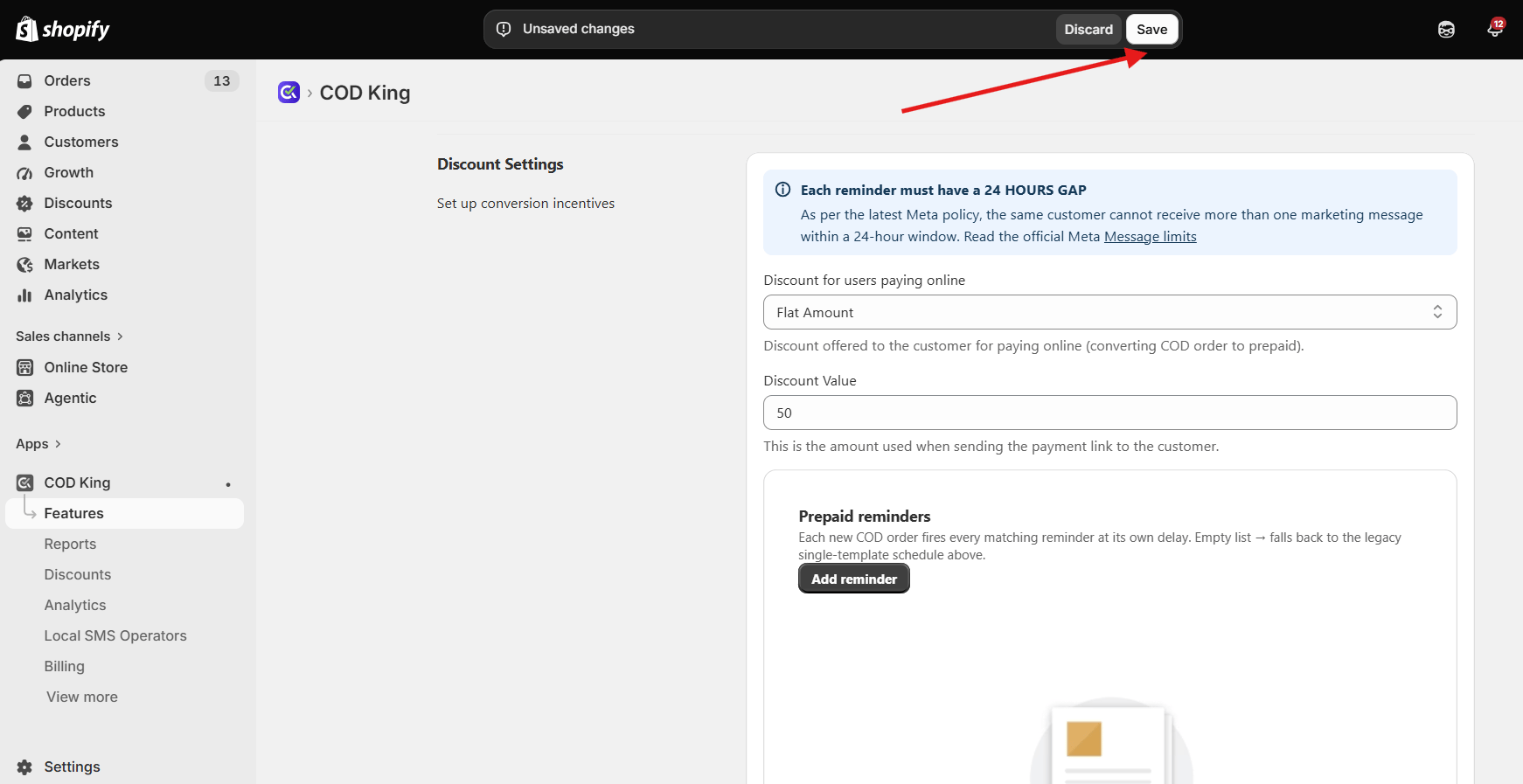
- Save the settings.
Step 5: Set Up WhatsApp/SMS Reminders
As per the Meta policy, customers cannot receive more than one marketing message within 24 hours.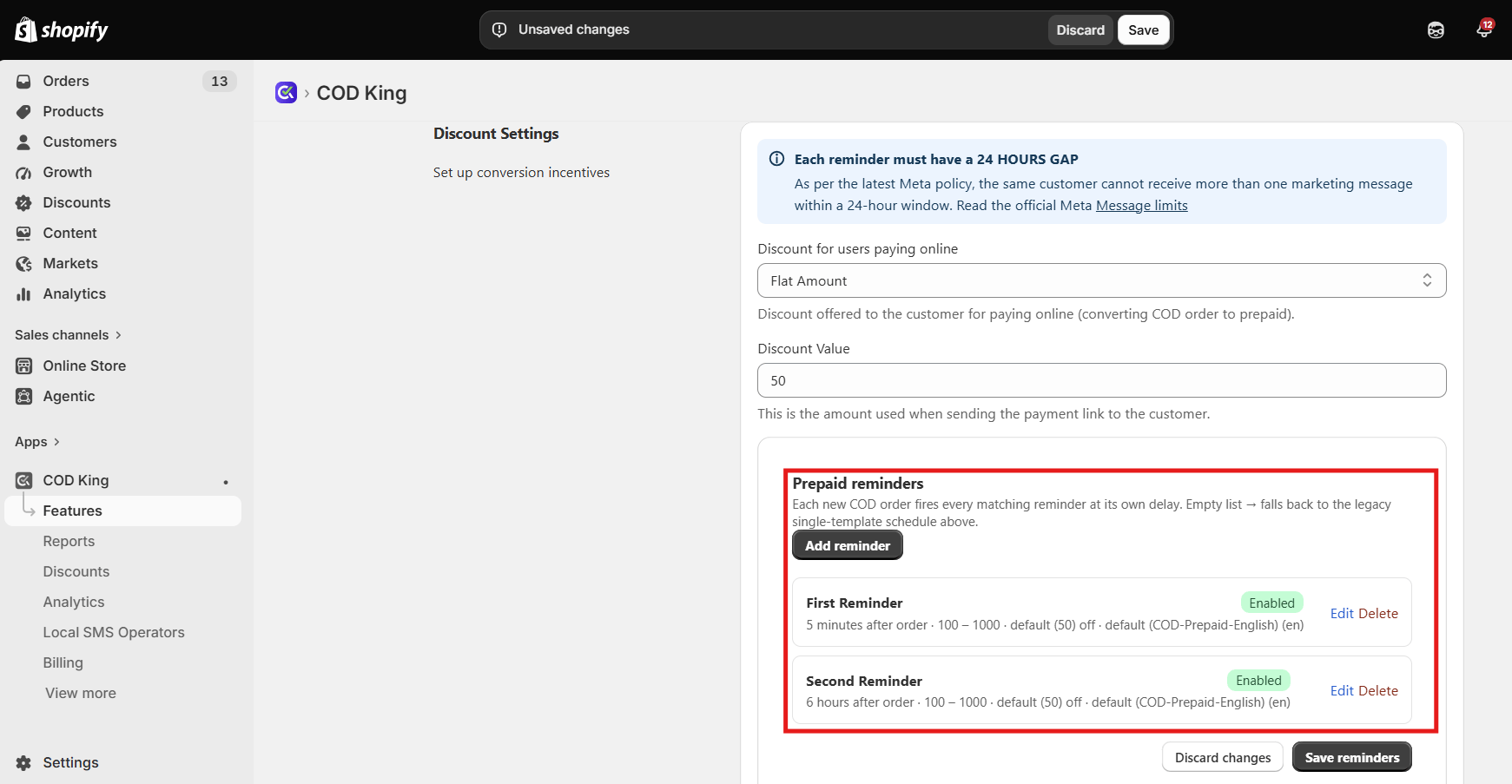
First Reminder
- Choose: Send or Don’t Send
- This message goes right after the order is placed.
Second Reminder
- Again choose: Send or Don’t Send
- The message will be sent 24 hours after the first one.
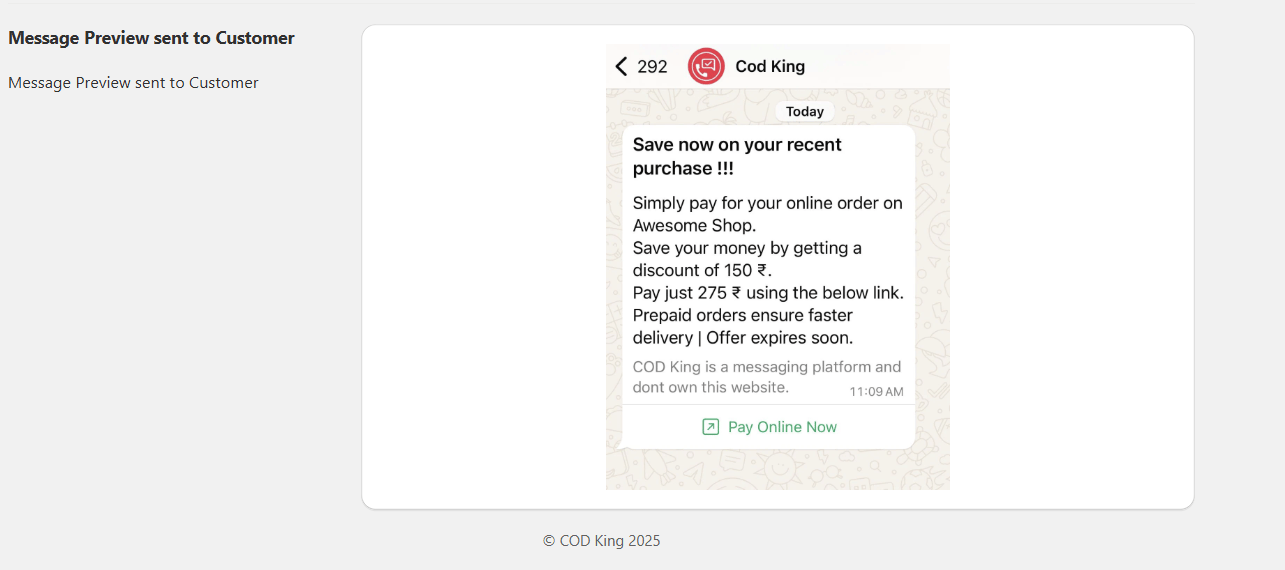
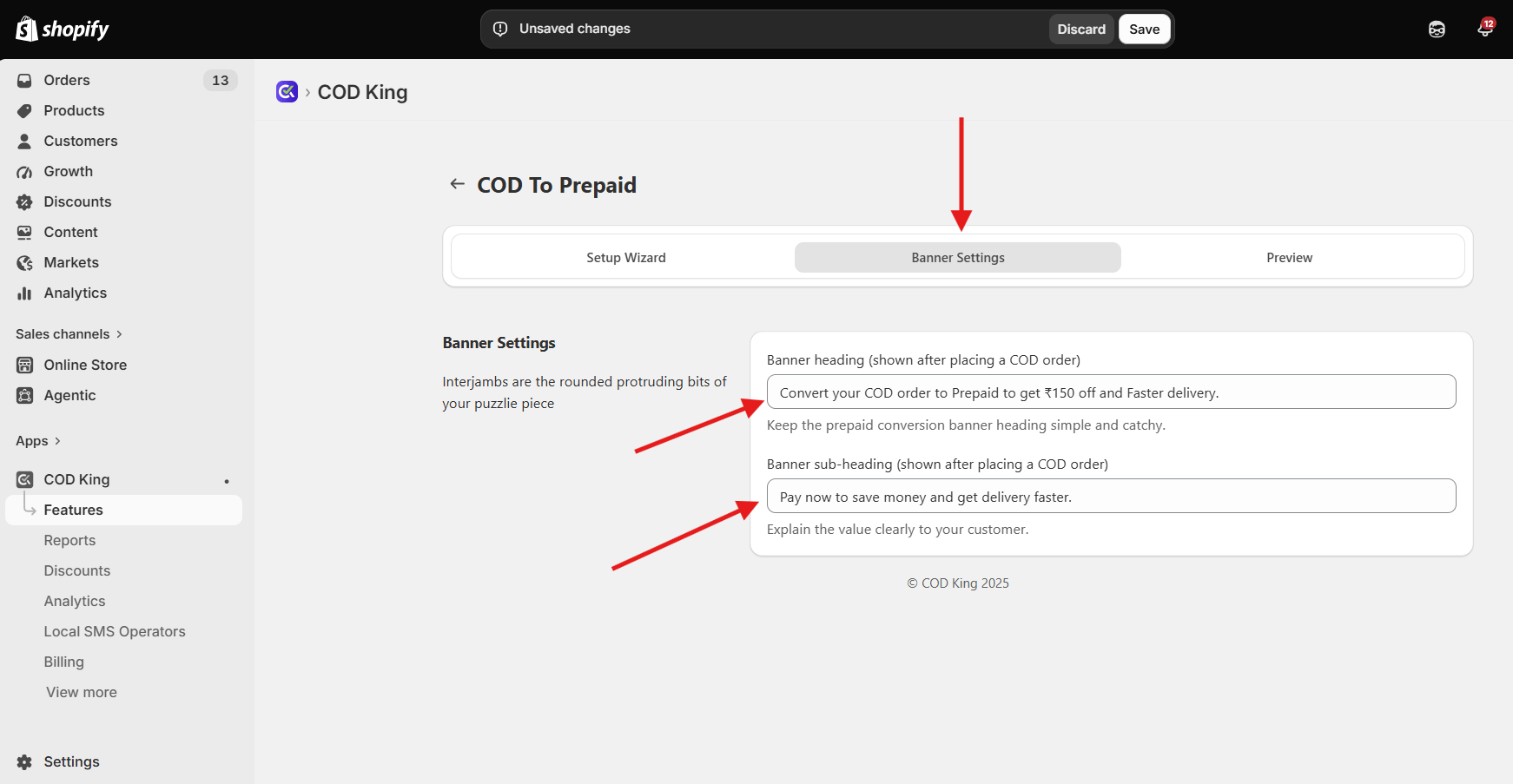
- Go to Banner settings, here we can customize what to be displayed in the Pop-up after order is placed
- Test the flow from your online store
- Once Pay Now button is clicked you will be redirected to another page to pay online and avail the offer
- Once payment is converted to prepaid, the initial order for COD will get cancelled and a new order will get created.
5. Final Result
Once everything is set up:- Customers placing COD orders will automatically receive the payment link.
- A banner will appear on the Thank You Page and Order Status Page.
- Customers can convert their order to prepaid with one click.
- You save on RTO (Return to Origin) and improve order reliability.
For any inquiries or support, please email us at support@notifiktech.com. We’ll make sure to get back to you as soon as possible.