
Note: SMS/WhatsApp charges are billed directly by VeevoTech according to their pricing. Your COD King subscription is separate.
Requirements
Before you begin, make sure you have:- An active VeevoTech/SPEXT account
- Access to the SPEXT dashboard
- An active SMS account
- An approved Sender ID
- Your VeevoTech API Key/Hash
- Access to Local SMS Operators in COD King
Screenshot: Add screenshot here.
Step 1: Log in to SPEXT
Log in to the SPEXT platform using your VeevoTech/OneID account. After logging in, you will see the SPEXT dashboard.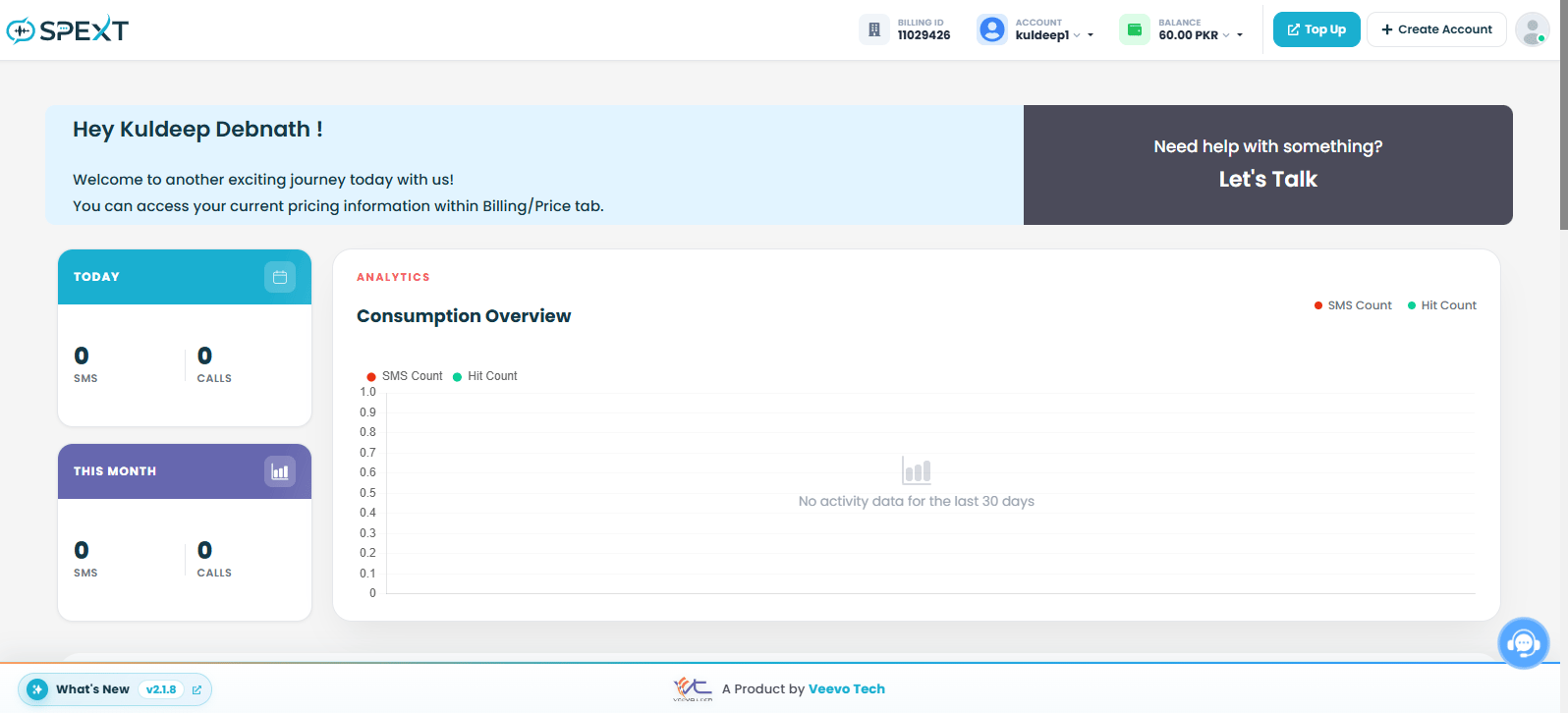
Step 2: Open Manage API
From the SPEXT dashboard, locate the Manage API section. Click Manage API to access your API settings and SMS API integration tools.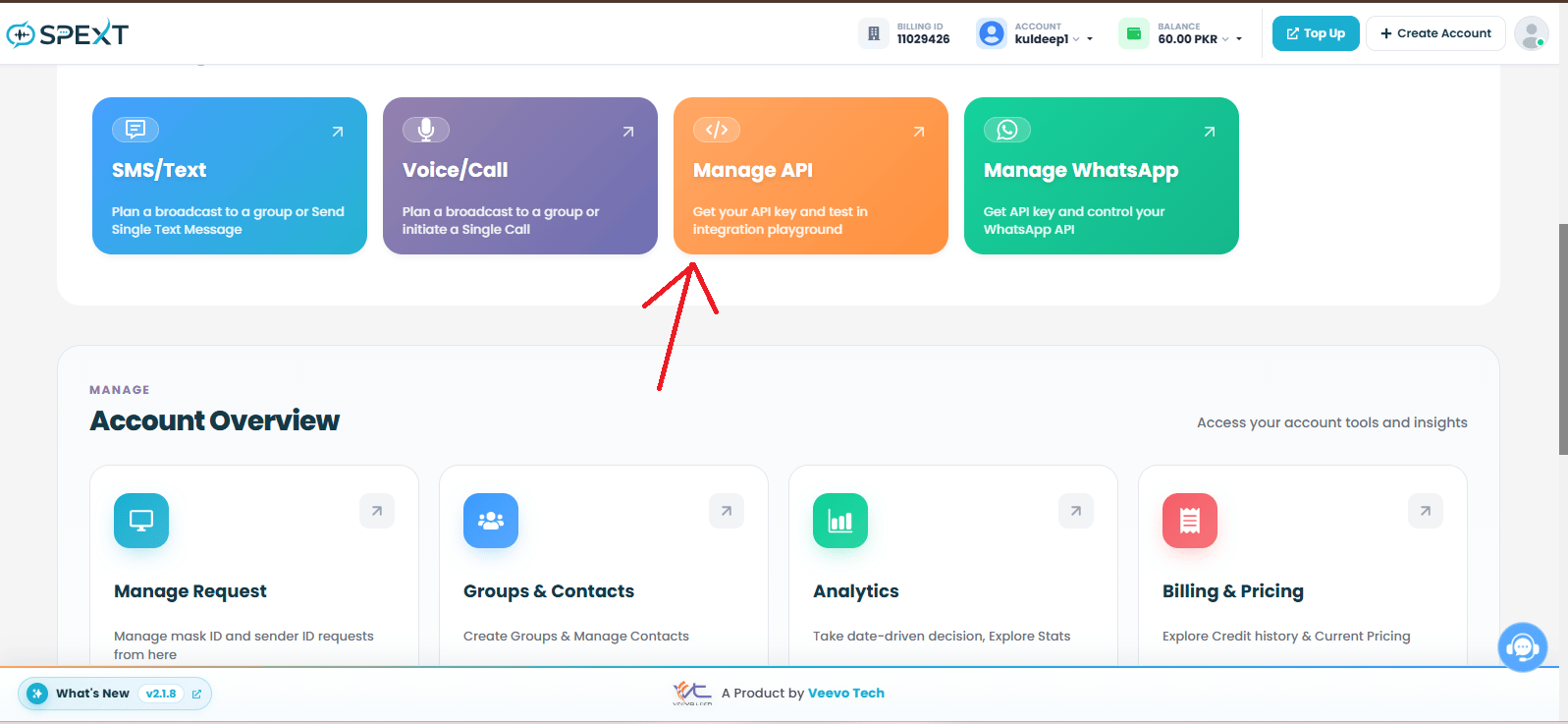
Step 3: Get Your API Key
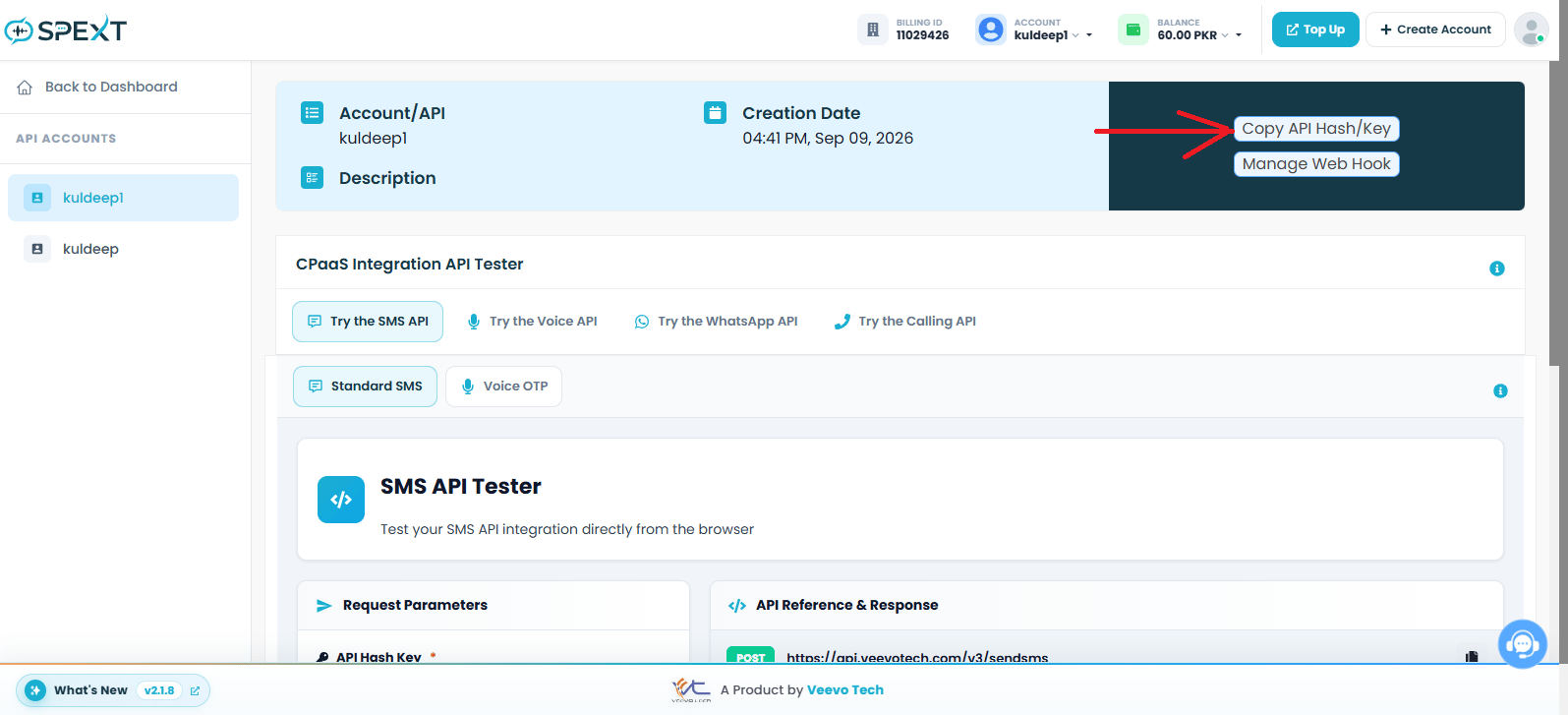
On the Account/API page, you will find your API account information. Click Copy API Hash/Key to copy your VeevoTech API credential. This value will be entered as the API Key in COD King.Keep your API Key secure and do not share it publicly.
Step 4: Request a Sender ID
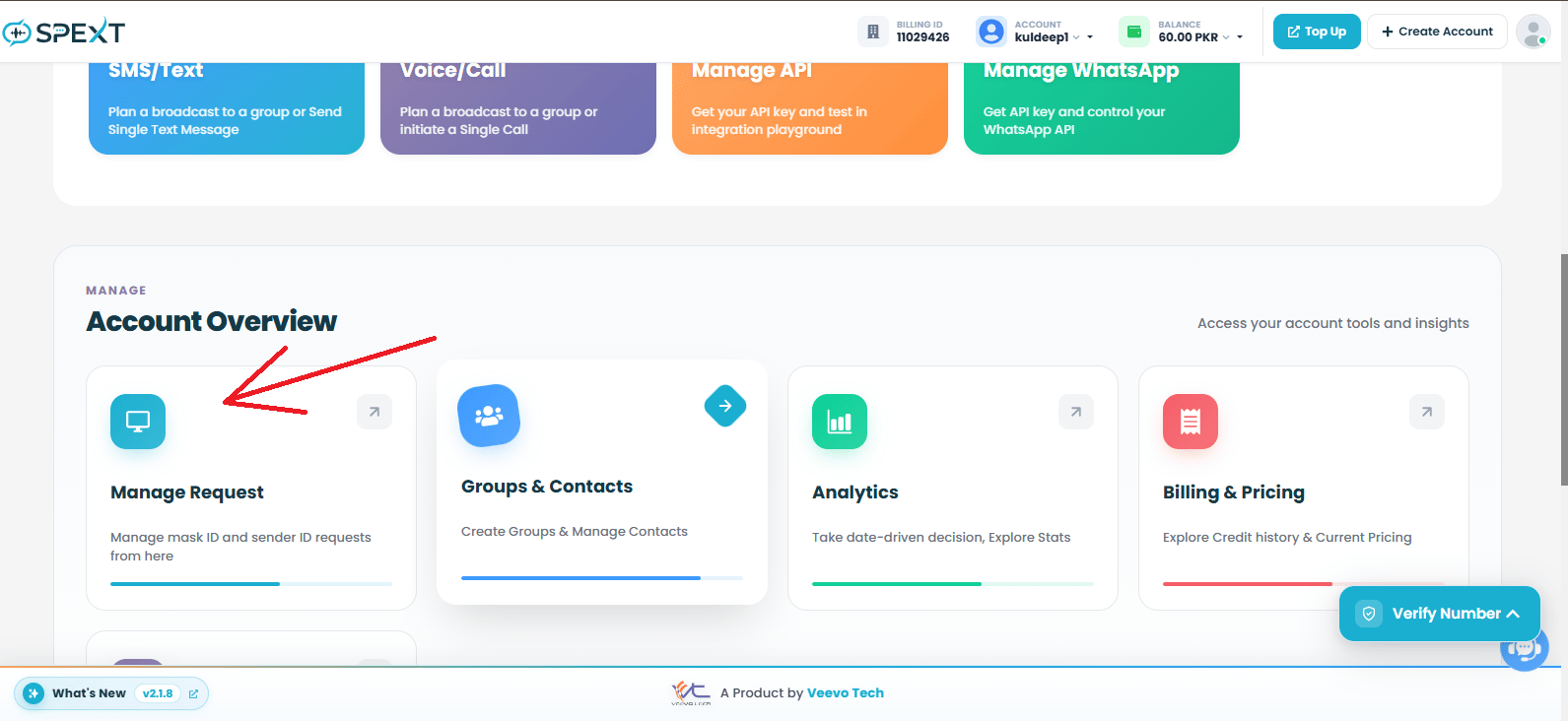
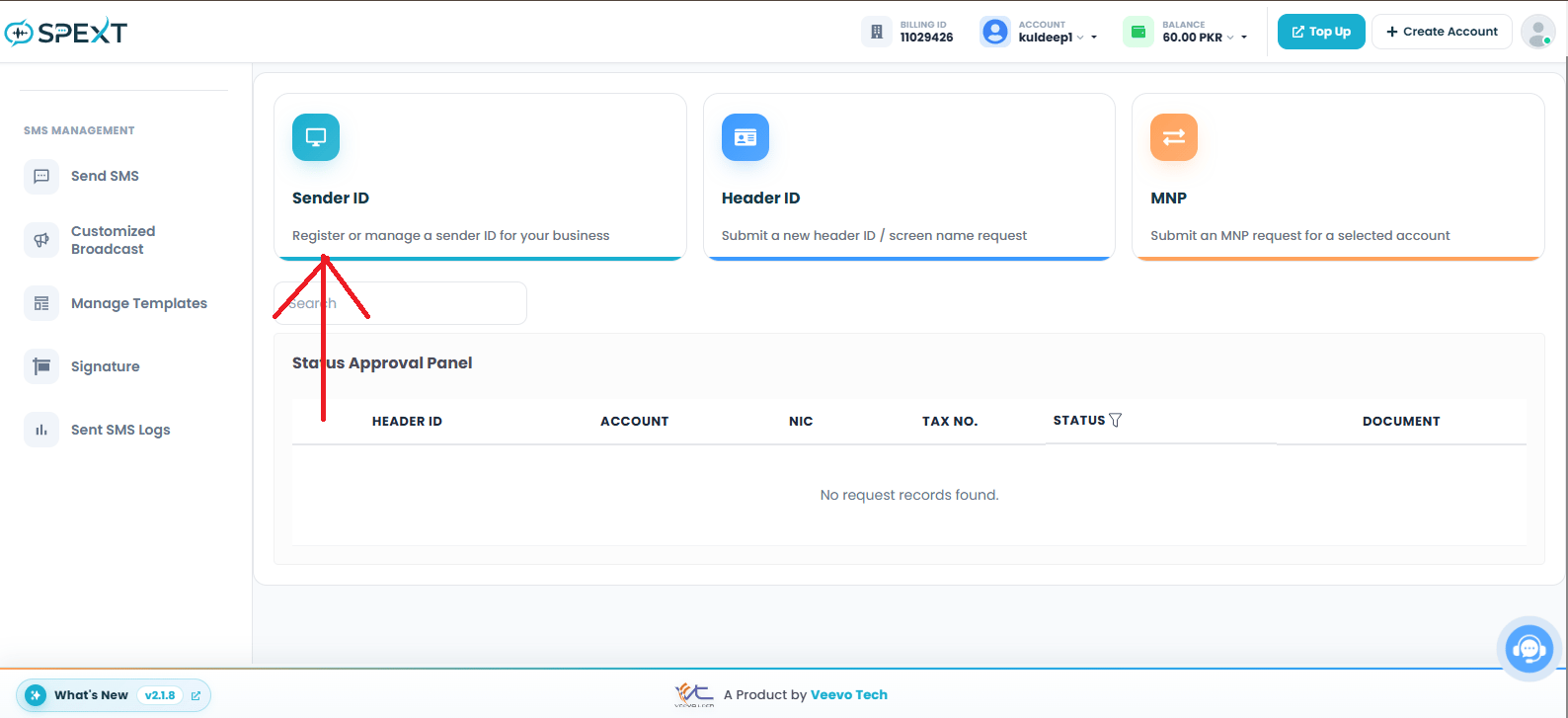
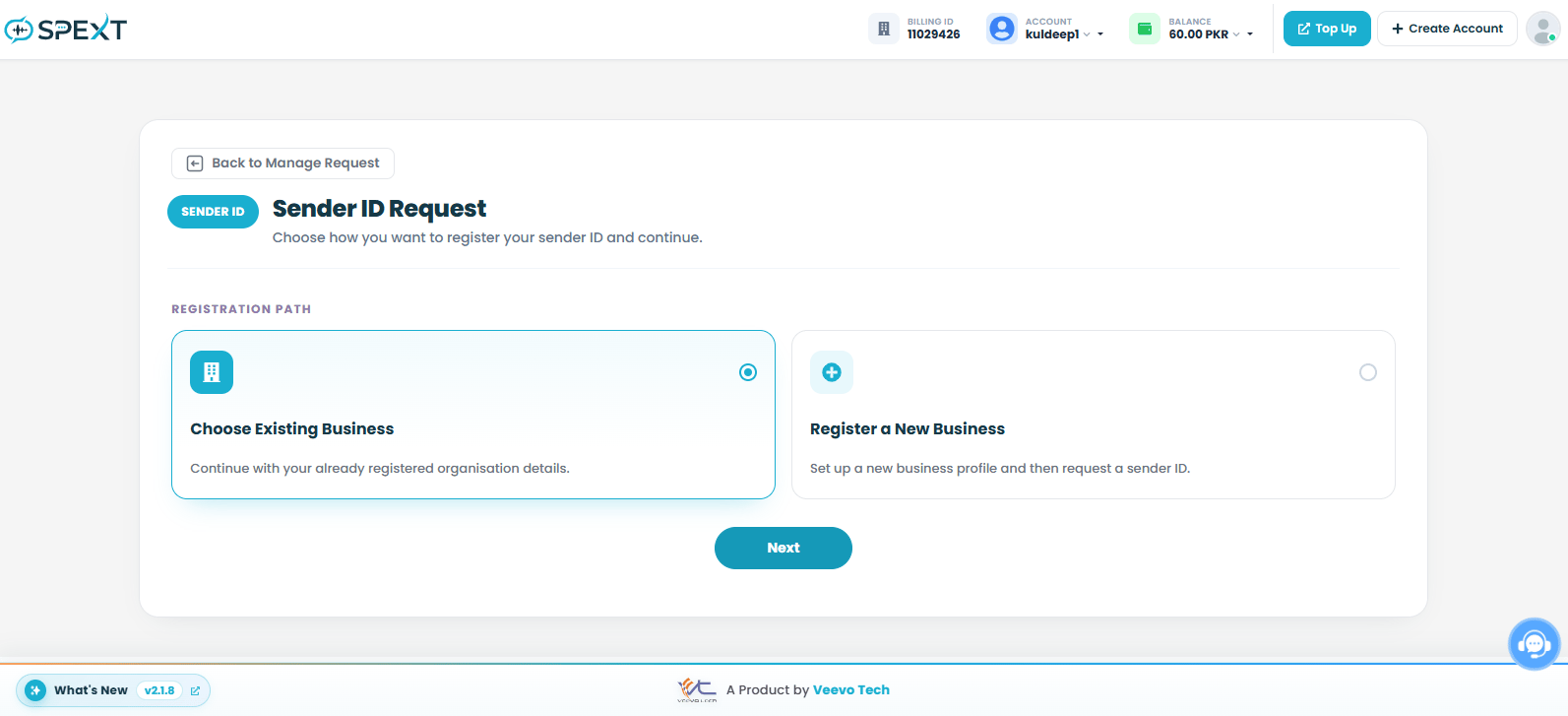
Return to the SPEXT dashboard and open Manage Request. Select Sender ID to start the Sender ID registration process.On the Sender ID Request page, you will see two registration options:
- Choose Existing Business
- Register a New Business
Step 5: Complete Sender ID Registration
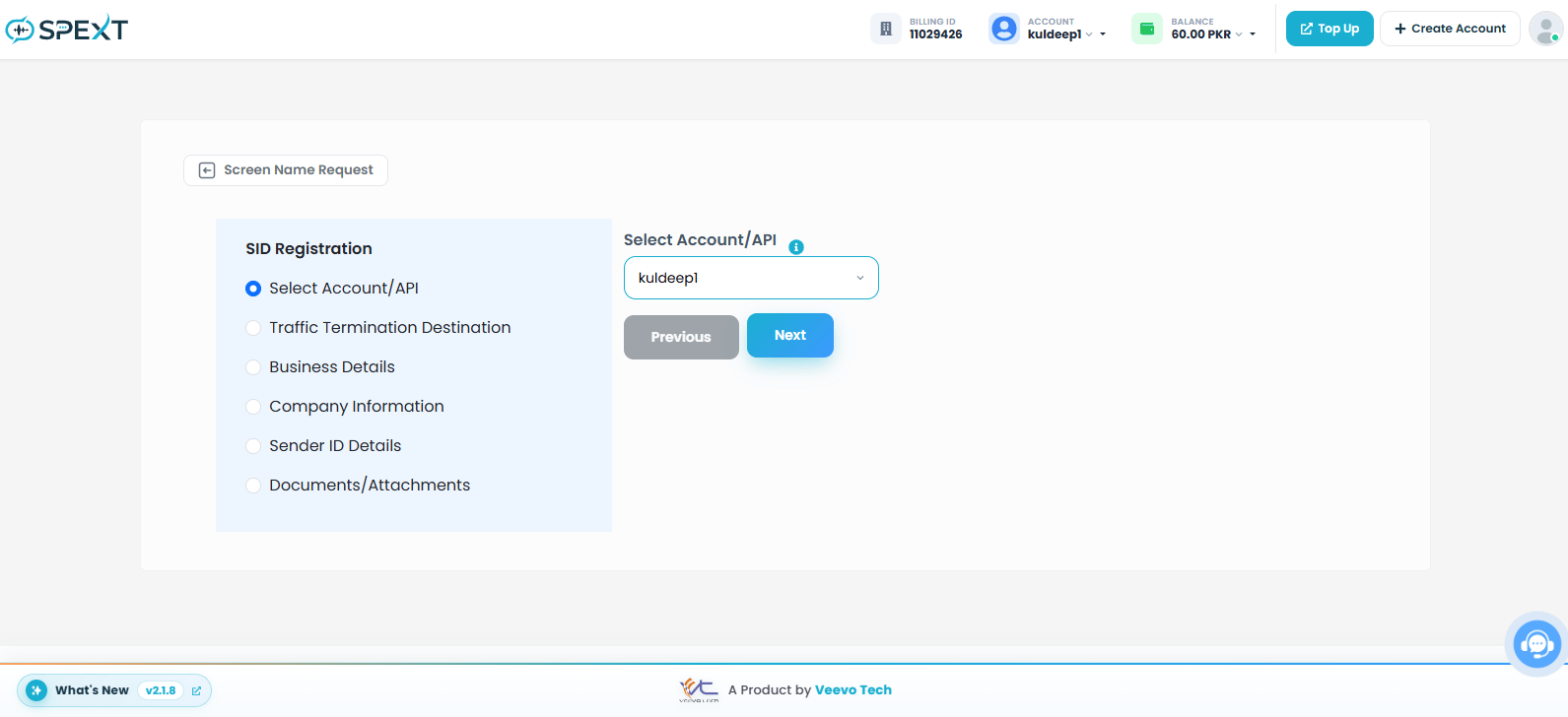
SPEXT will guide you through several sections to complete the Sender ID registration. The registration process includes:- Select Account/API
- Traffic Termination Destination
- Business Details
- Company Information
- Sender ID Details
- Documents/Attachments
Submit the Sender ID request for review.
Step 6: Get Your Approved Sender ID
After submitting the request, VeevoTech will review the provided business information and documents. Once the Sender ID request is approved, you can use the approved Sender ID in COD King. Important: The Sender ID is obtained through the registration and approval process. It is different from your API Key.Step 7: Open COD King
Log in to your Shopify admin and open COD King. Go to: COD King → Local SMS Operators From the Network Provider dropdown, select: Veevotech (Pakistan)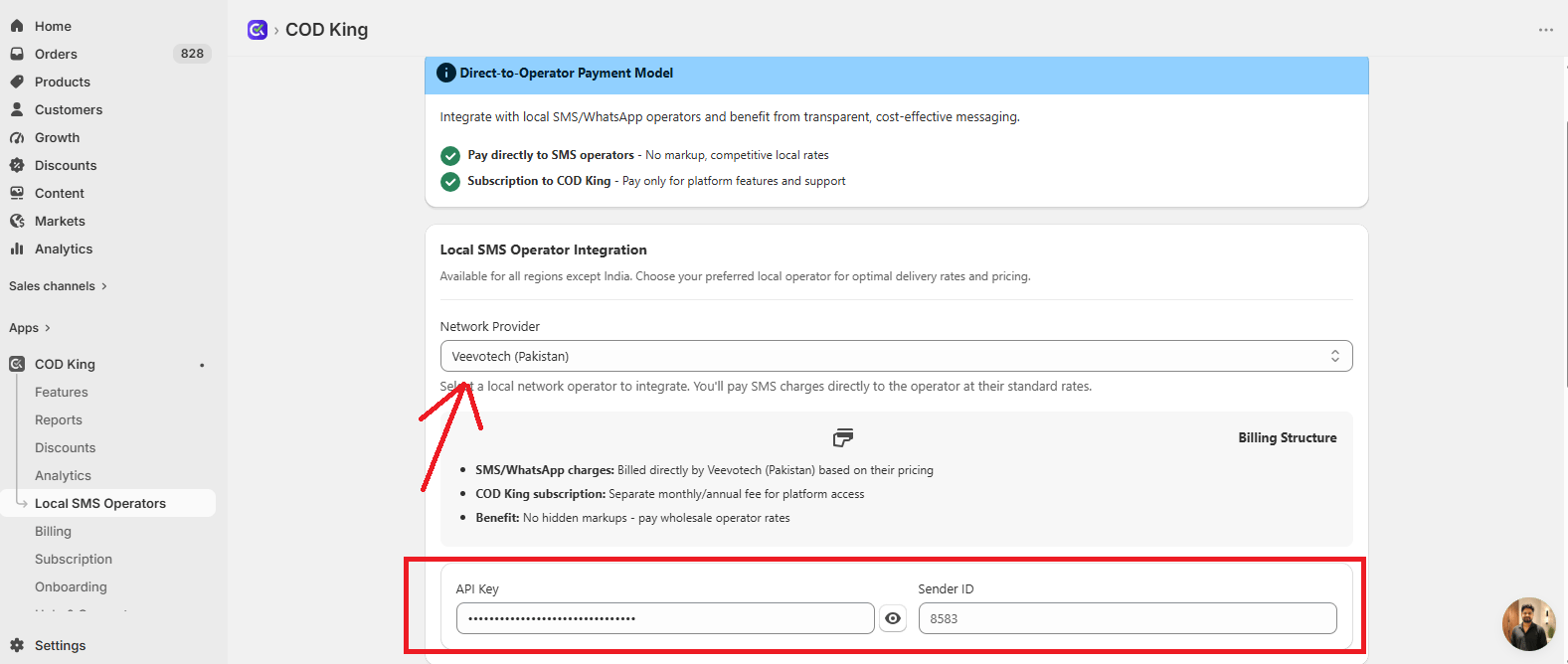
Step 8: Enter Your VeevoTech Credentials
Enter the credentials obtained from SPEXT.
Make sure both values are entered correctly.
Step 9: Save the Configuration
Save the VeevoTech operator configuration in COD King. Make sure the operator settings are saved before testing the integration.Screenshot: Add screenshot here.
Step 10: Test Your Integration
After saving the operator credentials, go to the Test Your Integration section. Enter a valid phone number with the country code. For example: +917548012345 Click Send Test SMS to send a test message and verify that the VeevoTech SMS integration is working correctly.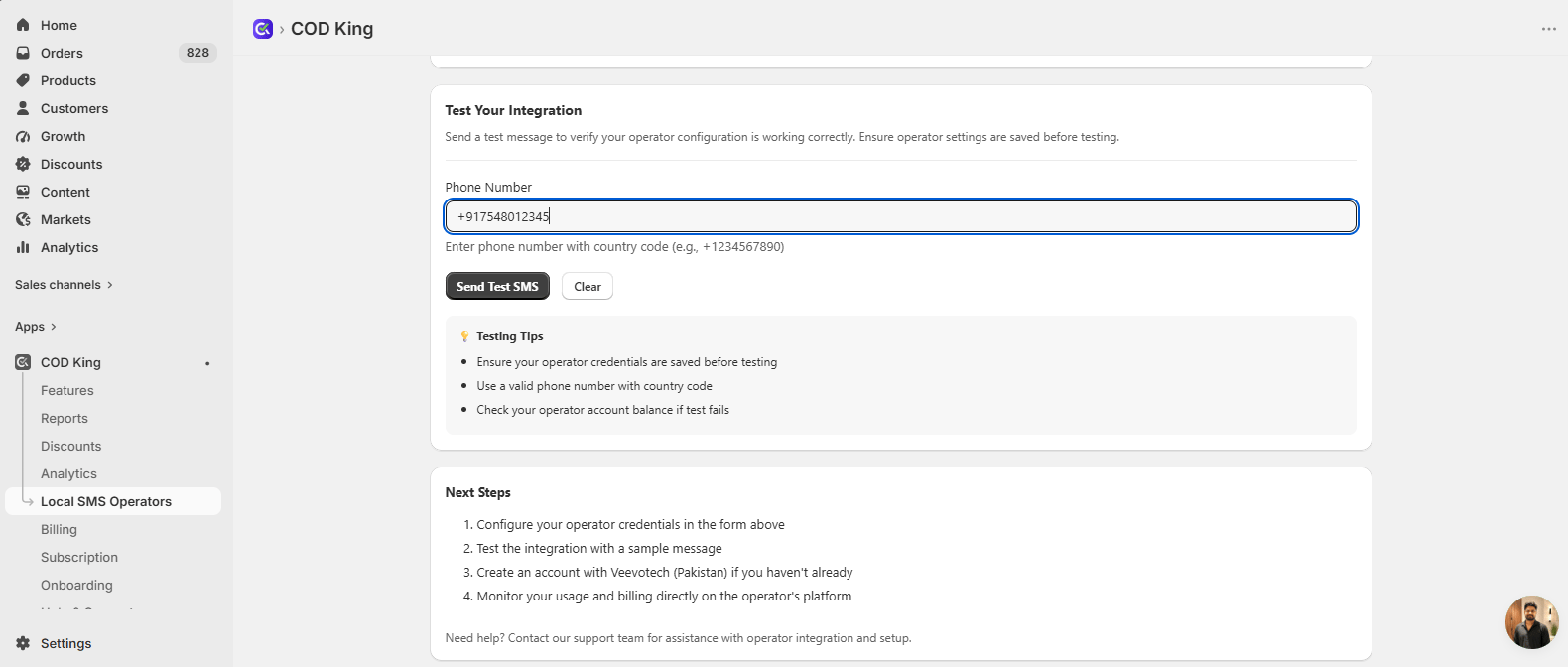
Testing Tips
- Make sure your operator credentials are saved before testing.
- Use a valid phone number with the country code.
- Verify that the API Key and Sender ID are entered correctly.
- Make sure your VeevoTech account has sufficient balance.