
Requirements
Before you begin, make sure you have:- An active eSMS account
- Access to the eSMS API management section
- An API Key
- A Secret Key
- A registered Brandname
- Access to Local SMS Operators in COD King
Step 1: Create an eSMS Account
Create an account on the official eSMS platform. During registration, eSMS requires account and contact information for verification. Complete the registration and account verification process according to the requirements shown by eSMS.Important: A valid Vietnamese mobile number may be required during registration to receive the account verification code.
Step 2: Access eSMS API Management
After creating and verifying your eSMS account, log in to your eSMS account and open the API Management section. According to the official eSMS documentation, the API Key and Secret Key are obtained from the API Management section after creating an eSMS account. For detailed instructions, refer to the official eSMS documentation: Open the official eSMS API Key and Secret Key guideStep 3: Get Your API Key and Secret Key
In the eSMS API Management section, obtain the following credentials:- API Key
- Secret Key
Step 4: Register Your Brandname
eSMS uses Brandname as the sender name displayed to customers when sending branded SMS messages. Before using a Brandname through the API, the Brandname must be registered with eSMS. Complete the Brandname registration process through your eSMS account and provide the required business or verification documents. The exact documentation requirements may vary depending on the business and service being registered. For more information about SMS Brandname registration and requirements, refer to the official eSMS documentation: View the official eSMS Brandname documentationStep 5: Get Your Approved Brandname
After completing the Brandname registration and approval process, use the approved Brandname when configuring your SMS integration. The Brandname is different from the API Key and Secret Key:
The eSMS API documentation specifies that the Brandname must be registered before it can be used for branded SMS.
Step 6: Open COD King
Log in to your Shopify admin and open COD King. Go to: COD King → Local SMS Operators From the Network Provider dropdown, select: eSMS (Vietnam)Step 7: Enter Your eSMS Credentials
Enter the credentials obtained from your eSMS account.
Make sure each value is entered correctly.
Step 8: Save the Configuration
After entering the eSMS credentials, save the operator configuration in COD King. Verify that the API Key, Secret Key, and Sender ID are entered correctly before using the SMS service.Step 9: Test SMS
After saving the eSMS configuration, trigger an SMS notification from your Shopify store. For example :- Click Send Test SMS to send a test message to the entered phone number.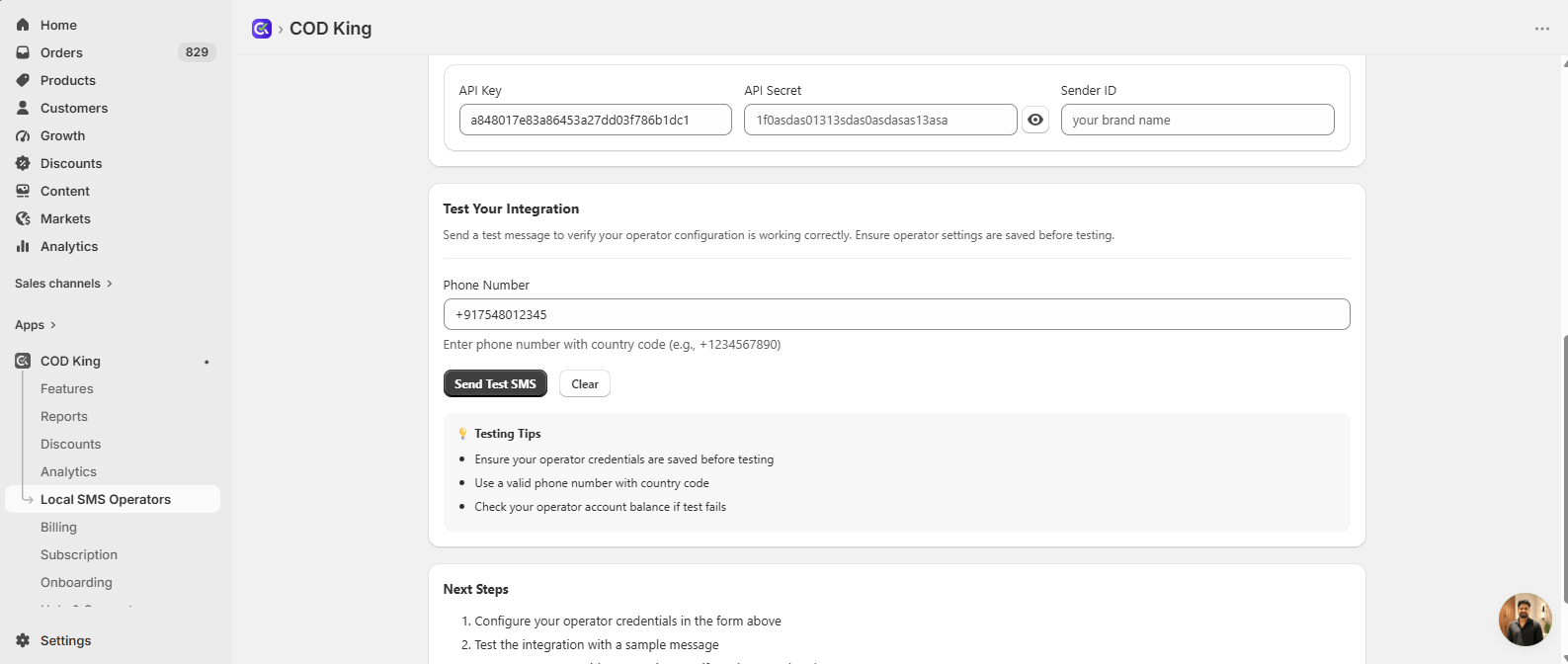
Testing Tips
- Ensure your operator credentials are saved before testing.
- Use a valid phone number with the country code.
- Check your eSMS account balance if the test message fails.
Manage Your Integration
After configuring eSMS, you can manage the integration from the Local SMS Operators section in COD King. You can:- Update your API Key when required.
- Update your Secret Key when required.
- Update the Sender ID when your approved Brandname changes.
- Test SMS delivery from your Shopify store.
- Manage your eSMS account, Brandname, and API credentials directly through eSMS.
Important Notes
- Keep your API Key and Secret Key private.
- Use only an approved eSMS Brandname as the Sender ID.
- The Brandname must be registered before it can be used for branded SMS.
- eSMS API requests require authentication using the API Key and Secret Key.
- eSMS may require business and identity documents for Brandname registration.
Official eSMS Documentation
For additional information and API reference, use the official eSMS resources:- eSMS API Documentation
- API Key and Secret Key Guide
- SMS API – OTP and Customer Care Messages
- eSMS API Reference
- SMS Brandname Documentation