
What is OTP Verification ?
OTP Verification is a process where customers receive a unique, time-sensitive code on their mobile number, which they must enter to confirm their identity and order. This ensures that:- The phone number is valid and reachable
- The customer genuinely intends to place the order
- Fake or spam orders are reduced
Why OTP Verification is Needed ?
For COD businesses, unverified orders can directly impact profitability and operations. OTP verification helps solve these key challenges:High Return to Origin (RTO)
Up to 20%–40% of COD orders can fail due to fake or unverified customers. OTP verification ensures only genuine buyers place orders, significantly reducing RTO losses.
Fake & Spam Orders
Invalid phone numbers, bots, and prank orders increase operational risk. OTP verification filters out non-serious users before the order is confirmed.
Low Customer Intent
Without verification, customers may place orders casually without commitment. OTP confirmation ensures higher intent and improves order reliability.
Delivery Failures
Incorrect or unreachable contact details lead to failed deliveries. OTP verification validates the customer’s phone number before processing the order.
Countries Where OTP Verification Works Best
OTP verification is highly effective in regions where COD is widely used and order fraud rates are higher: 🇵🇭 Philippines (PH) 🇵🇰 Pakistan (PK) 🇮🇳 India (IN) 🇸🇦 Saudi Arabia (SA) 🇦🇪 United Arab Emirates (UAE) 🇺🇦 Ukraine (UA) 🇪🇬 Egypt (EG)OTP Verification Placements
COD King allows flexible placement of OTP verification based on your business needs let us understand them step by step for each plcaement:1. Pre-Order Verification Step by Step Guide :
Pre-order OTP in the COD King app is a security feature that verifies a customer’s mobile number via a One-Time Password (OTP) before the Cash on Delivery (COD) order is placed. DEMO VIDEO FOR REFERENCE
The purpose of Pre-Order OTP in the COD King app is to ensure order authenticity and reduce return-to-origin (RTO) losses for Cash on Delivery (COD) orders, Now let’s understand this step by step :
- Open your COD King Dashboard and click on Features
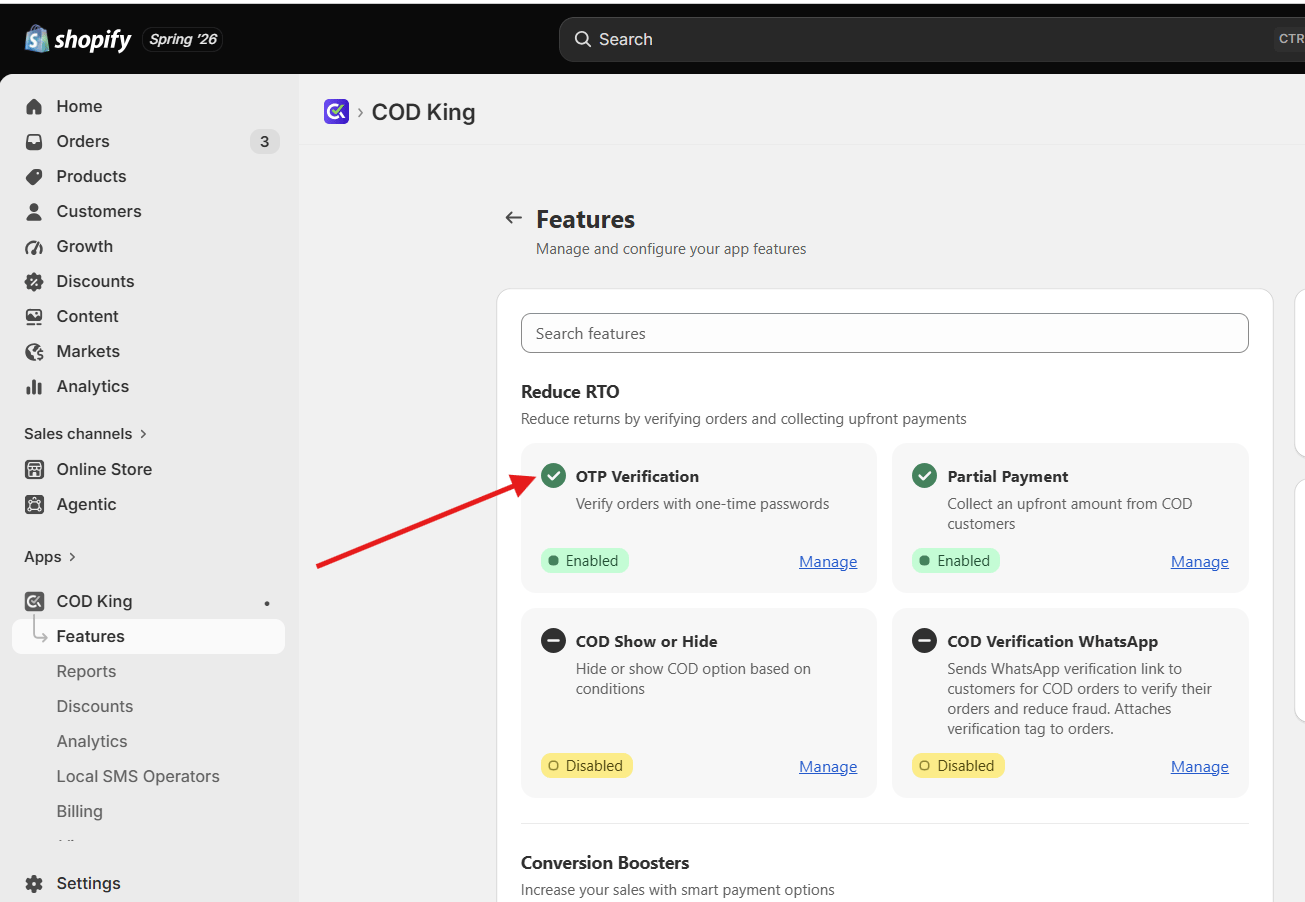
- Select the OTP in Product /Pre Order OTP
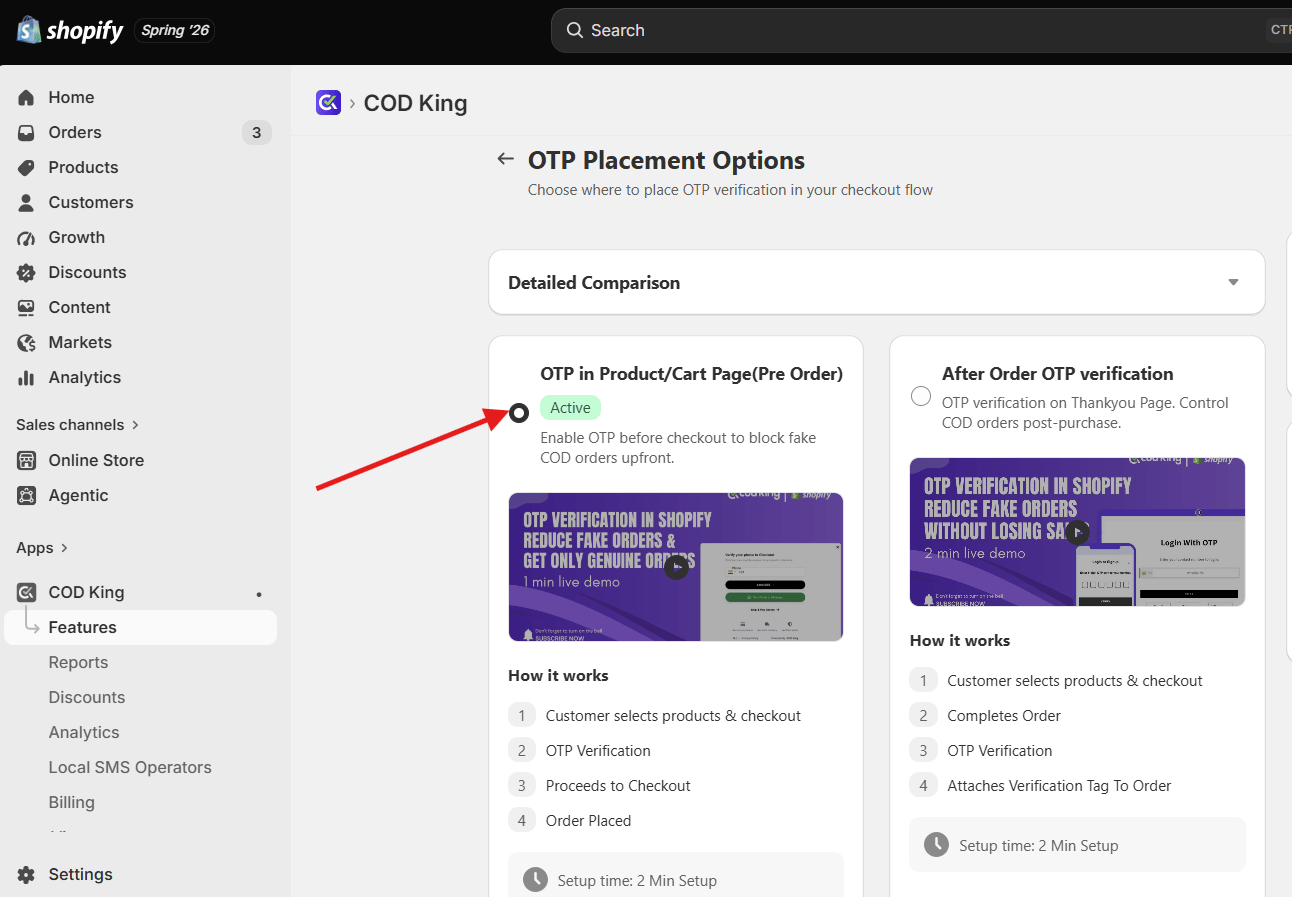
- Enable Theme Integration in order to proceed further, now click Open Theme Editor
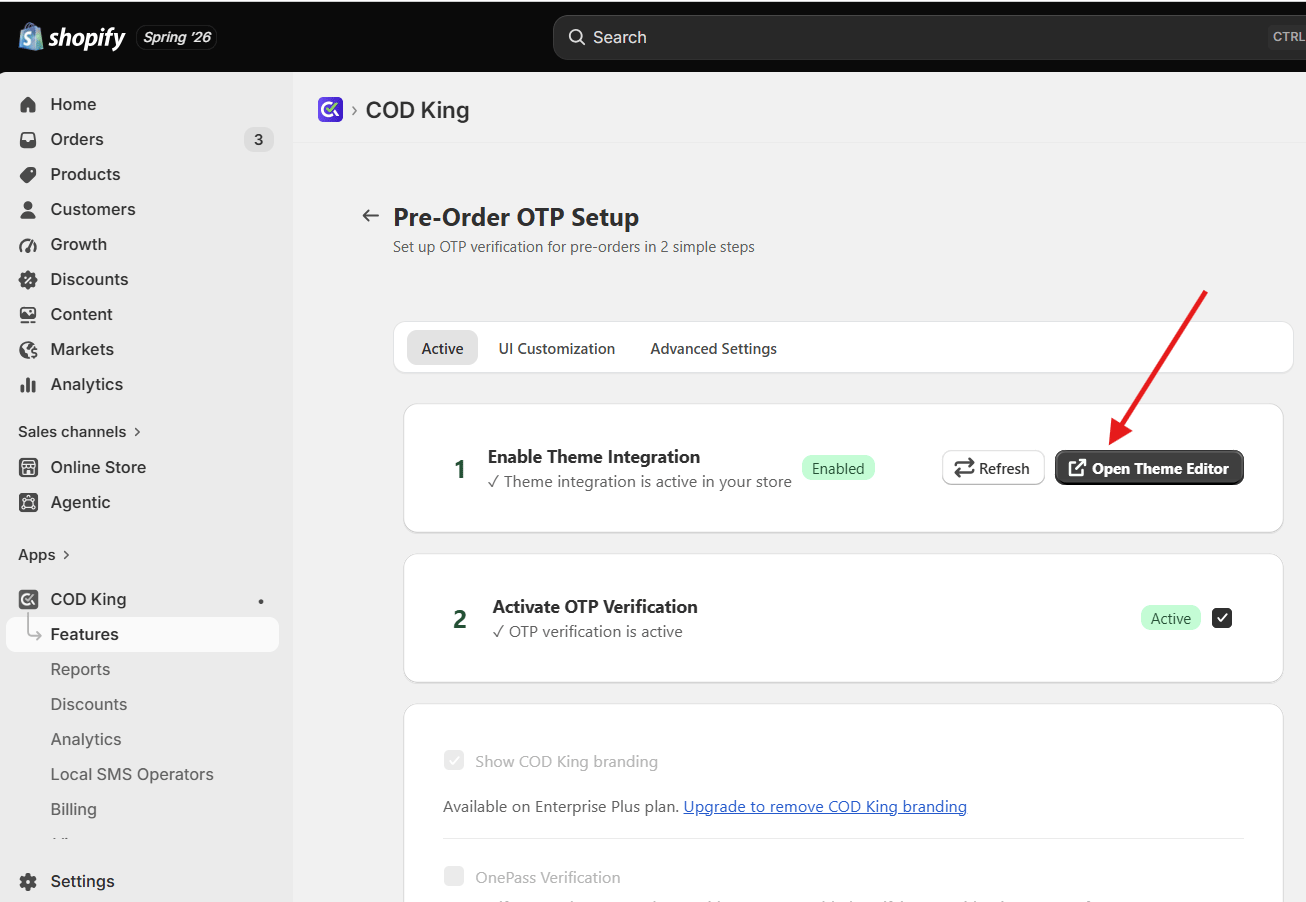
- A new page will appear make sure to enable the extension and hit save button
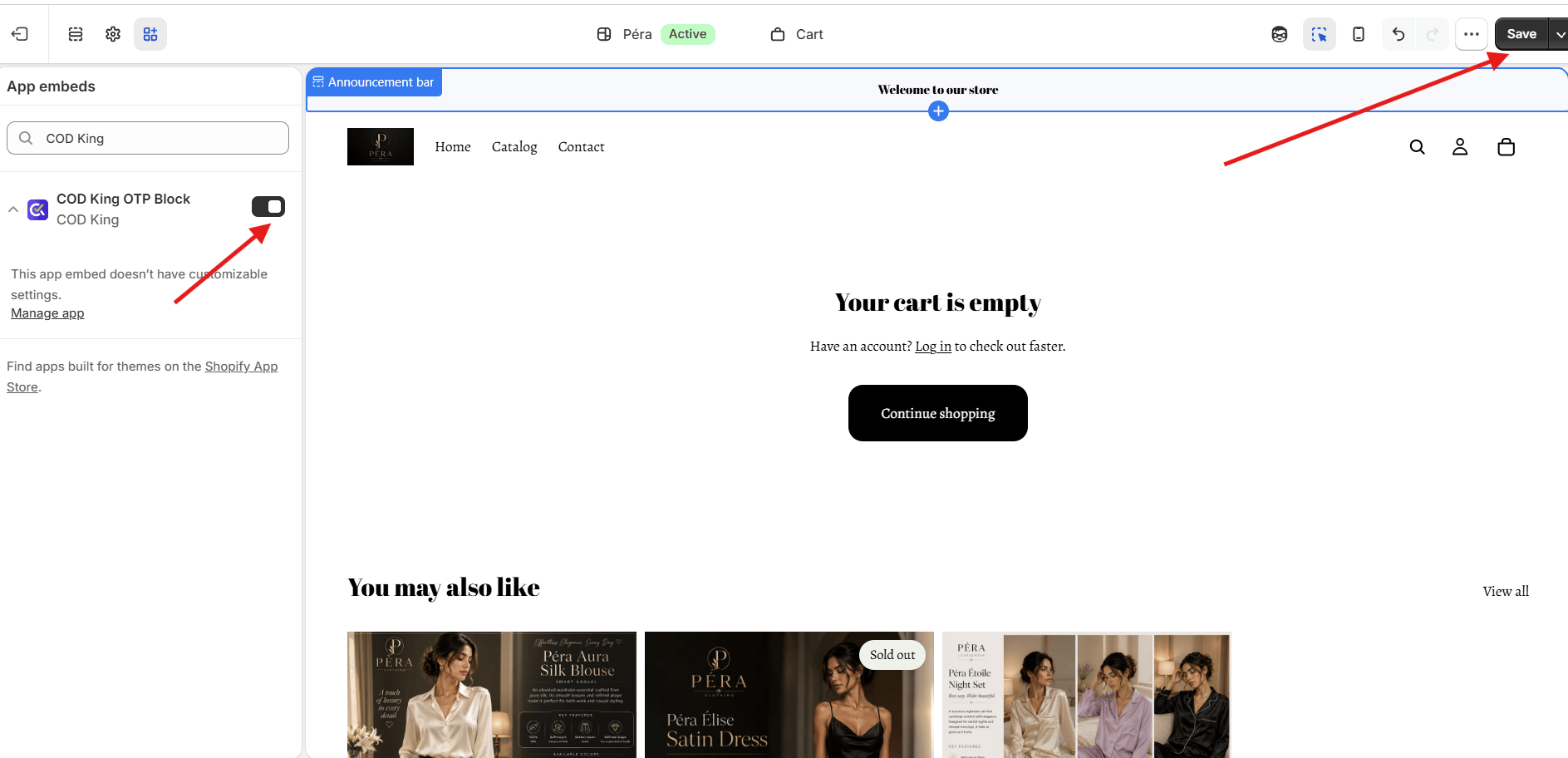
- Once done go back to the previous tab and select step 2 to Activate OTP Verification
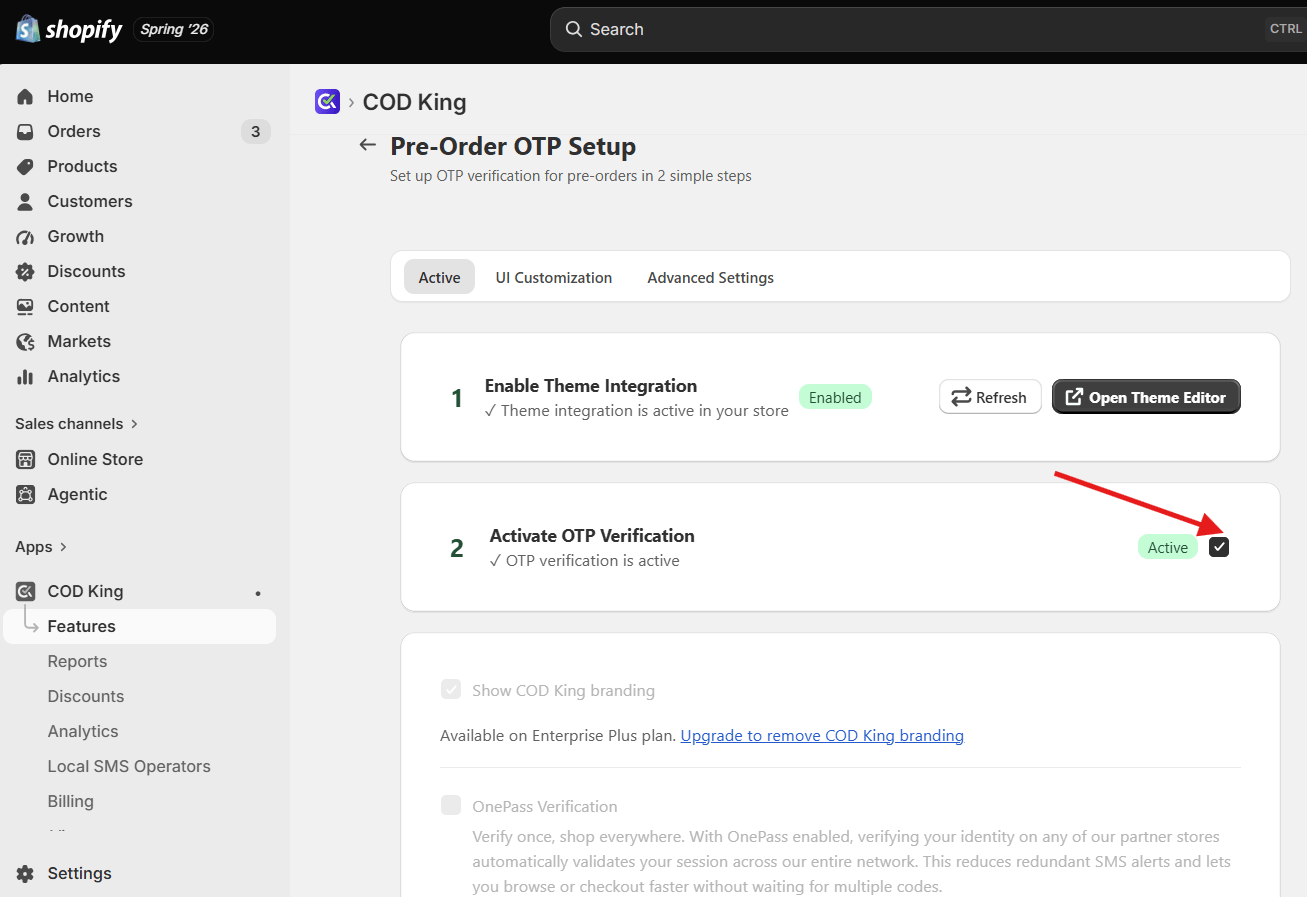
- Select the checkbox for Enable Prefilled Shipping Address (Only for India)
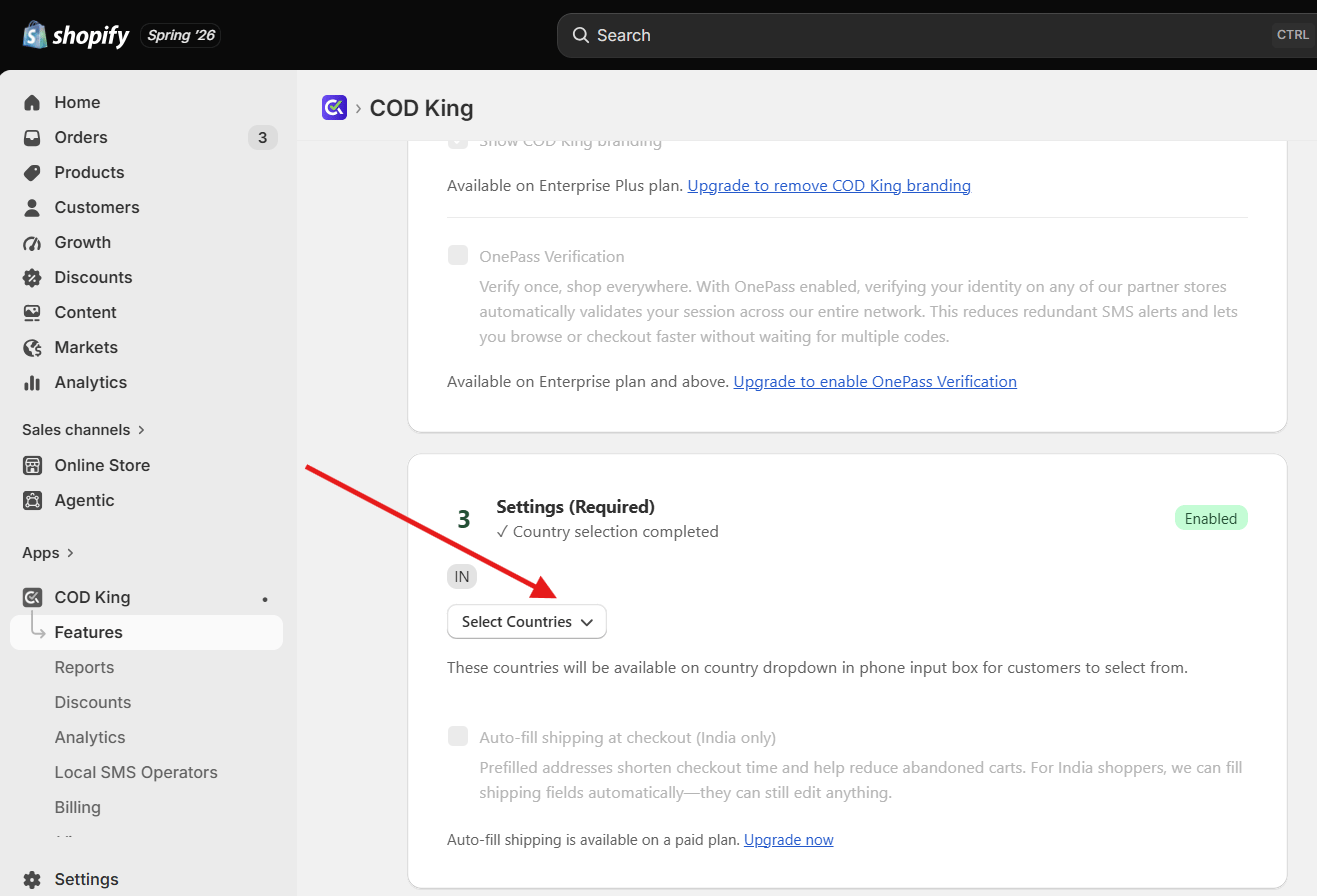
- Go to UI customization and update the URL link of the image logo to appear in the OTP verification dialog box
- Open your Store and add a product to the cart to check for the OTP Verification
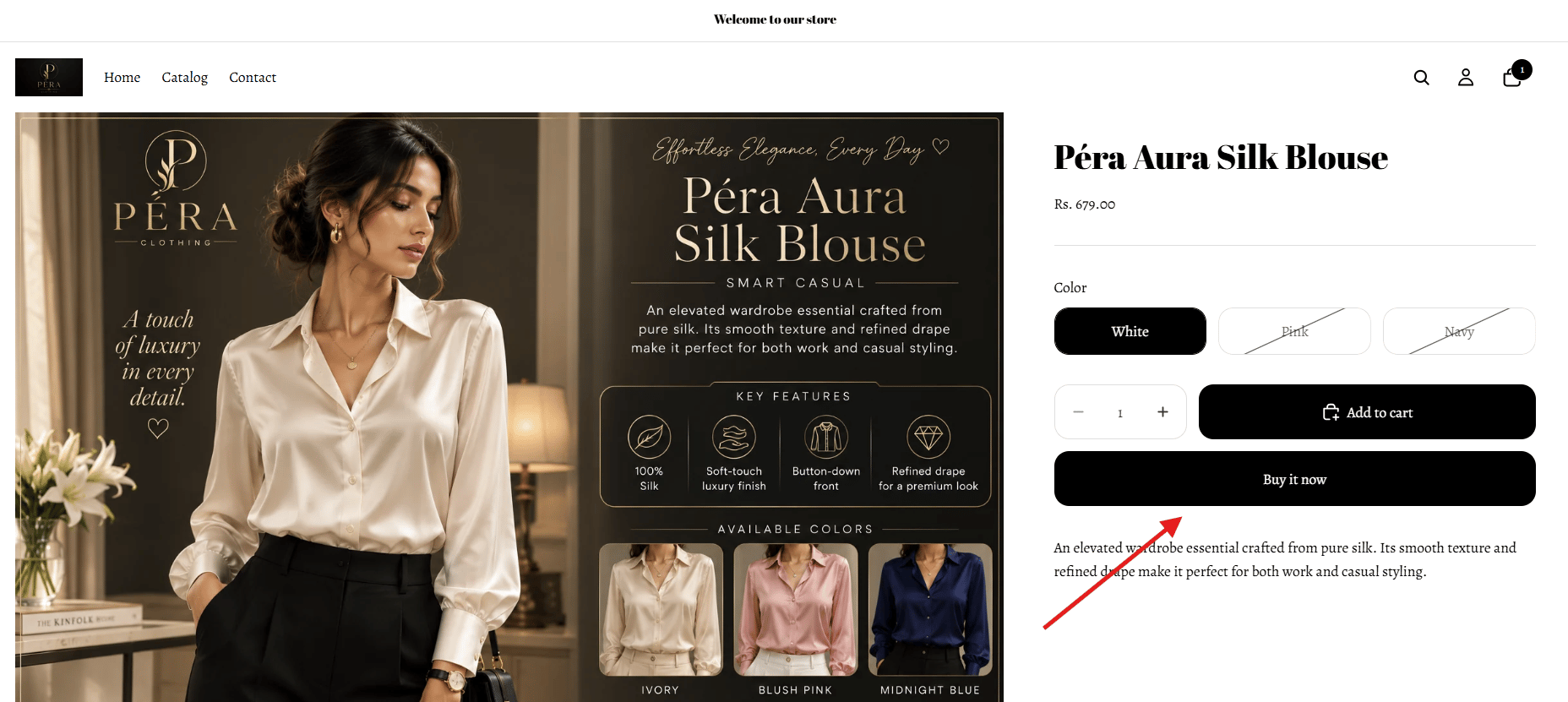
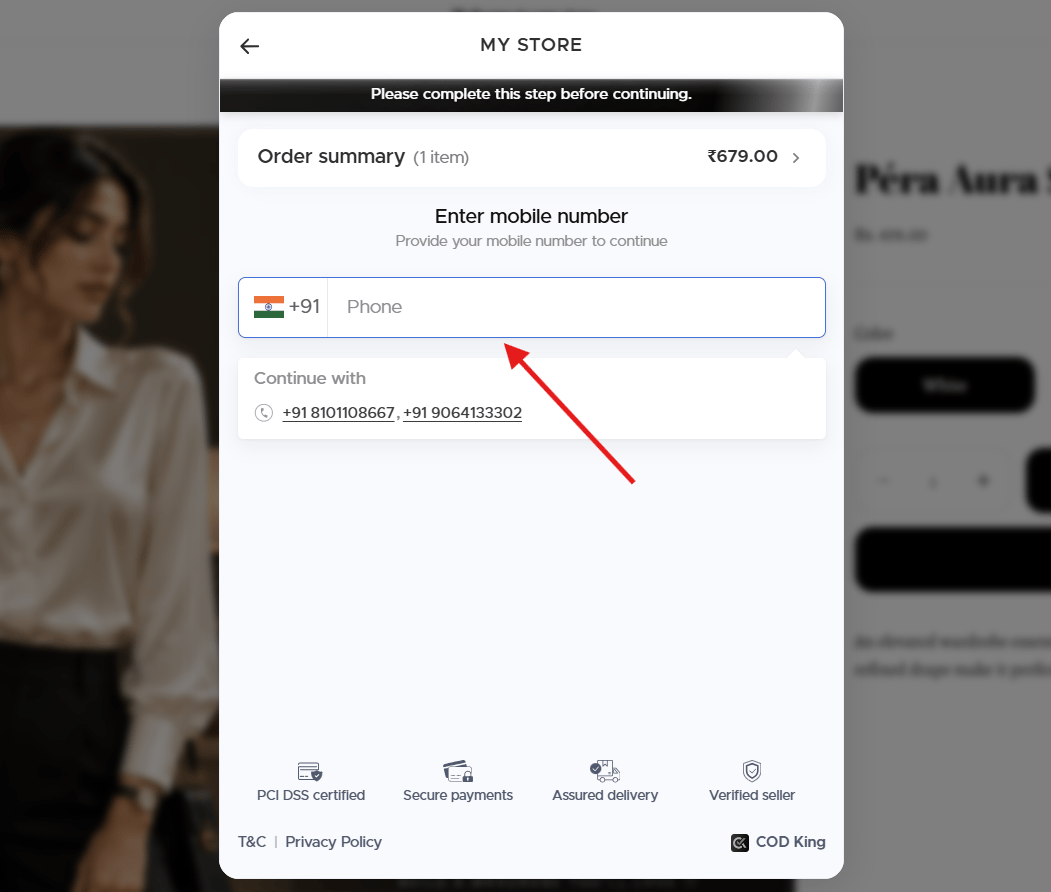
- You can see the checkout page open and see a pop up to enter your number for OTP Verification
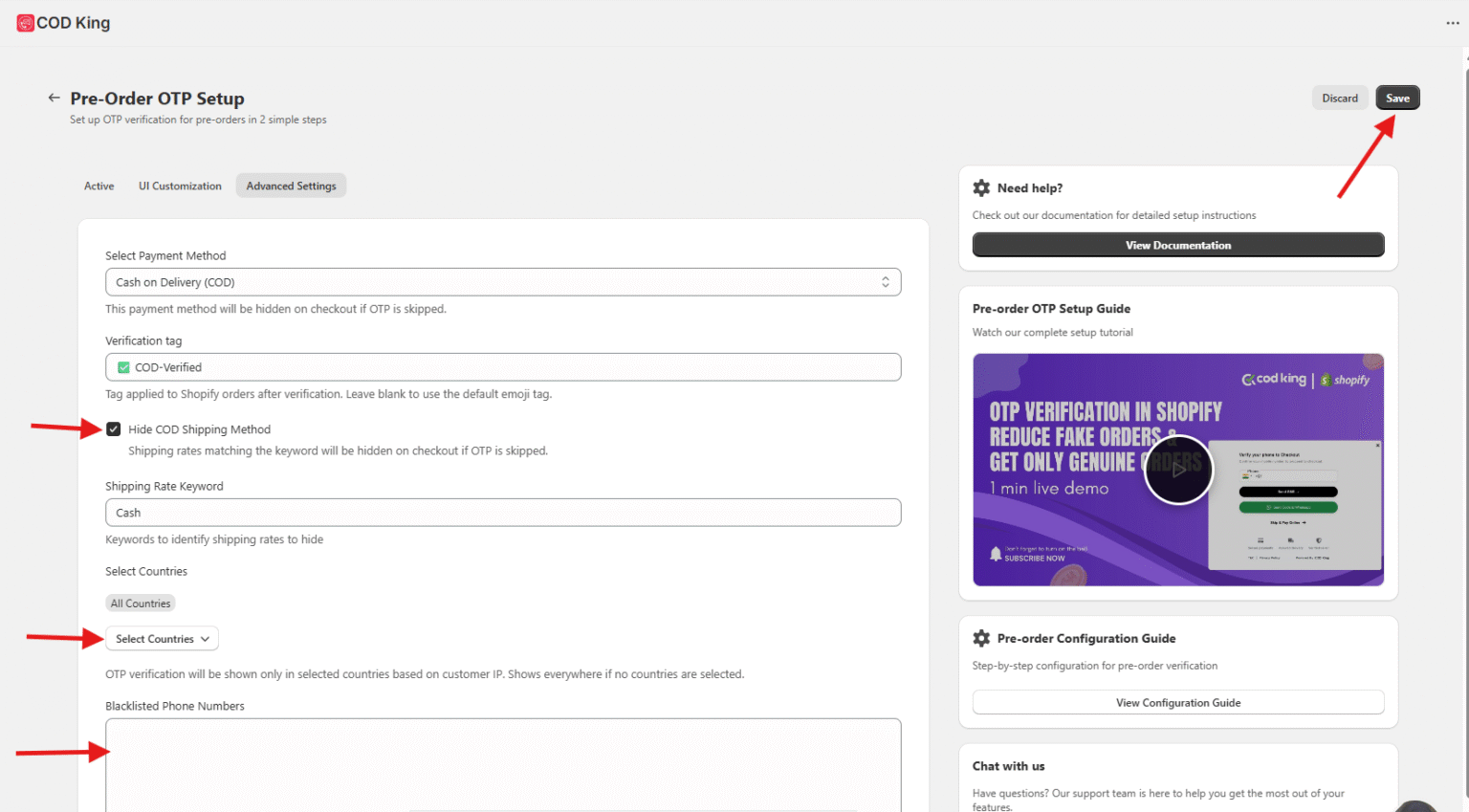
- Under Advanced settings, if Hide the COD Shipping Method is giving the customer will be directed to Check out page with COD option
- OTP pop-up will be shown only in selected countries based on customer IP. Shows everywhere if no countries are selected.
- We can also Blacklist the phone number, once done save the changes
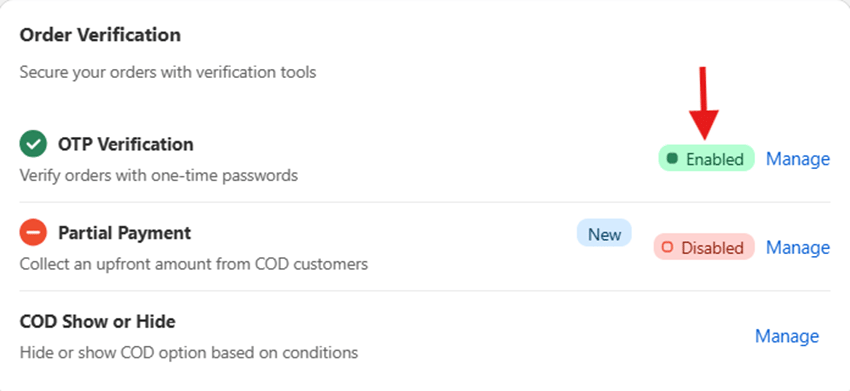
- Go back to previous tab and check the OTP verification option under COD King Features it will be Enabled as below
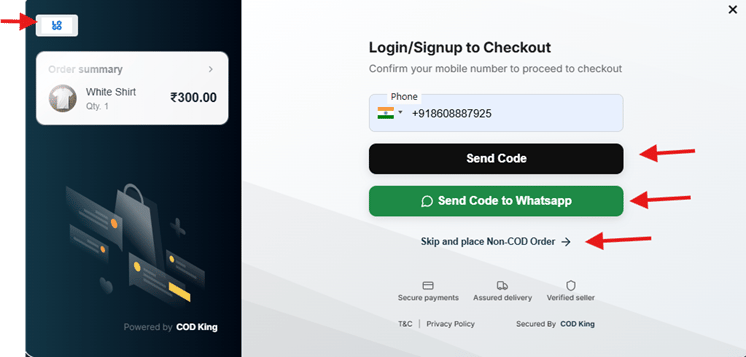
- Now if you go to the online store and Buy a product a dialog box will appear to enter the phone number to verify with the OTP to proceed further
- Once the phone number is given and click Send Code button an OTP will be sent to the respective Phone number provided
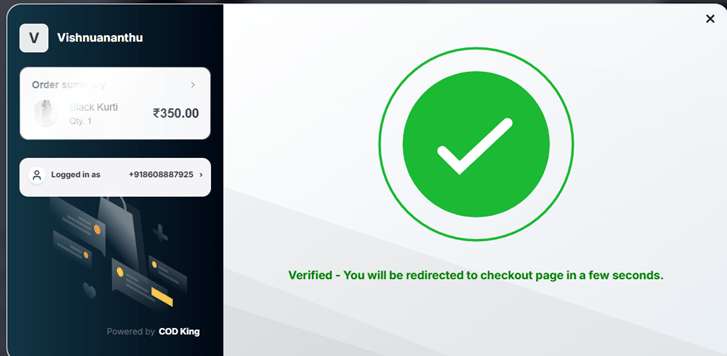
- Only after entering OTP the checkout page will be redirected
- Test the Flow
- Place a test COD order.
- Confirm that the OTP is triggered before checkout and must be verified to proceed
- Monitor Performance
- Use the dashboard to track:
- OTP success rates
- RTO reduction
- Verified customer data
One Pass Verification
One Pass Verification streamlines the order confirmation process by verifying customers in a single, seamless step—reducing friction while maintaining strong security.Step 1: Enable One Pass Verification
Go to your dashboard and navigate to Verification Settings. Select One Pass Verification as your preferred method.Step 2: Choose Verification Channel
Select the channel for sending verification (SMS or WhatsApp) based on your customer preference and reach.Step 3: Configure Trigger Conditions
Set when One Pass Verification should be applied—such as for all orders, COD orders, or specific risk-based scenarios.Step 4: Customize the Verification Message
Create a clear and concise message that includes your brand name and verification intent to build trust.Step 5: Activate Auto-Verification Logic
Enable automatic verification so that once the customer completes the action (e.g., clicking the link or confirming), the order is instantly marked as verified.Step 6: Save & Enable
Save your settings and turn on One Pass Verification.Step 7: Test the Flow
Place a test order to ensure the verification process works smoothly and completes in a single step.One Pass Verification acts as a single-step trust checkpoint, confirming genuine customers instantly while eliminating the need for multiple OTP verifications—reducing friction and improving conversion rates.
2. Checkout Page (Shopify plus) Verification
Checkout page verification (Shopify Plus) acts as a real-time trust checkpoint, ensuring only genuine customers proceed with their orders.Step-by-Step Guide :
Step 1: Access Shopify AdminLog in to your Shopify Plus admin panel and navigate to Settings → Checkout. Step 2: Open Checkout Customization
Click on Customize Checkout to access the checkout editor powered by Shopify Plus extensions. Step 3: Add OTP Verification Extension
From the extensions panel, add your OTP verification app (e.g., COD verification app) to the checkout flow. Step 4: Configure Placement
Place the OTP verification block at the desired step (typically before payment or order confirmation). Step 5: Set Verification Rules
Define when OTP should trigger—such as for all users, COD orders, or high-risk transactions. Step 6: Customize Verification Flow
Edit messaging, branding, and user prompts to ensure a smooth and consistent checkout experience. Step 7: Save & Publish
Save your changes and publish the checkout to make OTP verification live. Step 8: Test the Checkout Flow
Run a test order to ensure OTP is sent, verified, and the checkout completes without issues.
Available for Shopify Plus plan only. With Shopify Plus checkout extensions, OTP verification becomes a seamless part of your checkout—helping you reduce fake orders, improve trust, and optimize conversions.
3. Post-Order Verification Step by Step Guide :
Post-order OTP verification acts as a final security checkpoint, ensuring the right customer receives the order. DEMO VIDEO FOR REFERENCE
By requiring a one-time password at delivery, it confirms buyer intent, prevents fake COD orders, and safeguards transactions from unauthorized handovers, Now let’s understand this step by step :
- Install COD King App
- Go to the Shopify App Store and install the COD King – Verify COD Orders app.
- Enable Post Order OTP
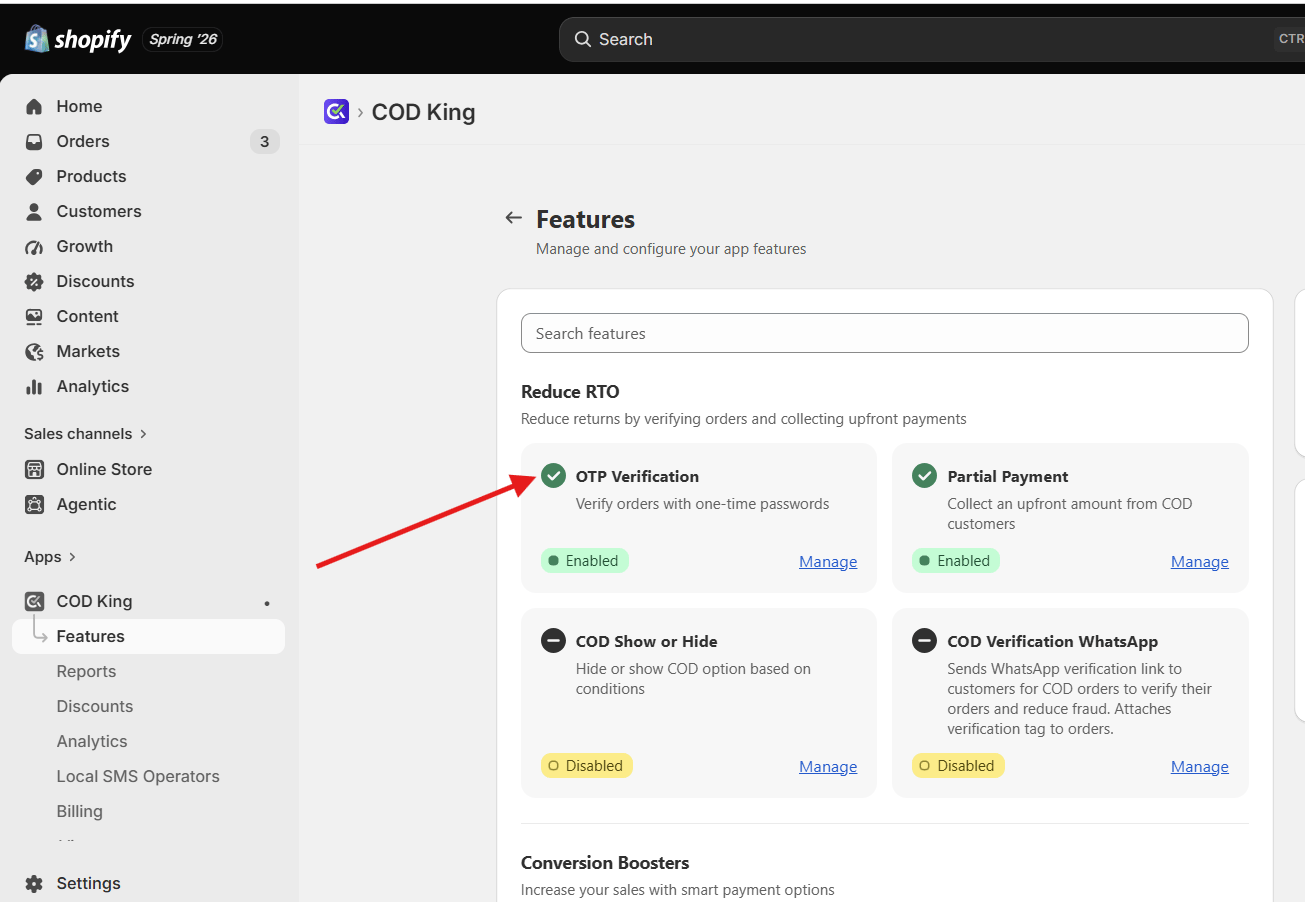
- Navigate to Features –>OTP Verification–>Manage
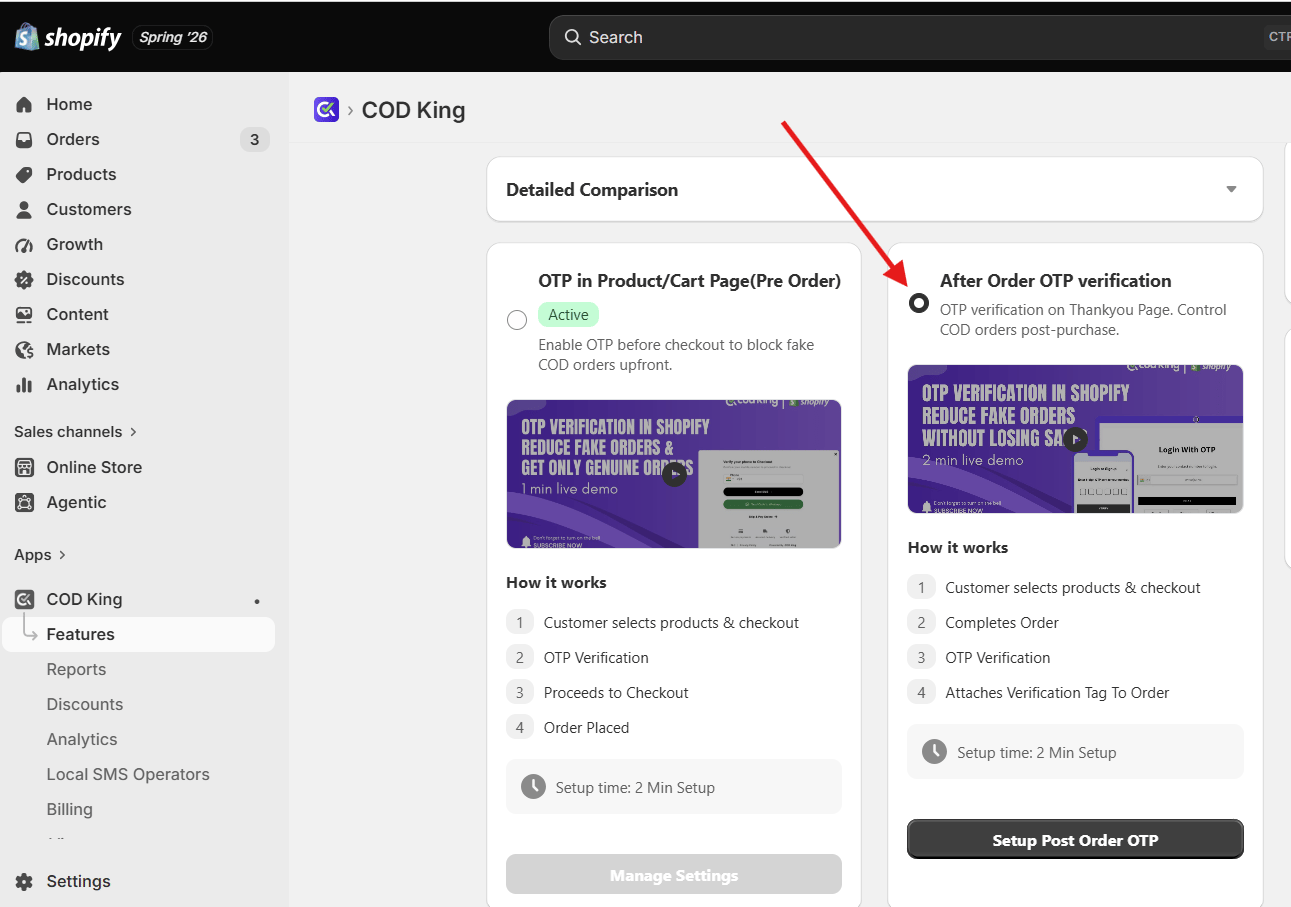
- Now select the “Post Order OTP” section and click Set Post Order OTP
- Toggle the switch to activate this feature
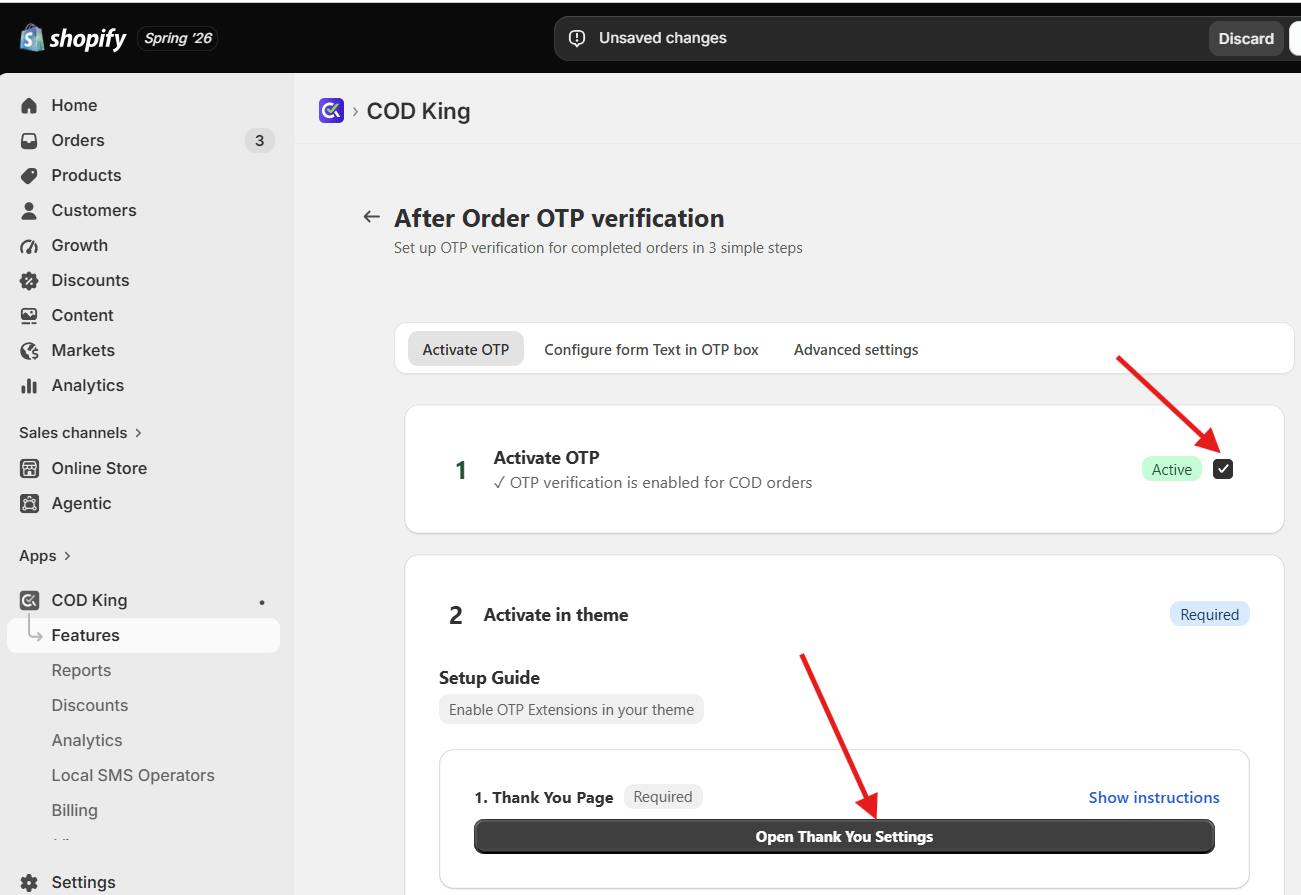
- Activate in Theme
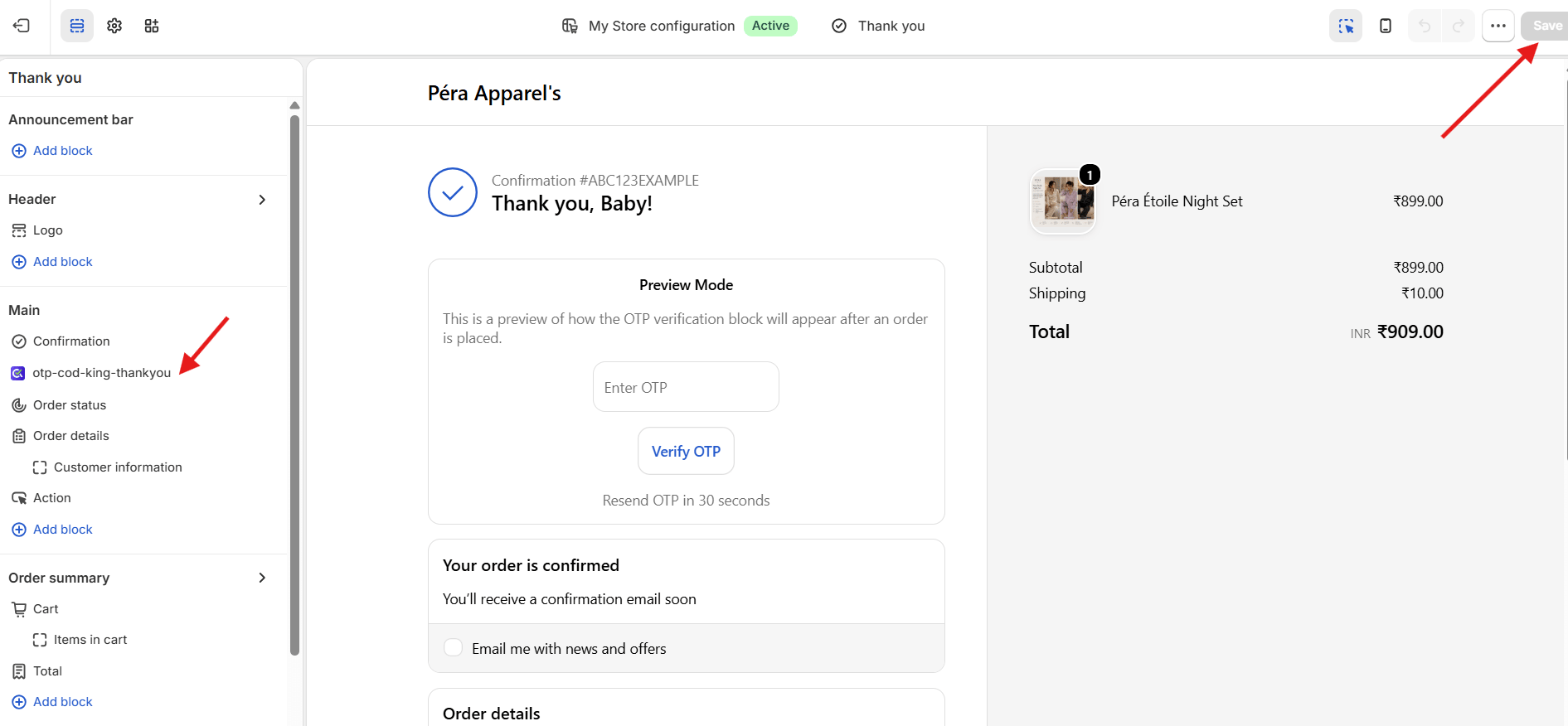
- Open Thank You Page settings,
- Click on Add block and select the otp-cod-king-thankyou and save
- Thank You page OTP preview
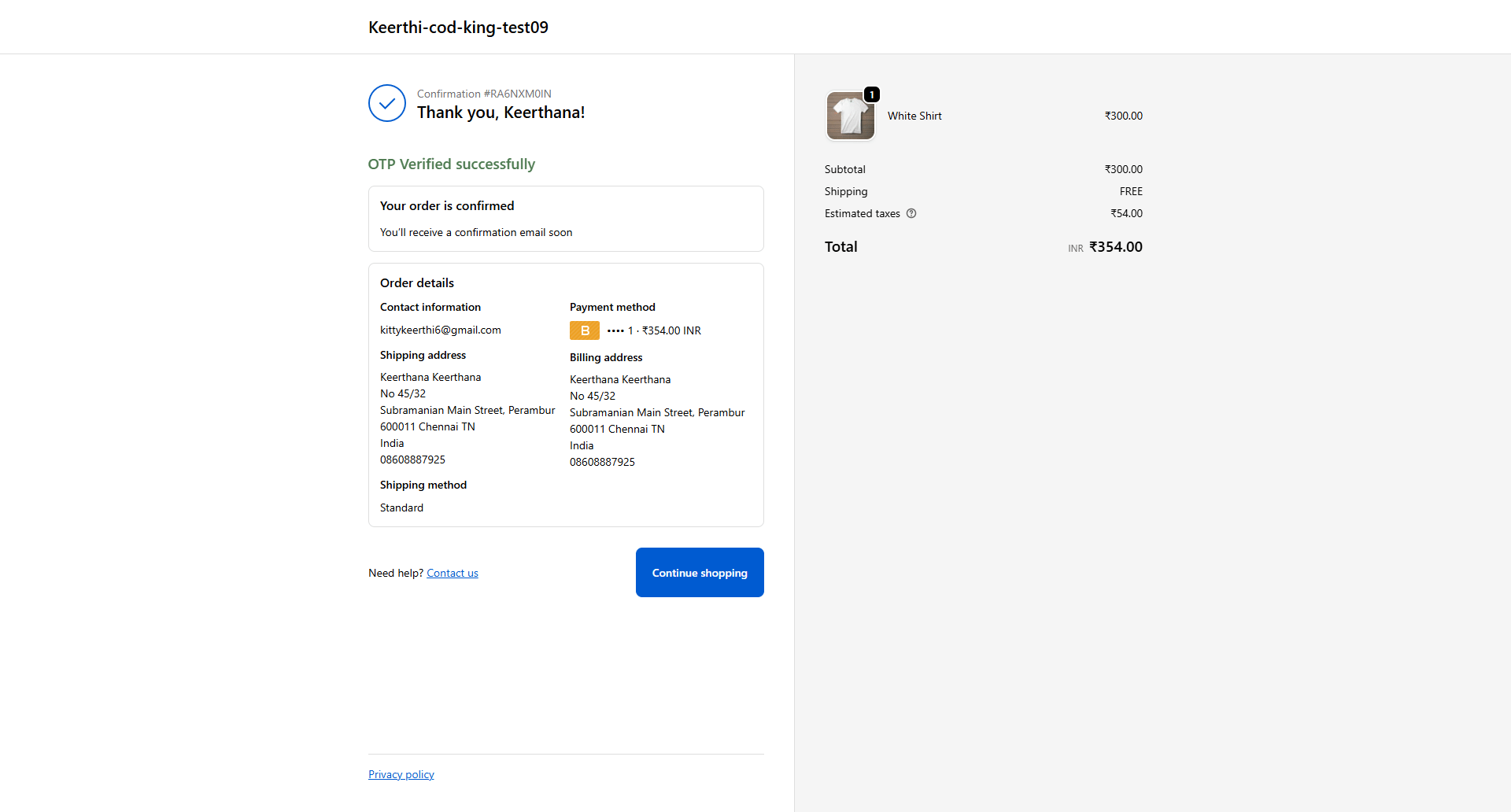
- Click on Add block and select the otp-cod-king-order status and save
- Go back to previous settings and Open Order Status Page Settings
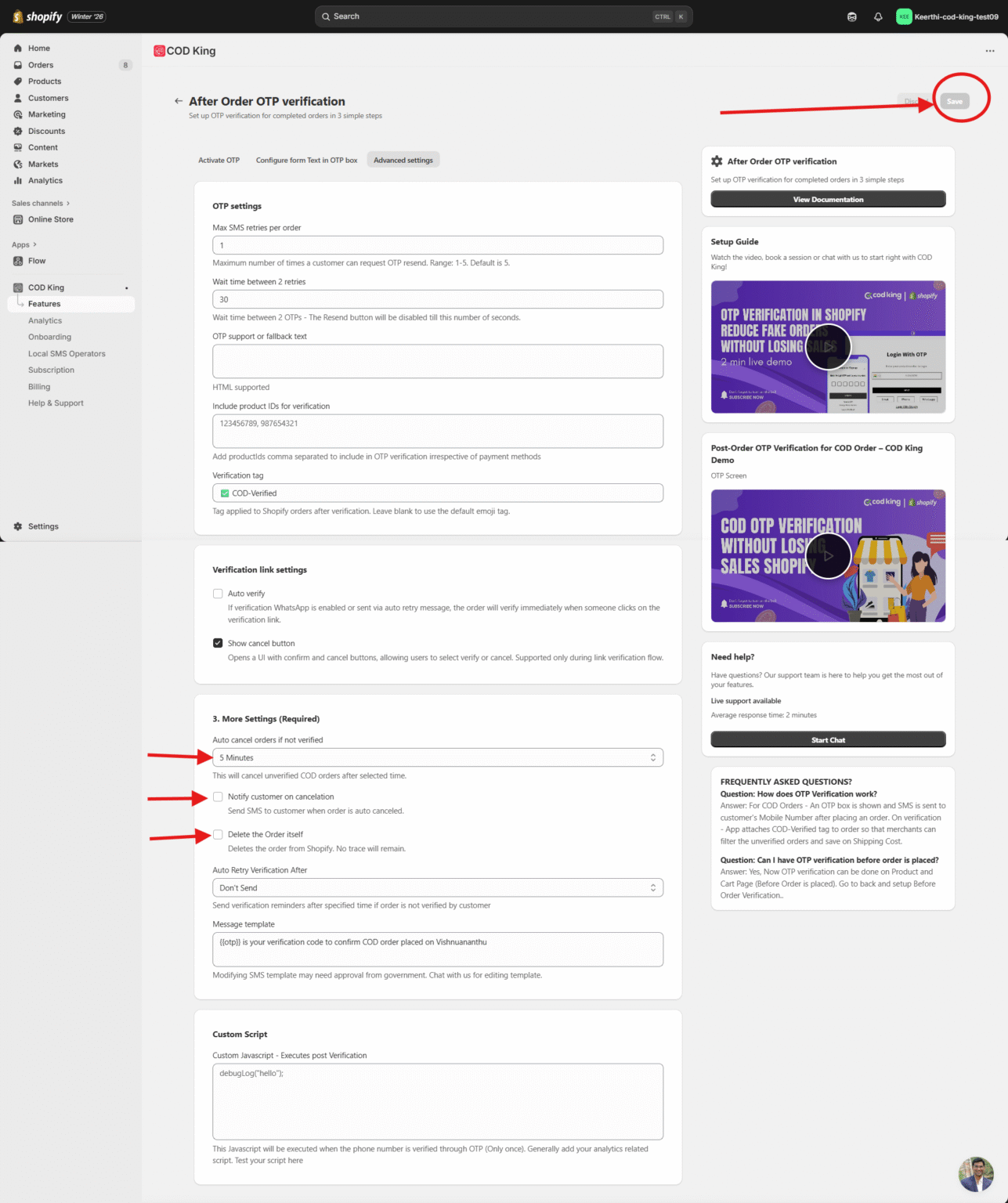
- Customize OTP Settings
- Choose the OTP method: SMS, WhatsApp, or both.
- Set the OTP Auto cancel time (e.g., 5 minutes), if the order is not verified it automatically cancels the order after the time expires
- We can also Notify the customer when order is auto cancelled
- We can also delete the order from Shopify store itself without any trace left
- Save the changes without fail
- Test the Flow
- Place a test COD order on your store.
- After order placement, the customer receives an OTP.
- The customer enters the OTP to confirm the order.
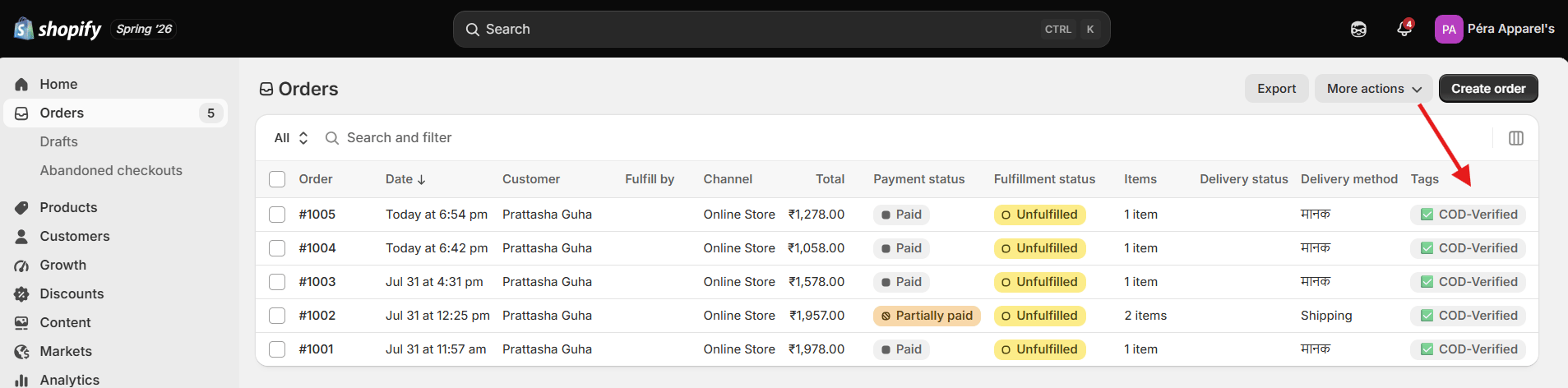
- Verified orders are marked as “OTP verified” in Shopify.
- Monitor Verified Orders
- Use the COD King dashboard to track:
- Verified vs. unverified orders
- OTP delivery success rate
- RTO reduction metrics
Shopify Plus Extension for OTP Verification
For Shopify Plus merchants, COD King offers a native checkout extension in order to ensure the following :- Real-time verification at checkout: Add OTP authentication directly within Shopify Plus checkout to validate customers instantly.
- Smart fraud prevention: Filters out fake or high-risk orders before they are placed, reducing RTO and losses.
- Seamless integration: Built using Shopify Plus checkout extensions, ensuring zero disruption to the native checkout flow.
- Flexible control: Trigger OTP verification for all orders or selectively (e.g., Cash on Delivery).
- Frictionless experience: Fast, user-friendly verification that maintains a smooth buying journey.
- Build trust & reliability: Ensure only genuine customers complete purchases, improving order success rates.
WhatsApp Verification for COD Orders
COD King also supports OTP verification via WhatsApp:- Higher open and response rates compared to SMS
- Faster delivery of OTP codes
- Better customer engagement
- Ideal for regions with strong WhatsApp usage
Step by Step Guide :
Follow these simple steps to enable WhatsApp OTP verification for your Cash on Delivery (COD) orders:Step 1: Access Your Dashboard
Log in to your admin panel and navigate to the OTP Verification or Order Verification settings.Step 2: Select Verification Mode
Choose WhatsApp OTP as your preferred verification method for COD orders.Step 3: Configure Trigger Settings
Decide when the OTP should be sent—immediately after order placement or based on specific conditions (e.g., high-value orders, new customers).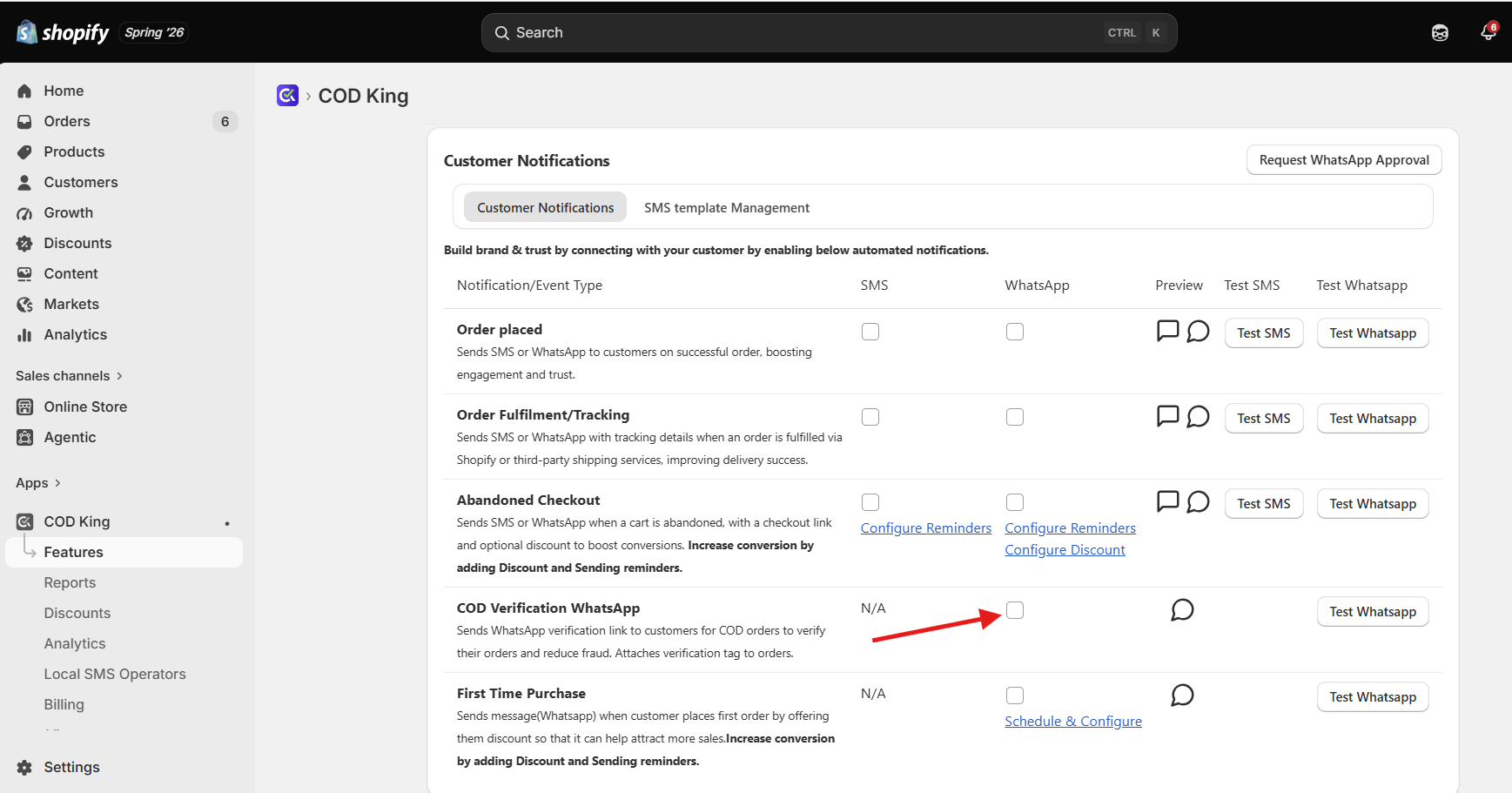
Step 4: Customize Message Template
Edit your WhatsApp message template to include a clear OTP message along with your brand name for better recognition and trust.Step 5: Enable COD-Specific Rules
Apply verification specifically to COD orders to reduce fake bookings and improve delivery success rates.Step 6: Activate the Feature
Save your settings and turn on WhatsApp OTP verification.Step 7: Test the Flow
Place a test COD order to ensure the OTP is sent and verified smoothly.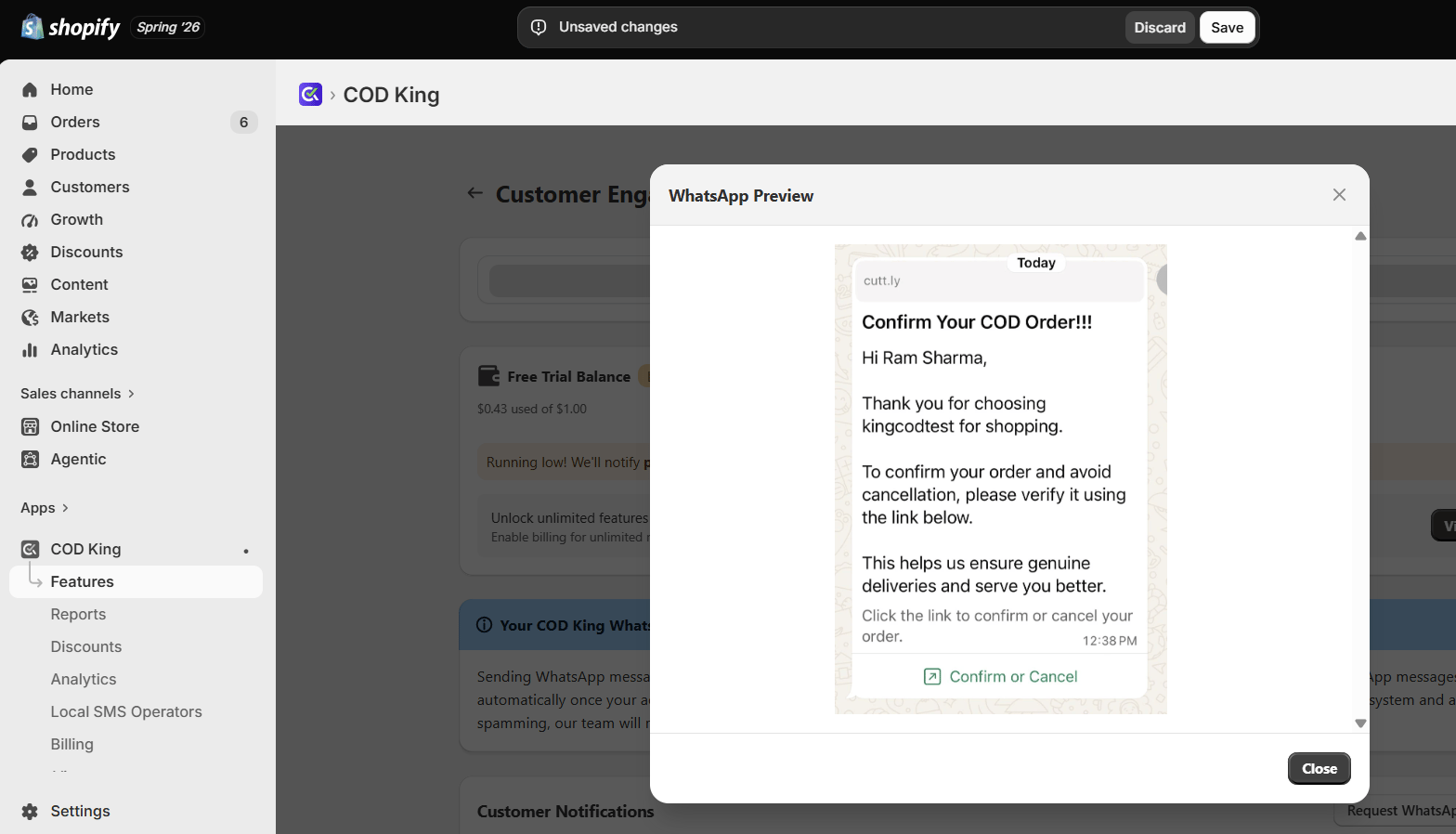
With WhatsApp verification in place, you can confidently confirm genuine orders, reduce RTO losses, and deliver a seamless customer experience.
Exact settings, navigation paths, and UI elements may vary based on your COD King dashboard configuration and Shopify plan.