> ## Documentation Index
> Fetch the complete documentation index at: https://docs.codking.tech/llms.txt
> Use this file to discover all available pages before exploring further.
# Prepaid Discount
## 1. What is Prepaid Discount ?
A Prepaid Discount is an incentive offered to customers who choose to pay for their orders in advance instead of selecting Cash on Delivery (COD).
With COD King's Prepaid Discount feature, merchants can automatically offer a discount at checkout to encourage customers to switch from COD to prepaid payments, resulting in a faster, smoother, and more secure checkout experience.
## 2. Why is Prepaid Discount Needed ?
* **Reduces Return to Origin (RTO):** Encourages customers to choose prepaid payments, resulting in fewer order cancellations and delivery rejections.
* **Increases Prepaid Conversions:** Motivates customers to switch from Cash on Delivery (COD) to prepaid payment methods by offering an additional benefit.
* **Improves Order Reliability:** Prepaid orders are typically more reliable, helping merchants process and fulfill orders with greater confidence.
* **Lowers Operational Costs:** Reduces the additional costs associated with COD processing, order verification, and reverse logistics.
* **Enhances Cash Flow:** Enables merchants to receive payments immediately instead of waiting for COD settlements.
* **Boosts Customer Satisfaction:** Rewards customers with savings, creating a more attractive and seamless checkout experience.
* **Increases Overall Profitability:** Helps merchants minimize losses caused by failed deliveries while improving long-term business growth.
**Why is Prepaid Discount Needed?**
Encourage customers to choose prepaid payments with an instant discount. This helps reduce COD orders, lower RTO losses, and improve your store’s cash flow.
## 3. **How it works ?**
* The customer adds products to the cart.
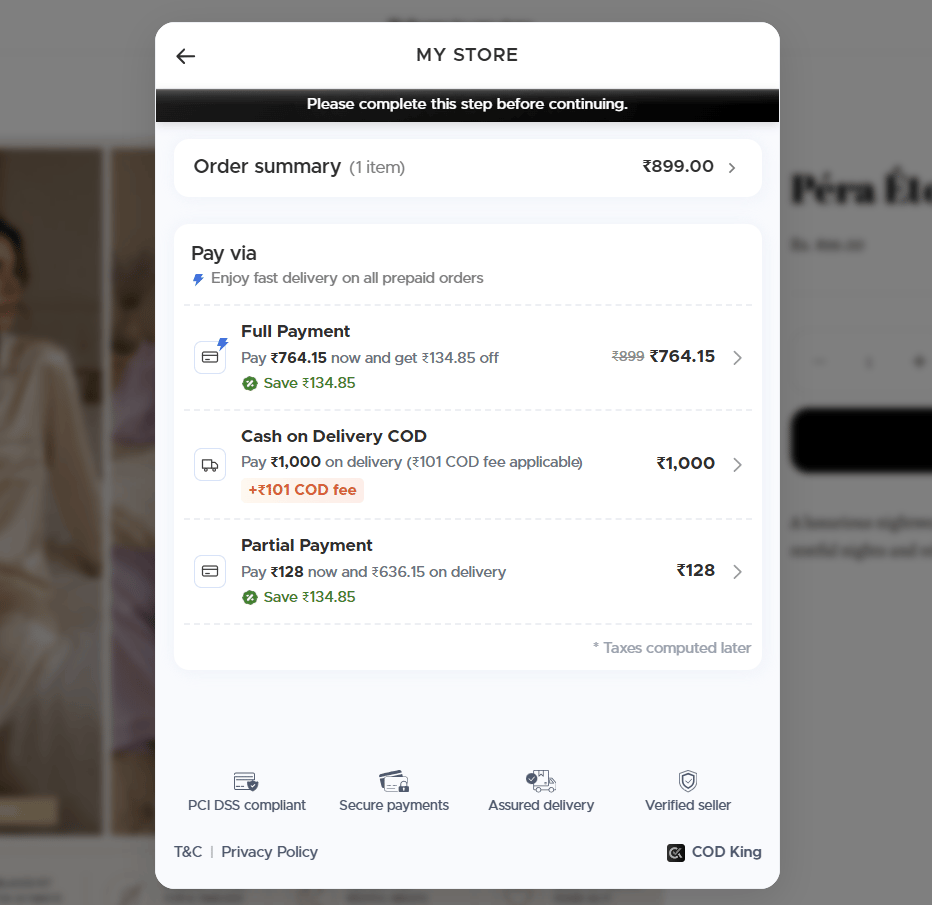
* At checkout or Buy now, COD King opens a payment popup. Every option is listed there, and your prepaid discount is shown on the full prepaid choice.
* When the customer picks prepaid, COD King applies the discount and continues them to Shopify checkout to complete payment.
## 4. **How** Prepaid Discount Helps Your Business ?
* **Boost Prepaid Orders:** Encourage customers to pay online with an attractive discount.
* **Reduce RTO & COD Costs:** Shift orders from COD to prepaid and minimize return-related expenses.
* **Improve Cash Flow:** Receive payments upfront and maintain better control over your revenue.
* **Increase Conversions:** Give customers an extra reason to complete their purchase.
* **Simplify Operations:** Reduce the hassle of COD collection, reconciliation, and handling.
## 5. **Setting Up Prepaid Discount Step By Step Guide**
1. Open the **COD King** app from your Shopify admin panel.
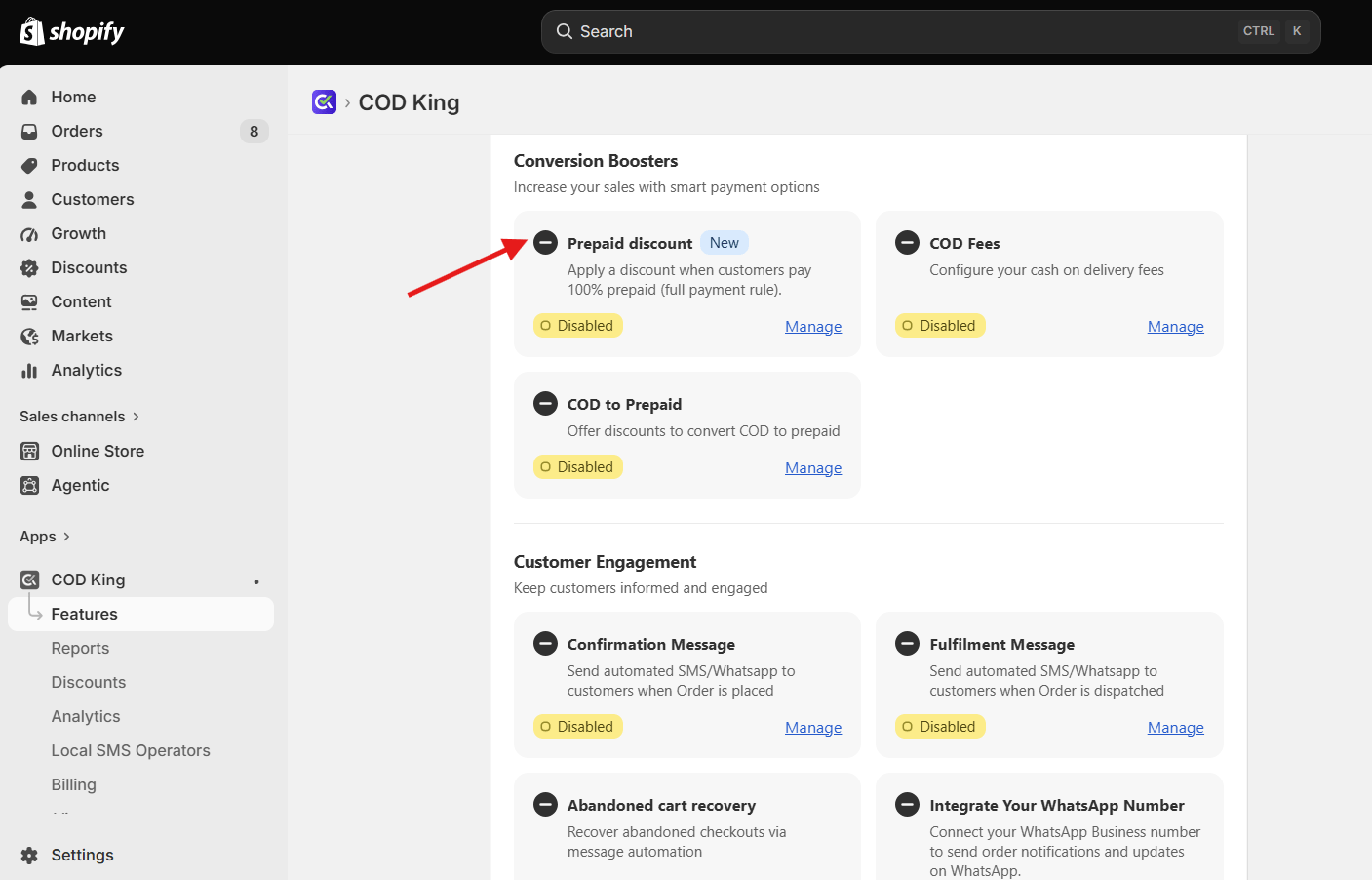 2. Navigate to **Partial Payment → Settings** and Open Theme Editor
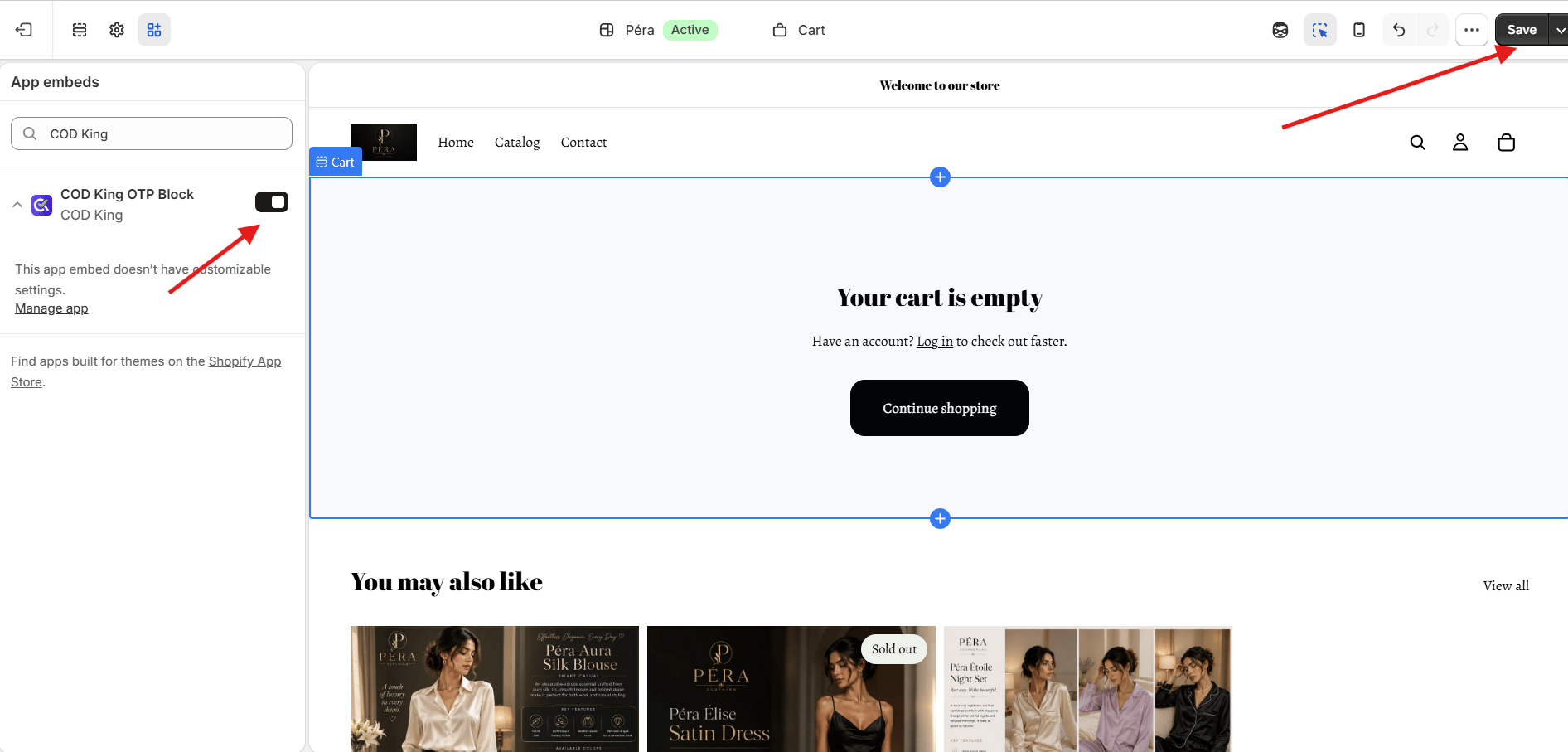
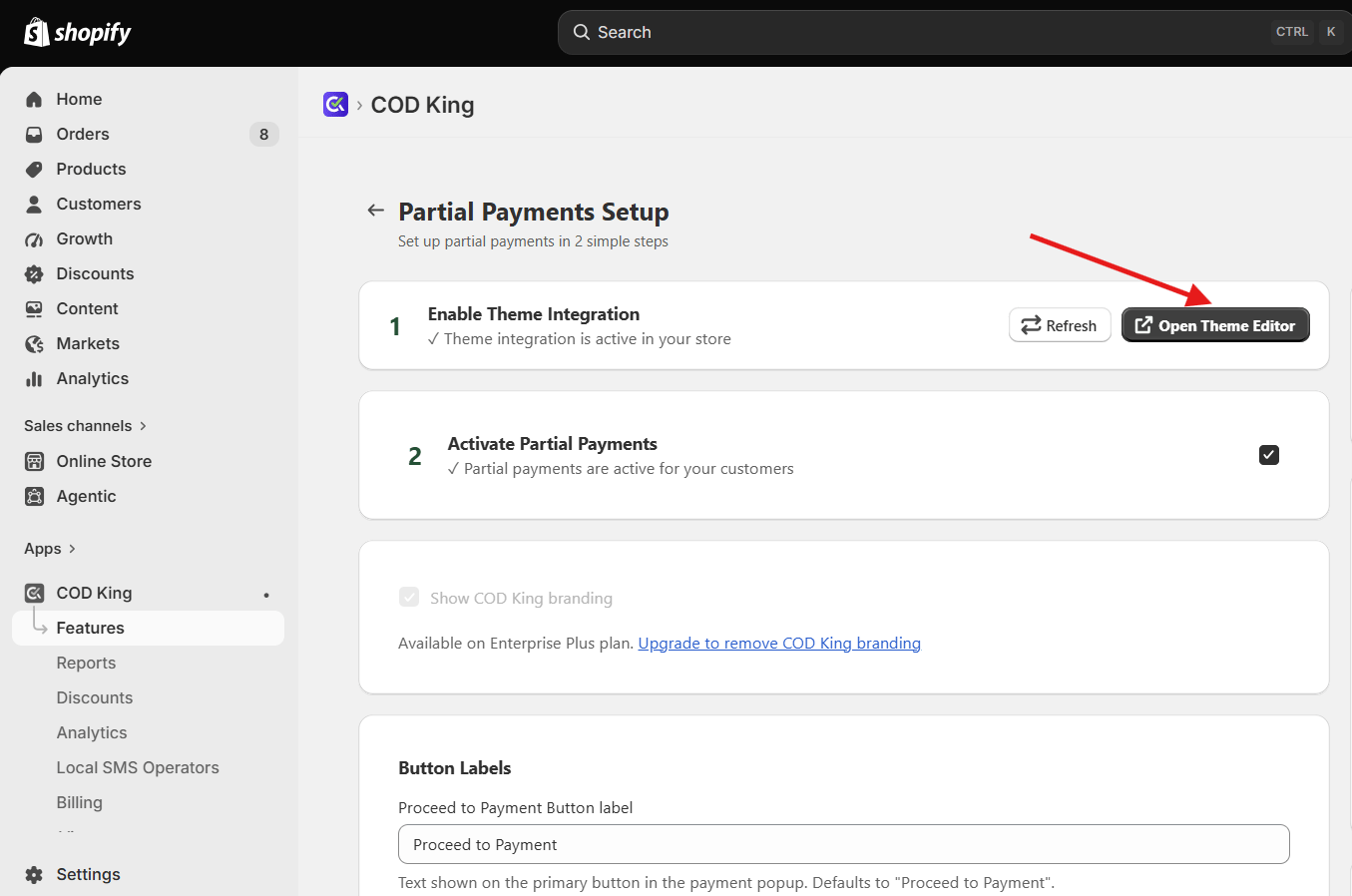 3. After Opening Theme Editor toggle the COD King OTP Block button and click on Save
 4. Now Click on **Add Payment Rule** and select **Full Payment**.
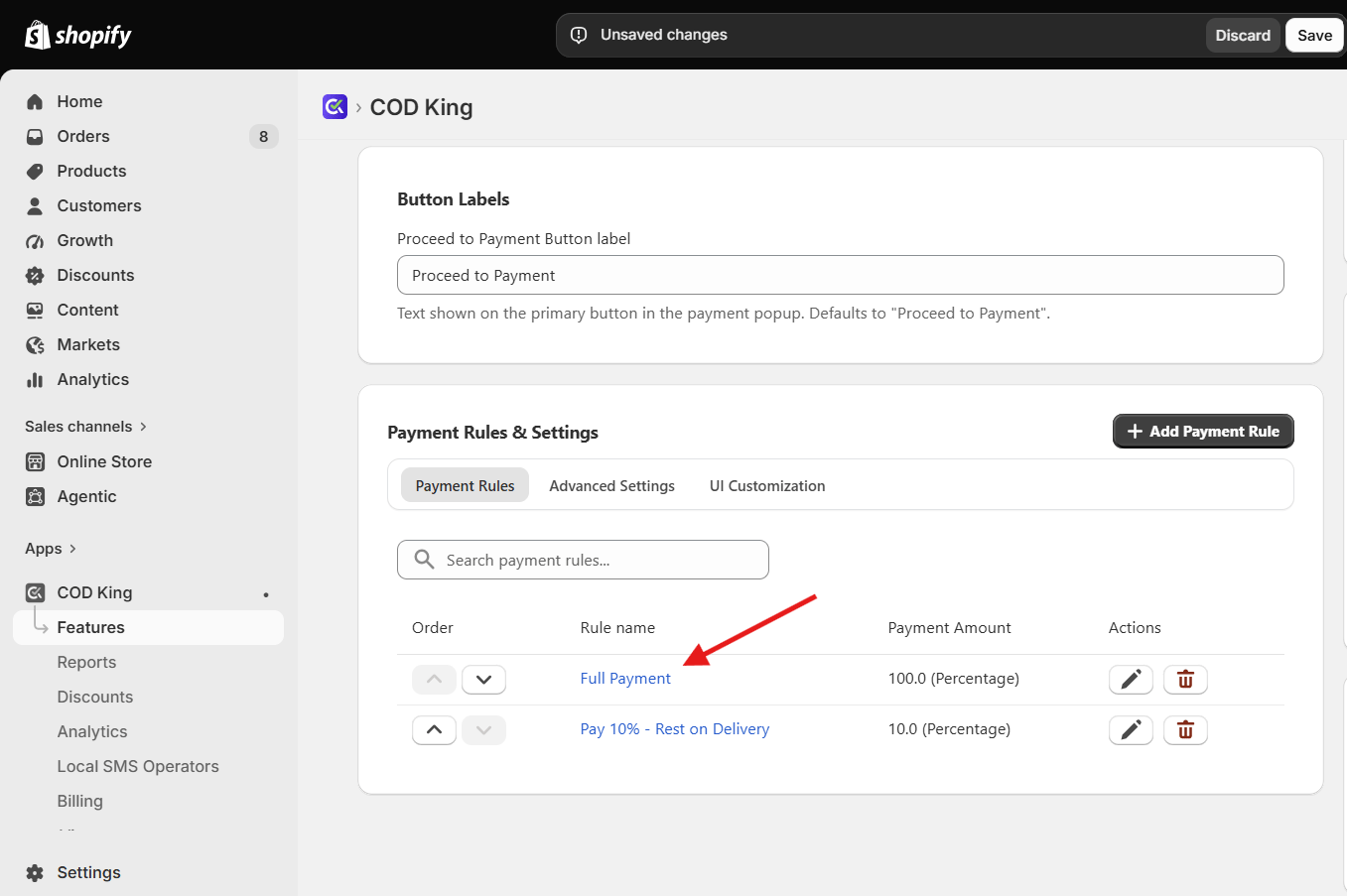 5. Enter a name for the prepaid payment rule and click **Save**.
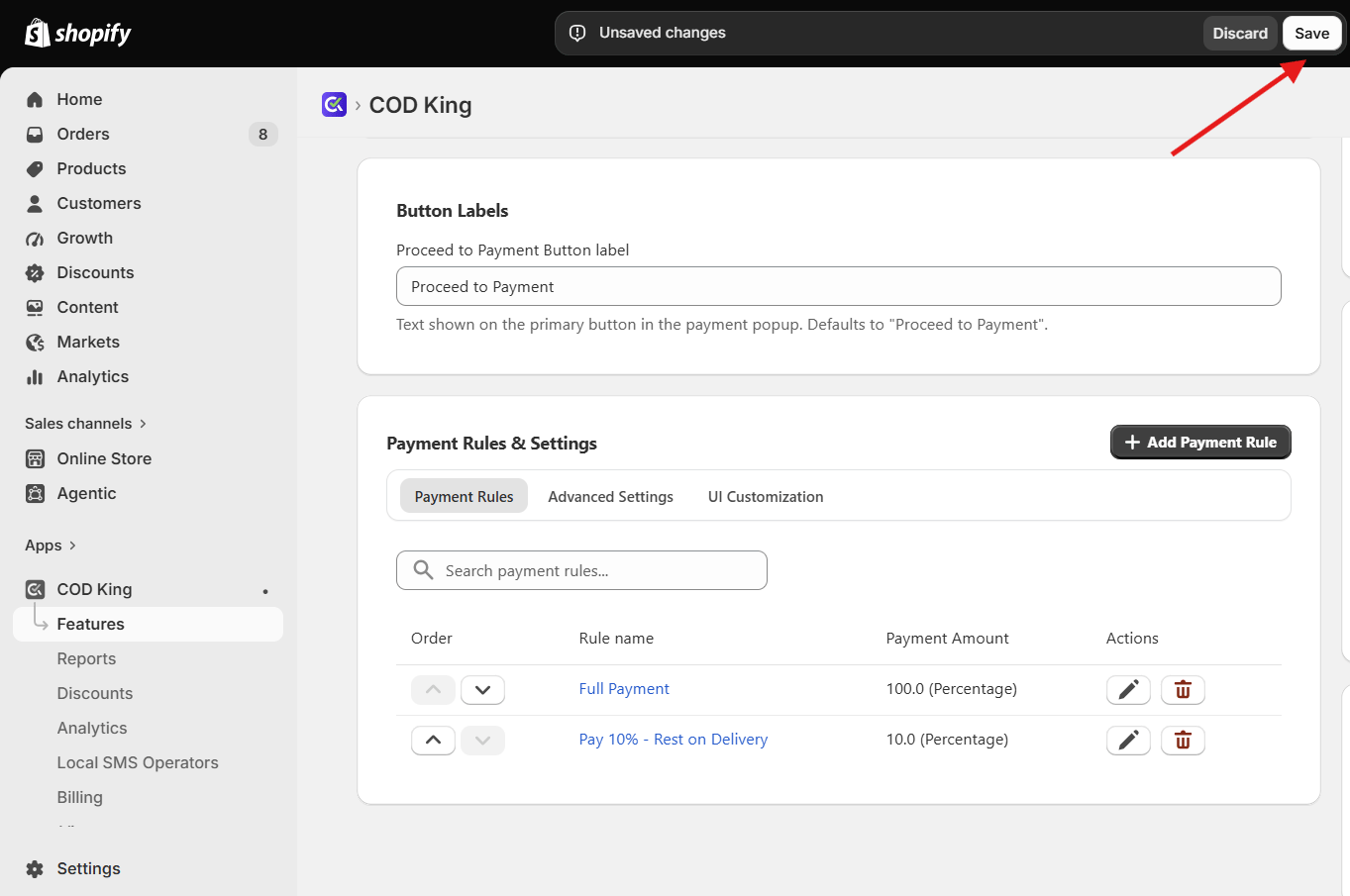 6. Click **Add Payment Rule** again and select **Cash on Delivery**.
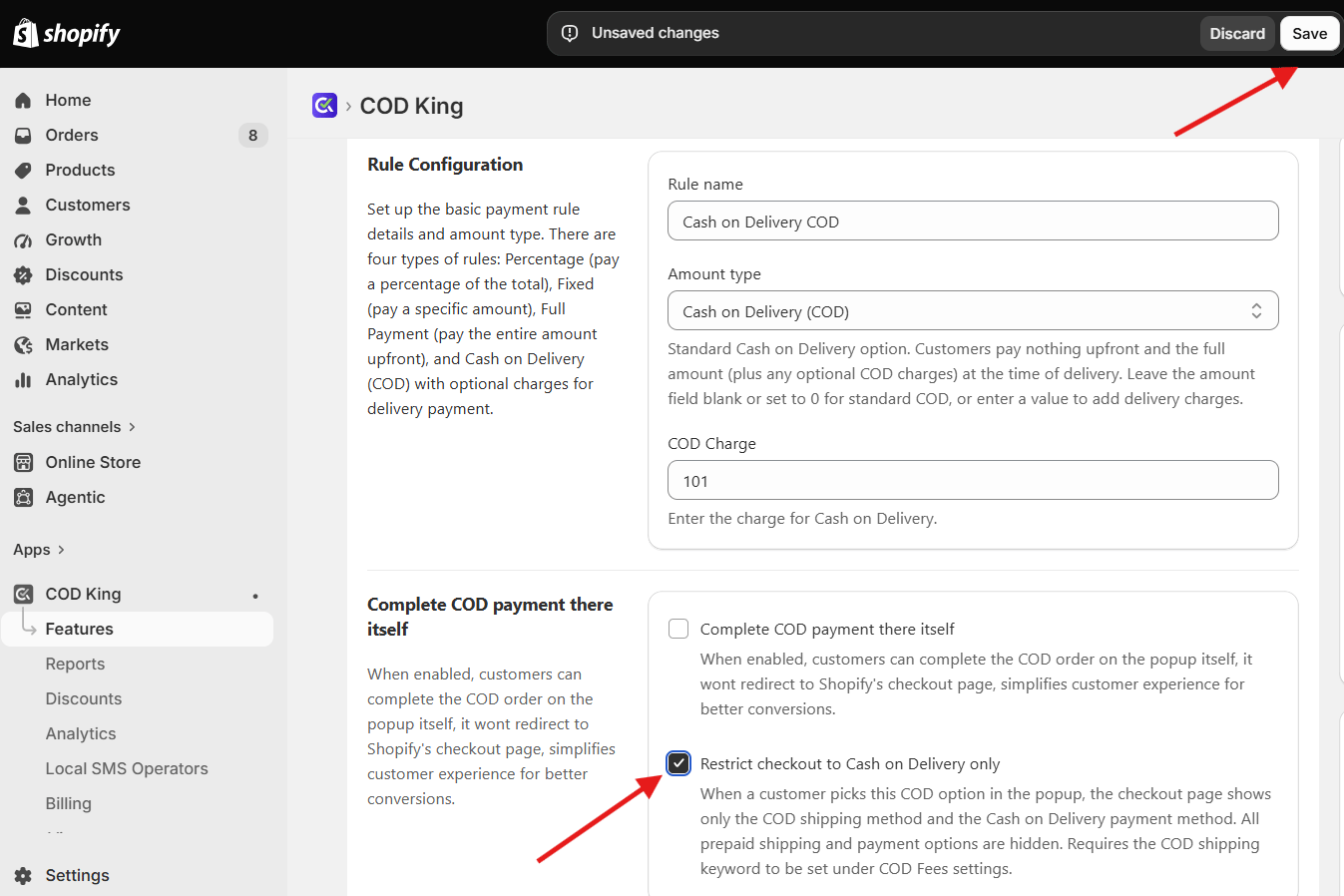
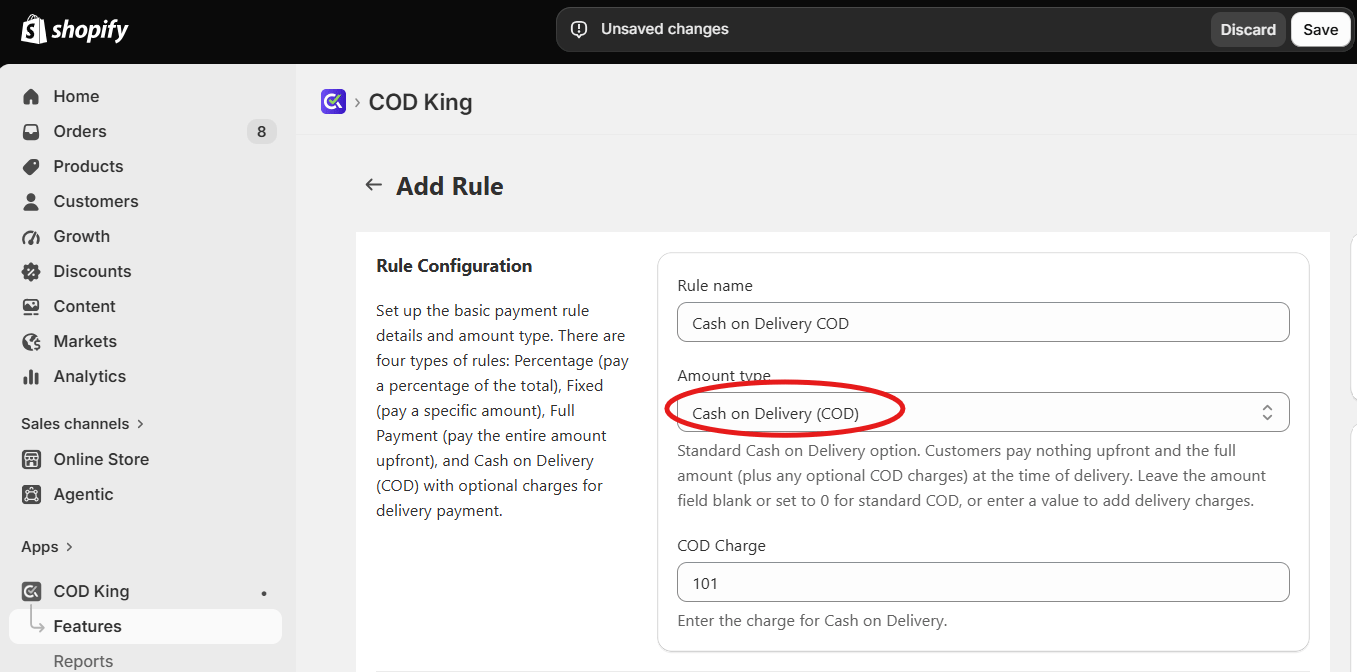 7. Enter a name for the COD payment rule and click **Save**.
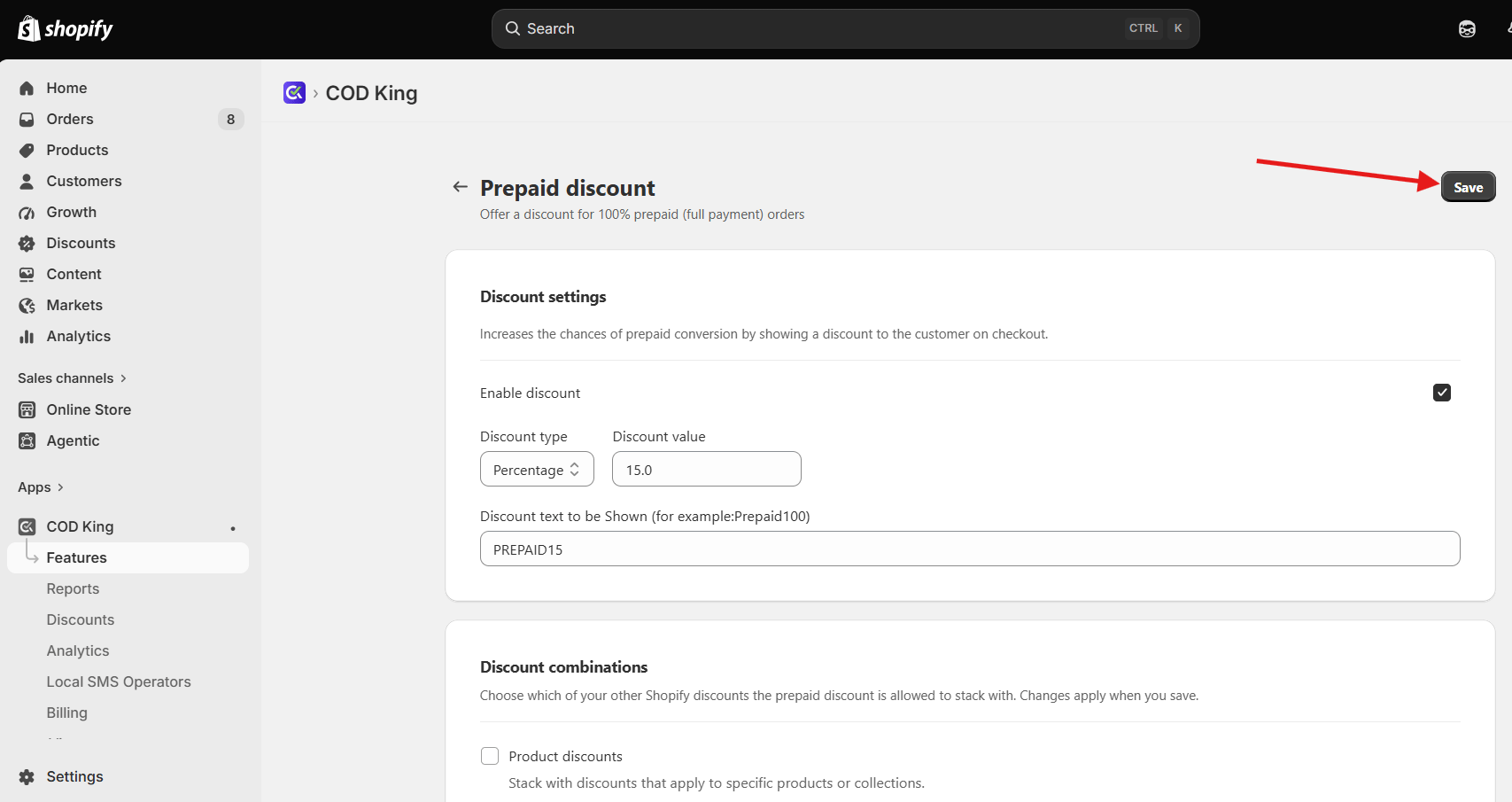
 8. After creating both payment rules, navigate to **Features → Prepaid Discount**.
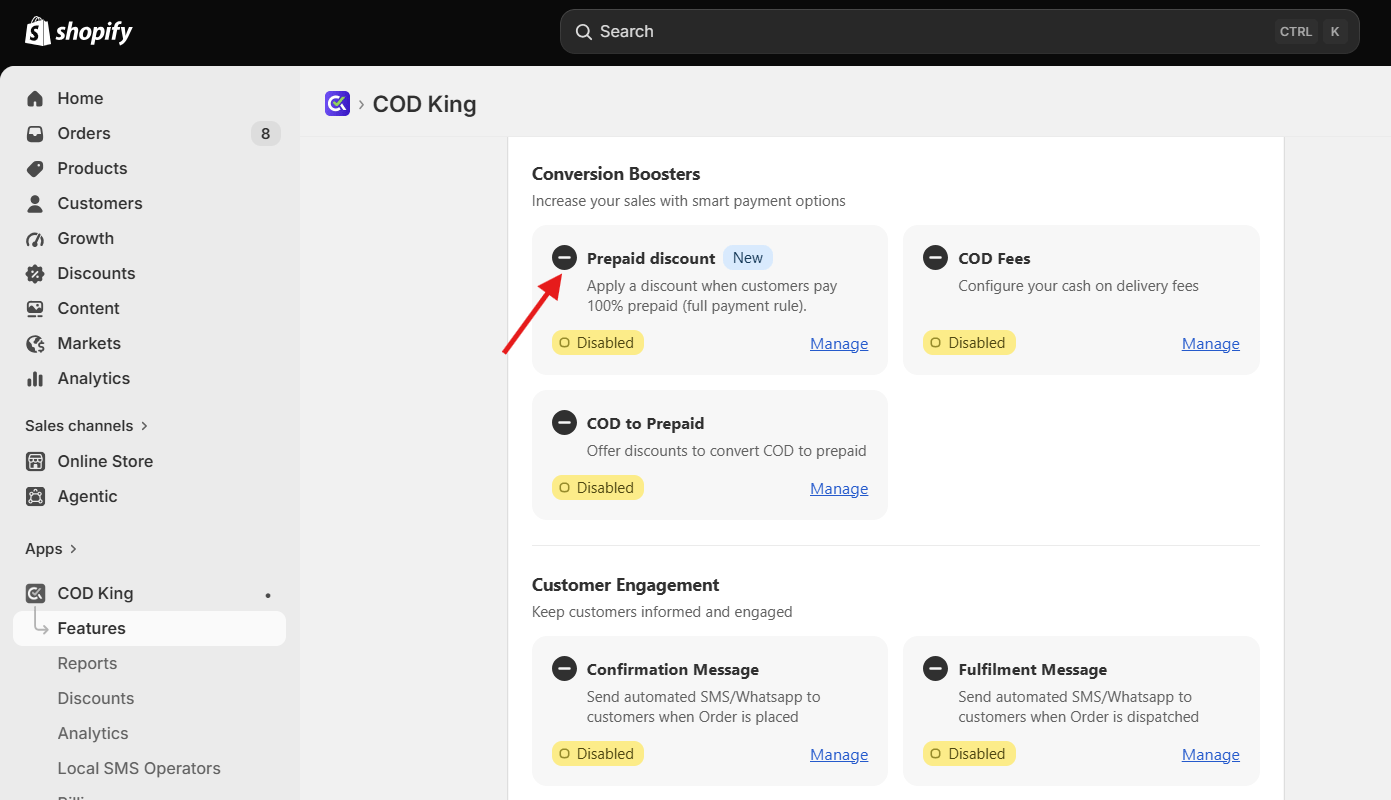 9. Configure the discount that you want to offer for the prepaid payment option.
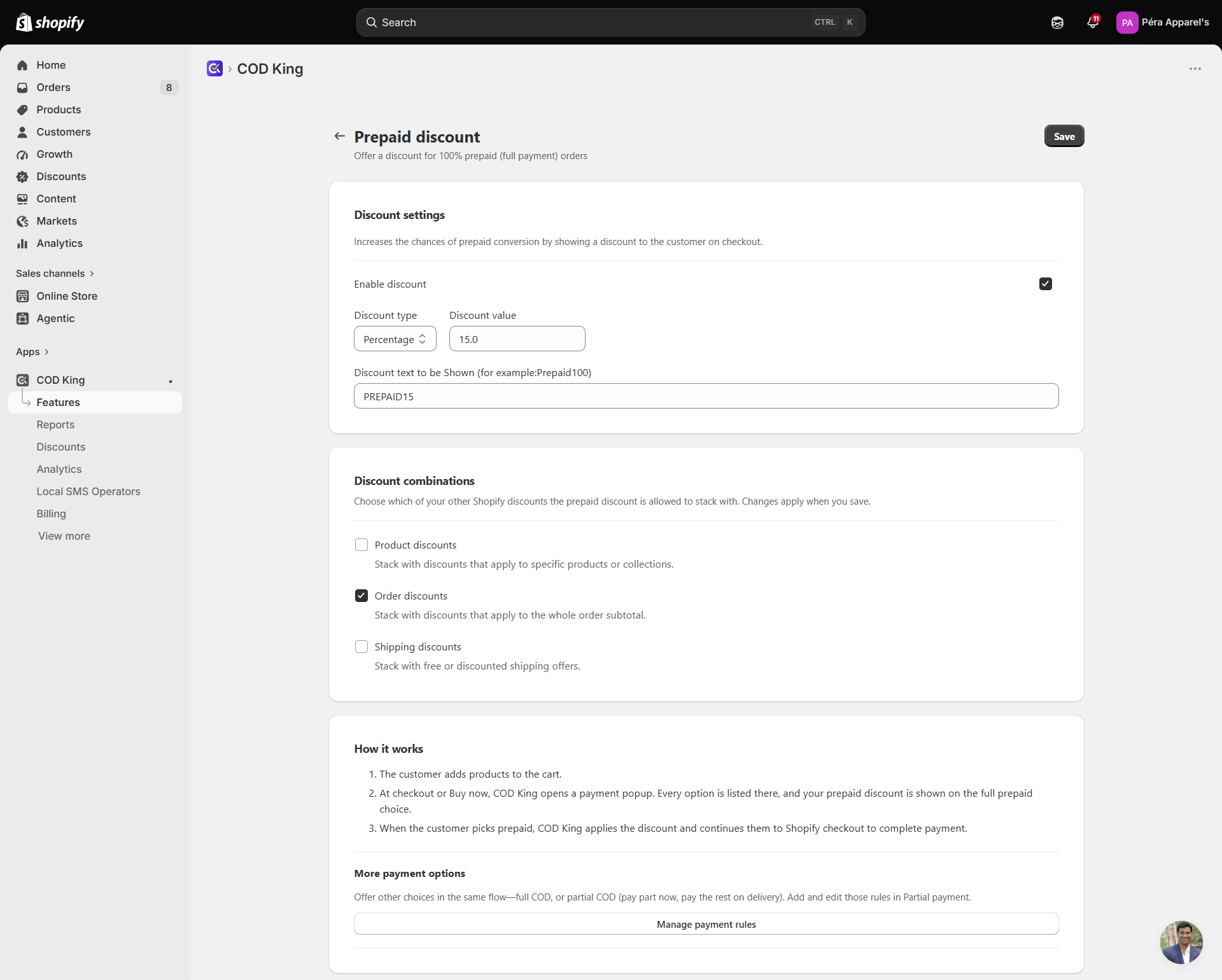 10. Review the settings and click **Save** to apply the changes.
 11. Now in order to see how it works place a test order and check whether a pop up like this appears or not which should show you the various payment options set by you
 12. Once your customer selects any option for partial payment, then it will redirect to the checkout page and after payment it will redirect to this thank you page
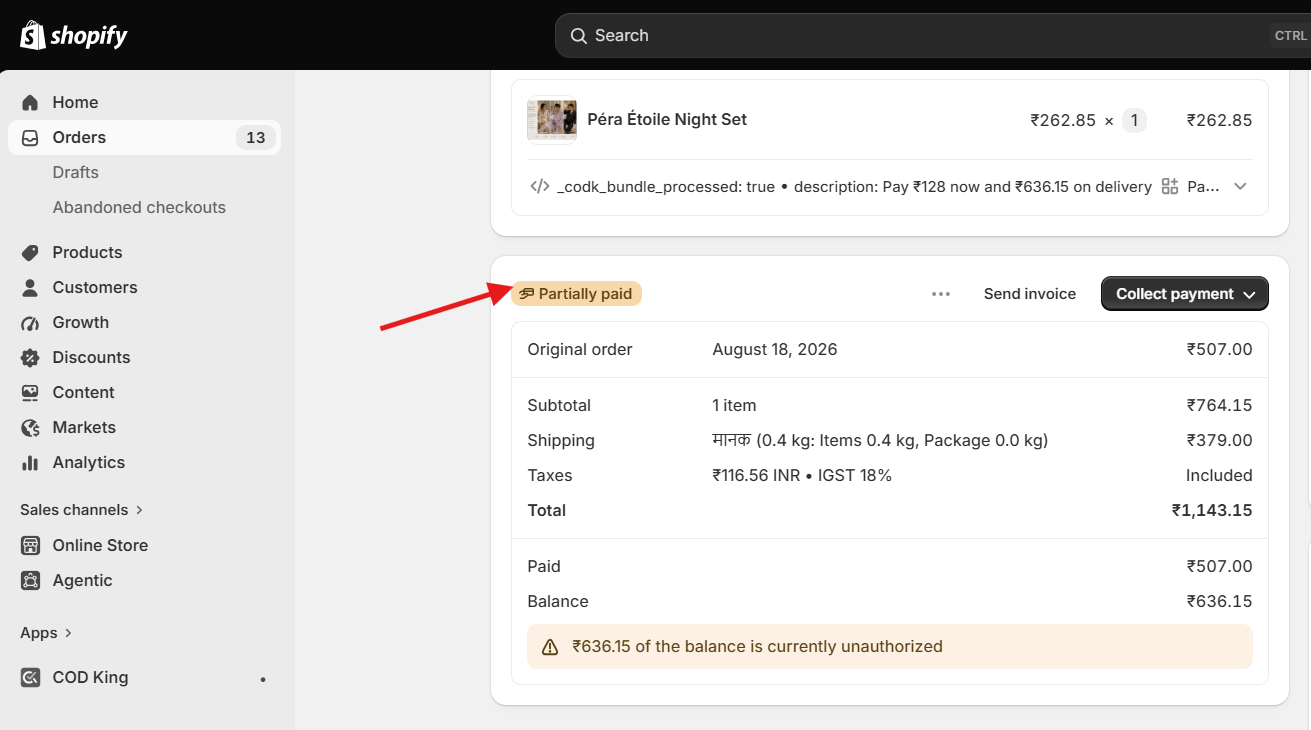
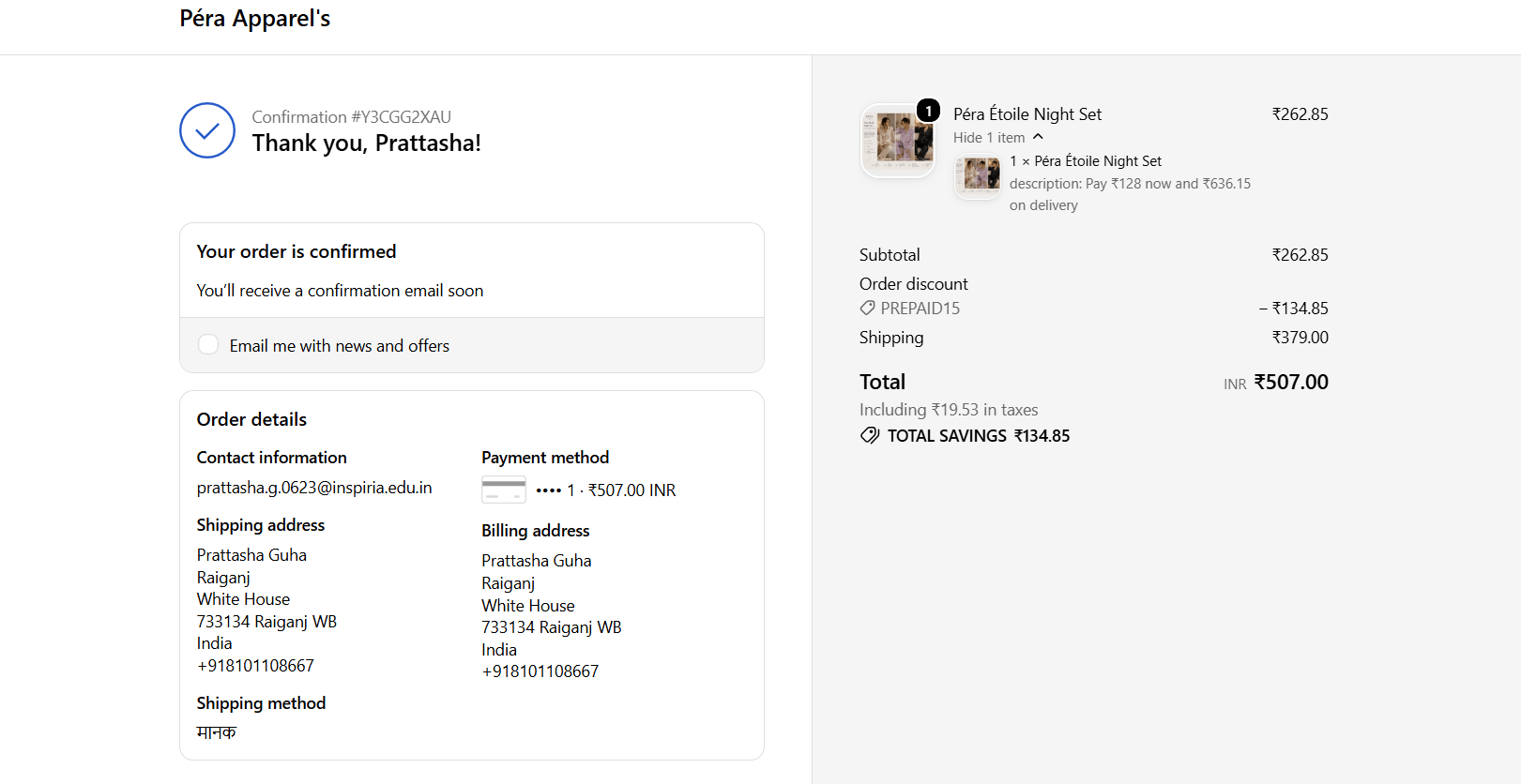 13. Now, when they pay ,the details of that order will get the tag of partial payment, and also in notes and product details, you will get details information for the Partial Payment. After placing the order the status should you something like this :
 For further questions, reach out to us at [support@notifiktech.com](mailto:support@notifiktech.com), and we will be happy to assist you.
The **Prepaid Discount** feature works in conjunction with the **Partial Payment** feature. Therefore, you must first enable and configure **Partial Payment** before setting up **Prepaid Discount**.
For further questions, reach out to us at [support@notifiktech.com](mailto:support@notifiktech.com), and we will be happy to assist you.
The **Prepaid Discount** feature works in conjunction with the **Partial Payment** feature. Therefore, you must first enable and configure **Partial Payment** before setting up **Prepaid Discount**.