> ## Documentation Index
> Fetch the complete documentation index at: https://docs.codking.tech/llms.txt
> Use this file to discover all available pages before exploring further.
# COD fees/COD Charges
> If you offer cash on delivery, you already know it drives sales—but it also eats into margins through failed deliveries and courier surcharges. Charging a small COD fee helps cover that cost, and this guide walks you through setting it up in COD King.
## Why Offer COD Fees?
Prepaid orders are simpler to manage, but COD is often what makes a store scalable in the first place:
* **Builds trust fast—new** customers who don't know your brand yet are far more comfortable ordering without handing over card details upfront.
* **Lifts conversions—in** cash-heavy markets, dropping COD can cost you 40–60% of potential sales.
* **Reaches unbanked shoppers—not** everyone has a credit card or online banking, and COD opens the door to them.
* **Cuts cart abandonment—customers** who hit a payment gateway error or just prefer paying in person won't bail at checkout.
**The catch:** COD also brings higher RTO (return-to-origin) rates and added courier fees. A COD fee helps you absorb that cost without giving up the sales COD brings in.
***
## How Do COD Fees Help Your Business?
* **Covers Courier Surcharges:** Offsets the extra fees logistics partners charge for collecting and handling physical payment.
* **Reduces RTO Rates:** Customers who commit to a small extra charge are far more likely to accept the delivery, significantly reducing return-to-origin orders.
* **Protects Profit Margins:** Allows you to continue offering cash payments without letting failed deliveries eat into your bottom line.
***
## Setting up COD fees
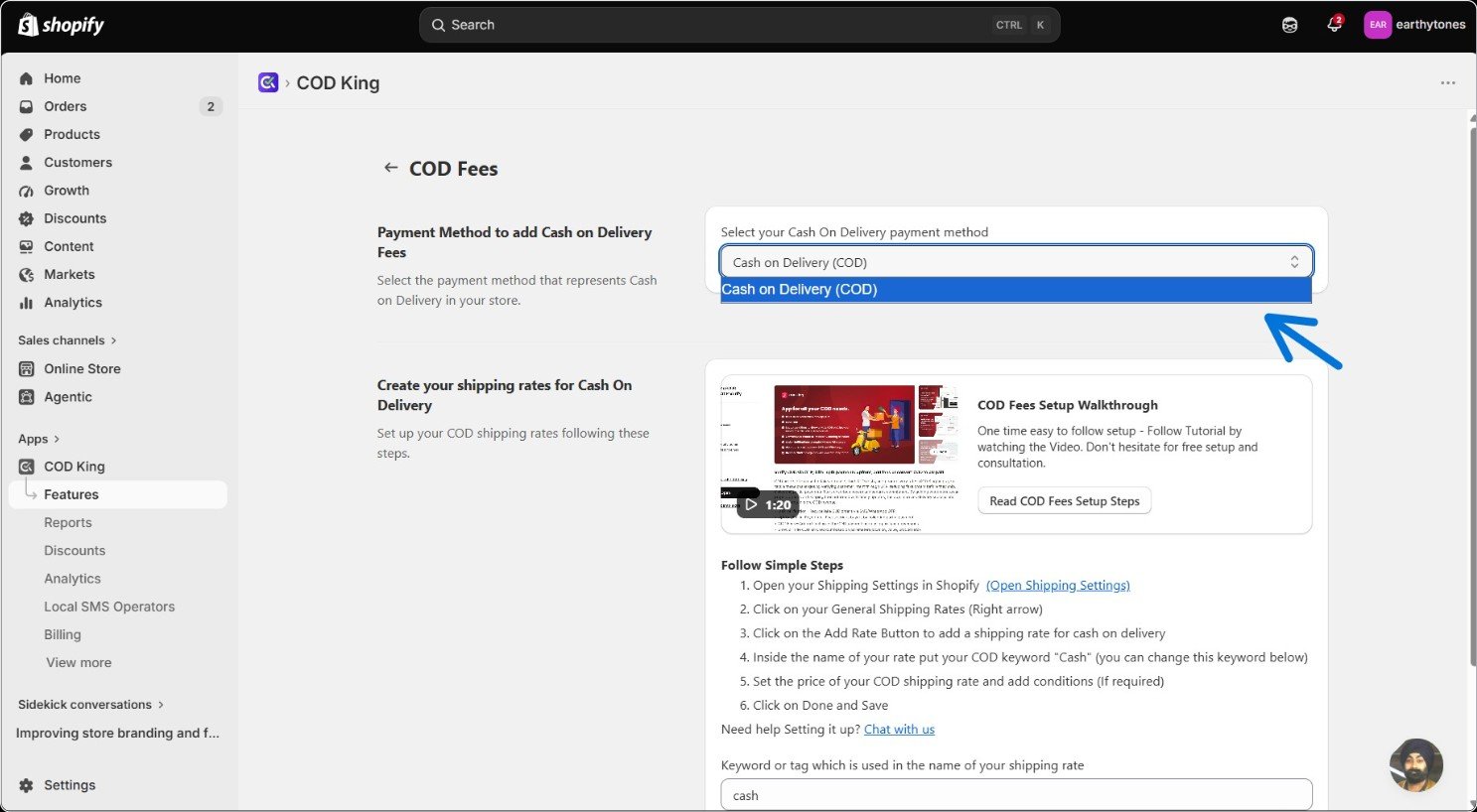
### 1. Select Your COD Payment Method
* Open the dropdown under **"Select your Cash On Delivery payment method"** and select **Cash on Delivery (COD)**.
* This links COD King to your store's payment setup so it knows exactly when to apply your fee rules.
 ***
### 2. Create a COD Shipping Rate in Shopify
COD King doesn't touch your checkout code directly—instead, it reads a shipping rate you set up in Shopify that carries your COD charge.
* **Open Shipping Settings—go** to **Settings > Shipping and Delivery** in your Shopify admin, or use the [Open Shipping Settings](https://admin.shopify.com/store/earthytones-store/apps/cod-verification/features/cod-fees) shortcut inside the app.
***
### 2. Create a COD Shipping Rate in Shopify
COD King doesn't touch your checkout code directly—instead, it reads a shipping rate you set up in Shopify that carries your COD charge.
* **Open Shipping Settings—go** to **Settings > Shipping and Delivery** in your Shopify admin, or use the [Open Shipping Settings](https://admin.shopify.com/store/earthytones-store/apps/cod-verification/features/cod-fees) shortcut inside the app.
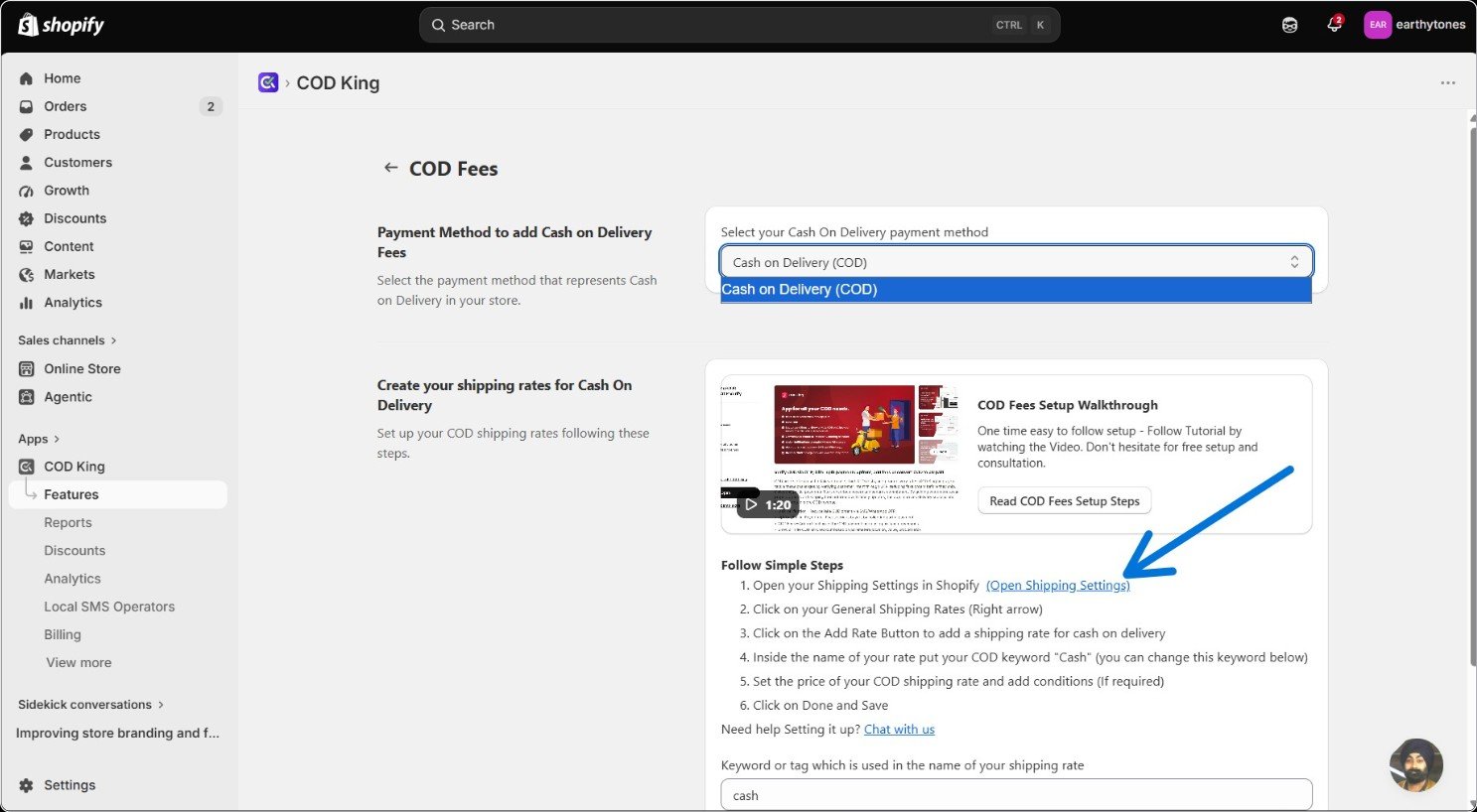 An interface as below will appear, as the **'open shipping settings**' redirects to 'shipping and delivery' section of your Shopify settings.
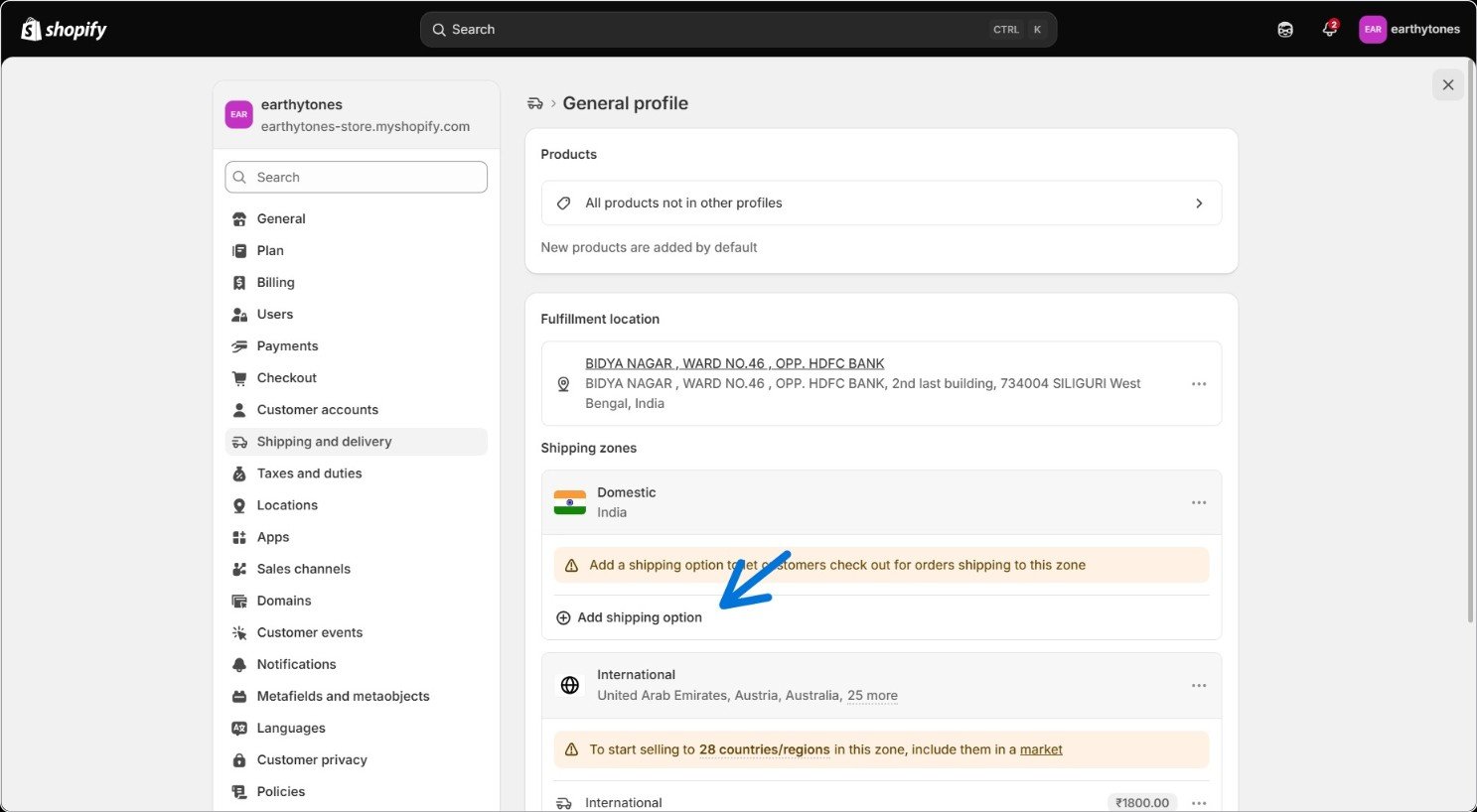
### 2 a. Generate a general profile
Locate the add shipping option and click on it.
An interface as below will appear, as the **'open shipping settings**' redirects to 'shipping and delivery' section of your Shopify settings.
### 2 a. Generate a general profile
Locate the add shipping option and click on it.
 ### 2 b. Add a name
Keep in mind the name for the shipping option, as it will further be used for the keyword or tag.
### 2 b. Add a name
Keep in mind the name for the shipping option, as it will further be used for the keyword or tag.
(e.g., COD)
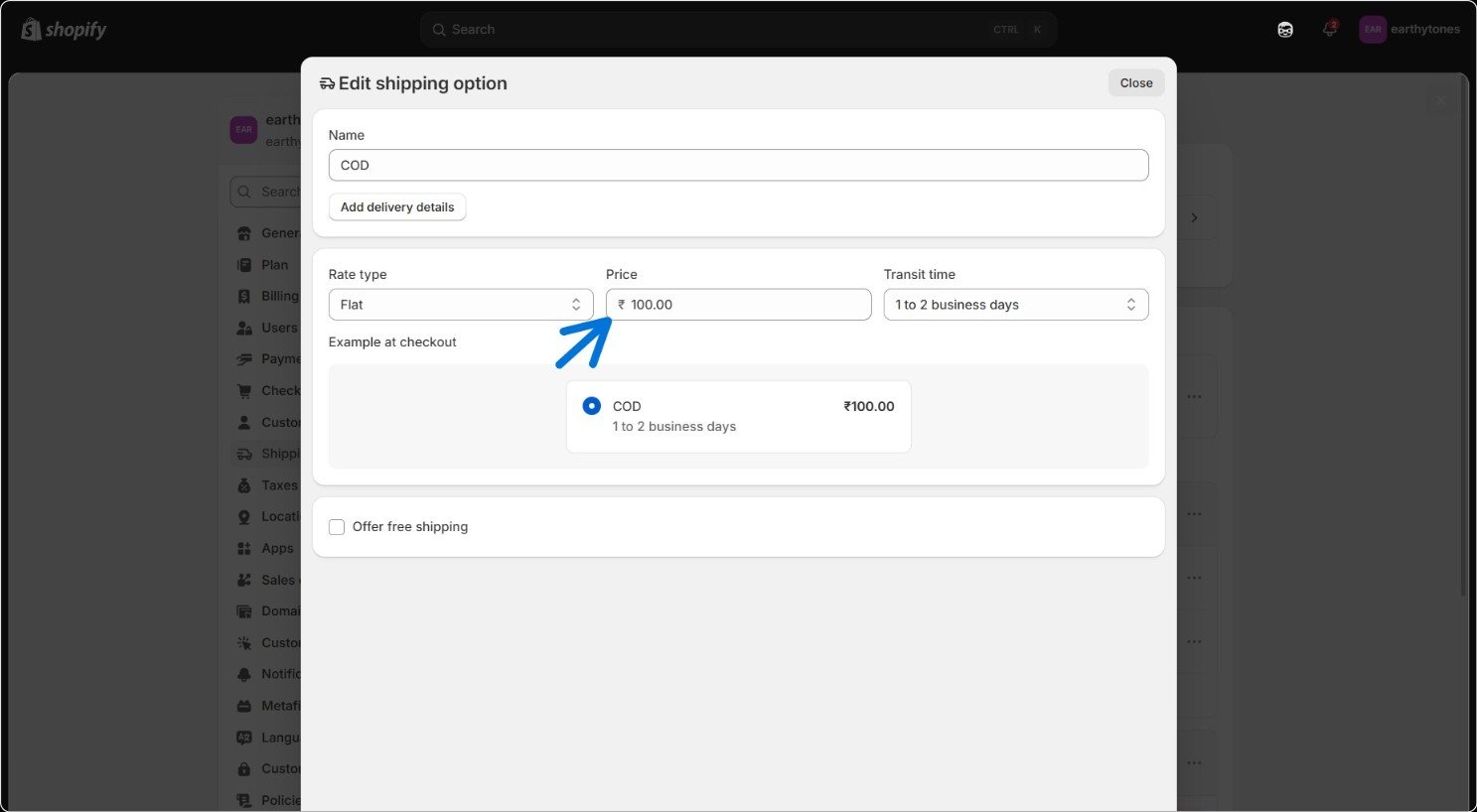
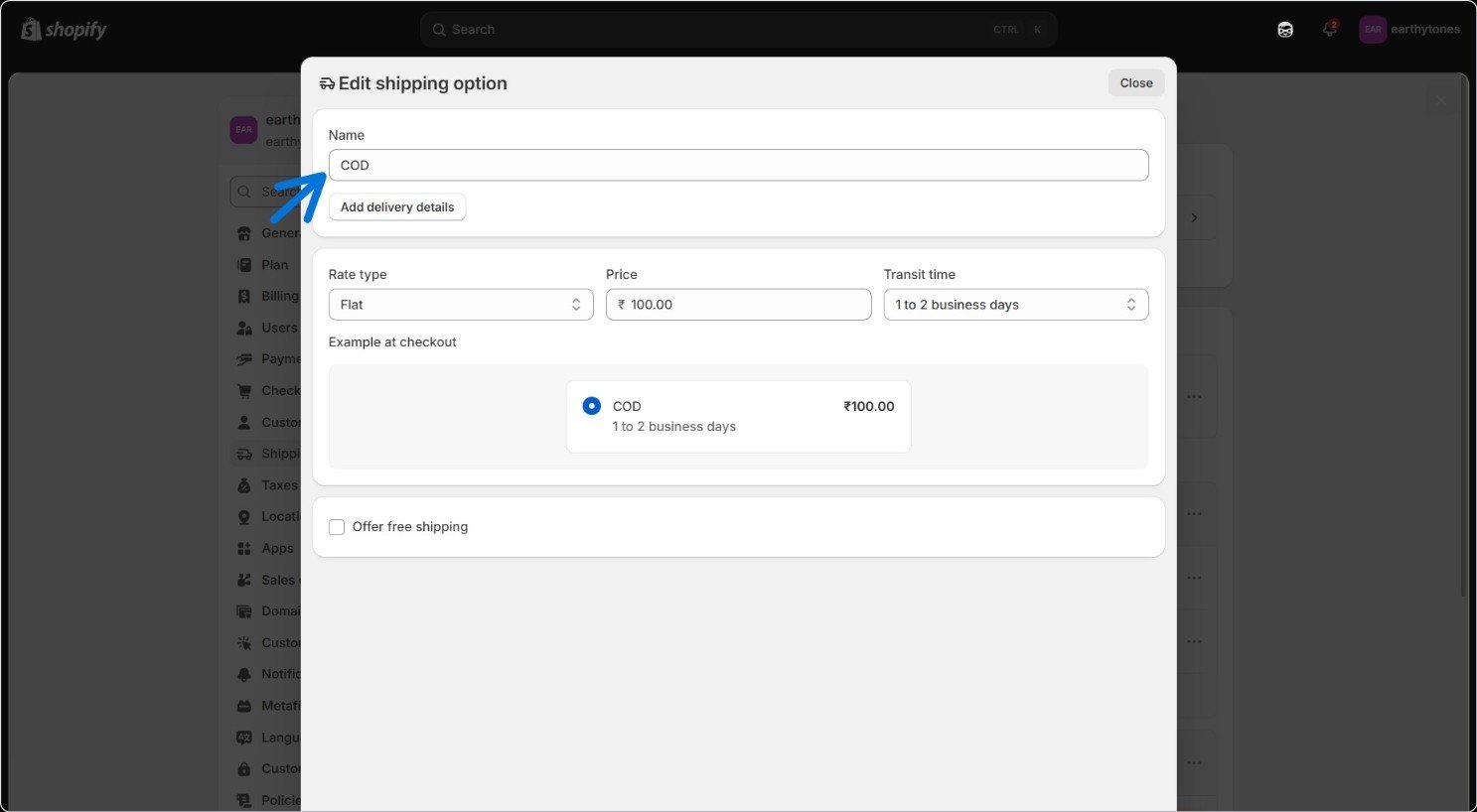 ### 2 c. Rate, price, and transit time.
* Rate: Select the flat rate type under the options.
### 2 c. Rate, price, and transit time.
* Rate: Select the flat rate type under the options.
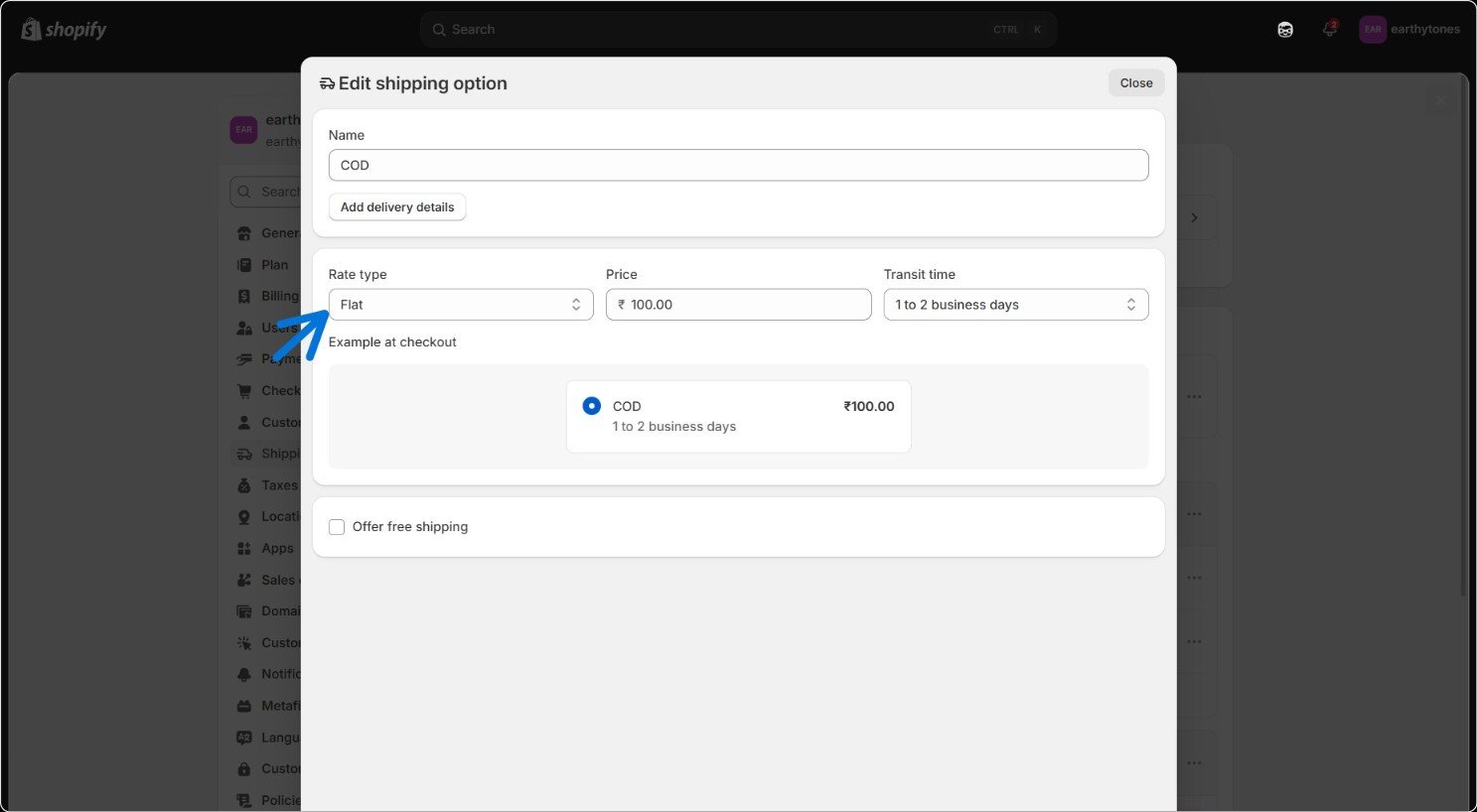 * Price: Add a desired price for the shipping (e.g., ₹100.00).
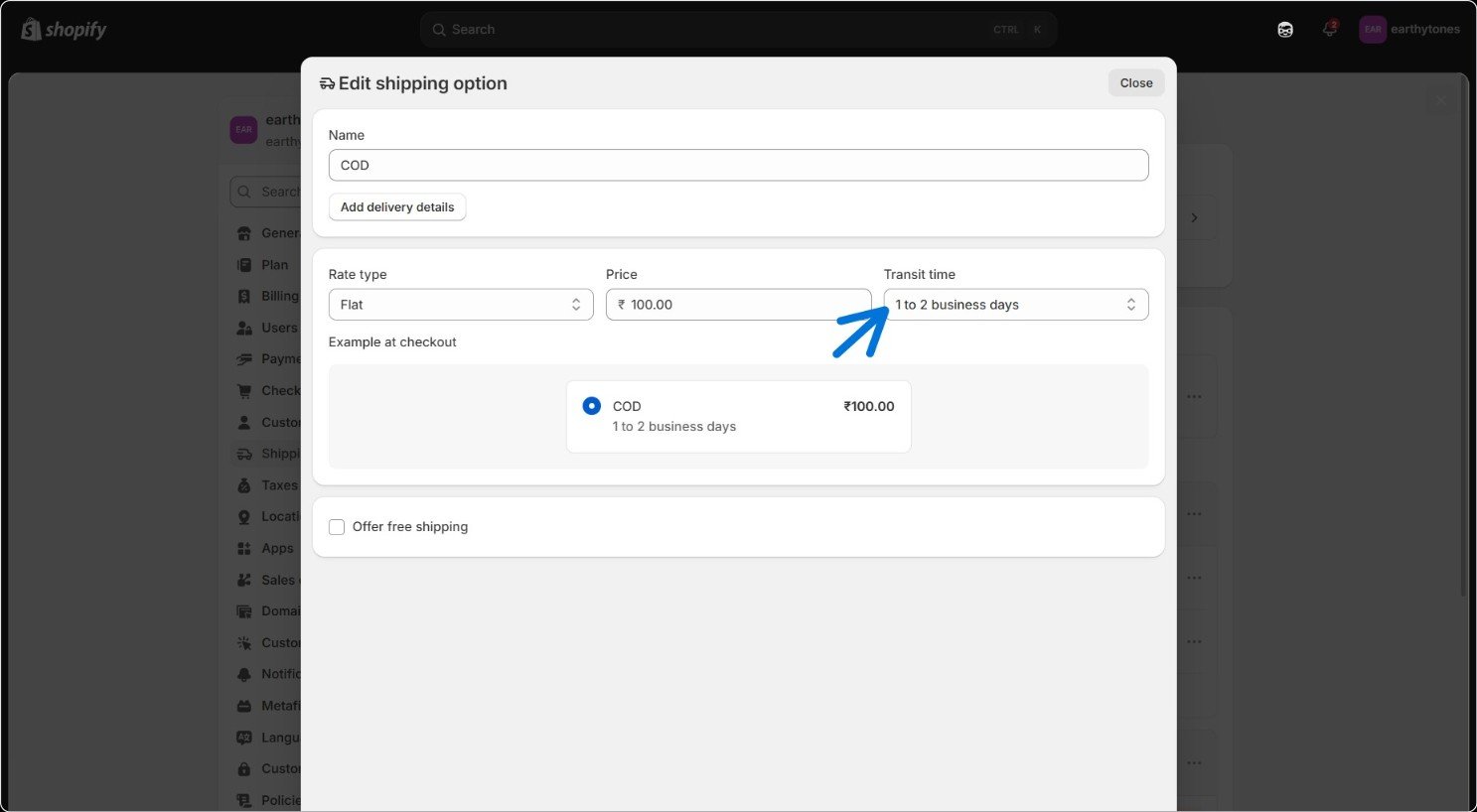
 * Transit time: Selecting a transit time helps increase the conversion rate.
* Choose as per requirement; you also have an option for custom.
* Transit time: Selecting a transit time helps increase the conversion rate.
* Choose as per requirement; you also have an option for custom.
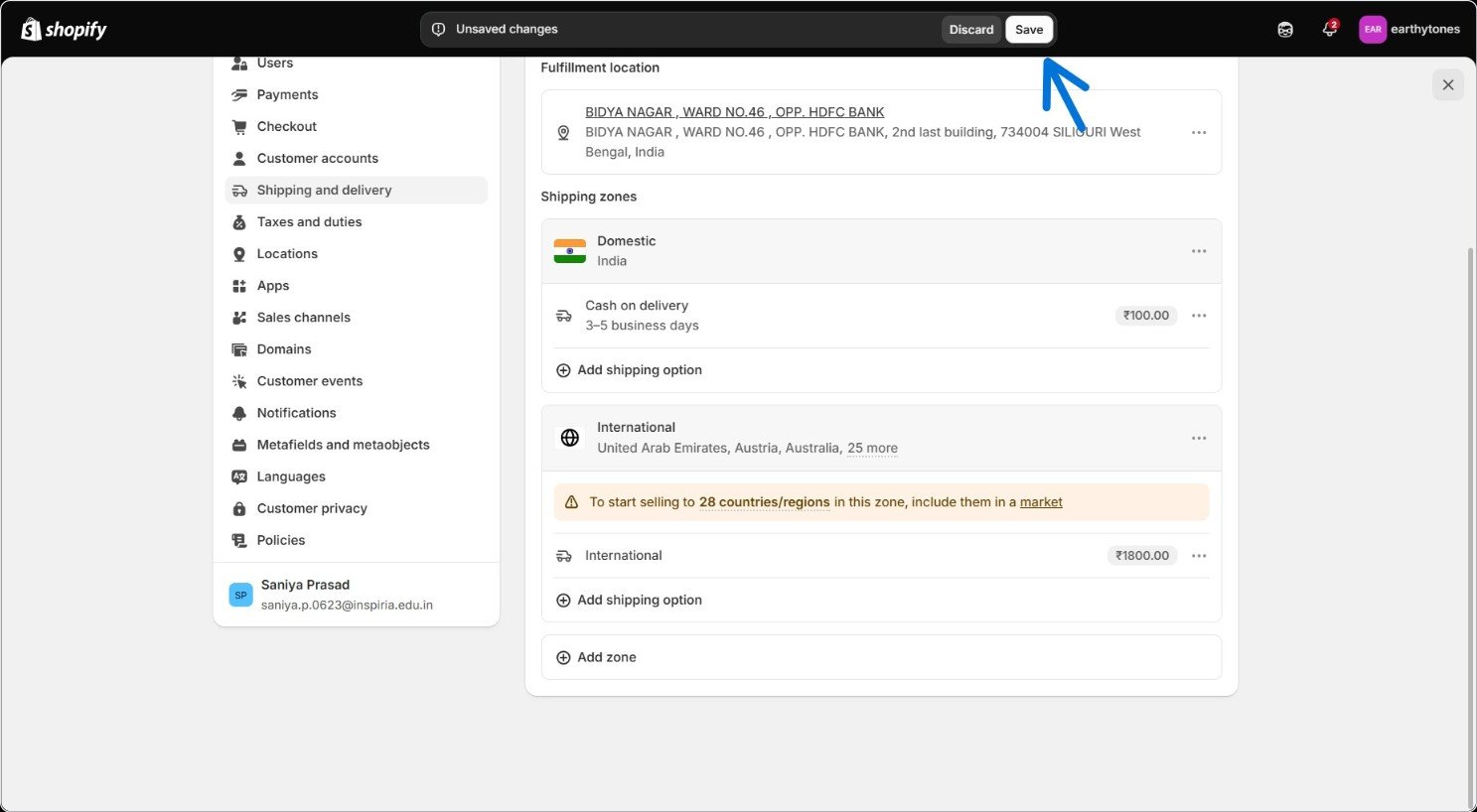
 Do not forget to click on "DONE" in the top right corner, as it saves all the changes made.
### 2 d. Save all the edits made.
Do not forget to click on "DONE" in the top right corner, as it saves all the changes made.
### 2 d. Save all the edits made.
 In case partial payment is enabled: Make sure the rule configuration has a "cash on delivery rule set."
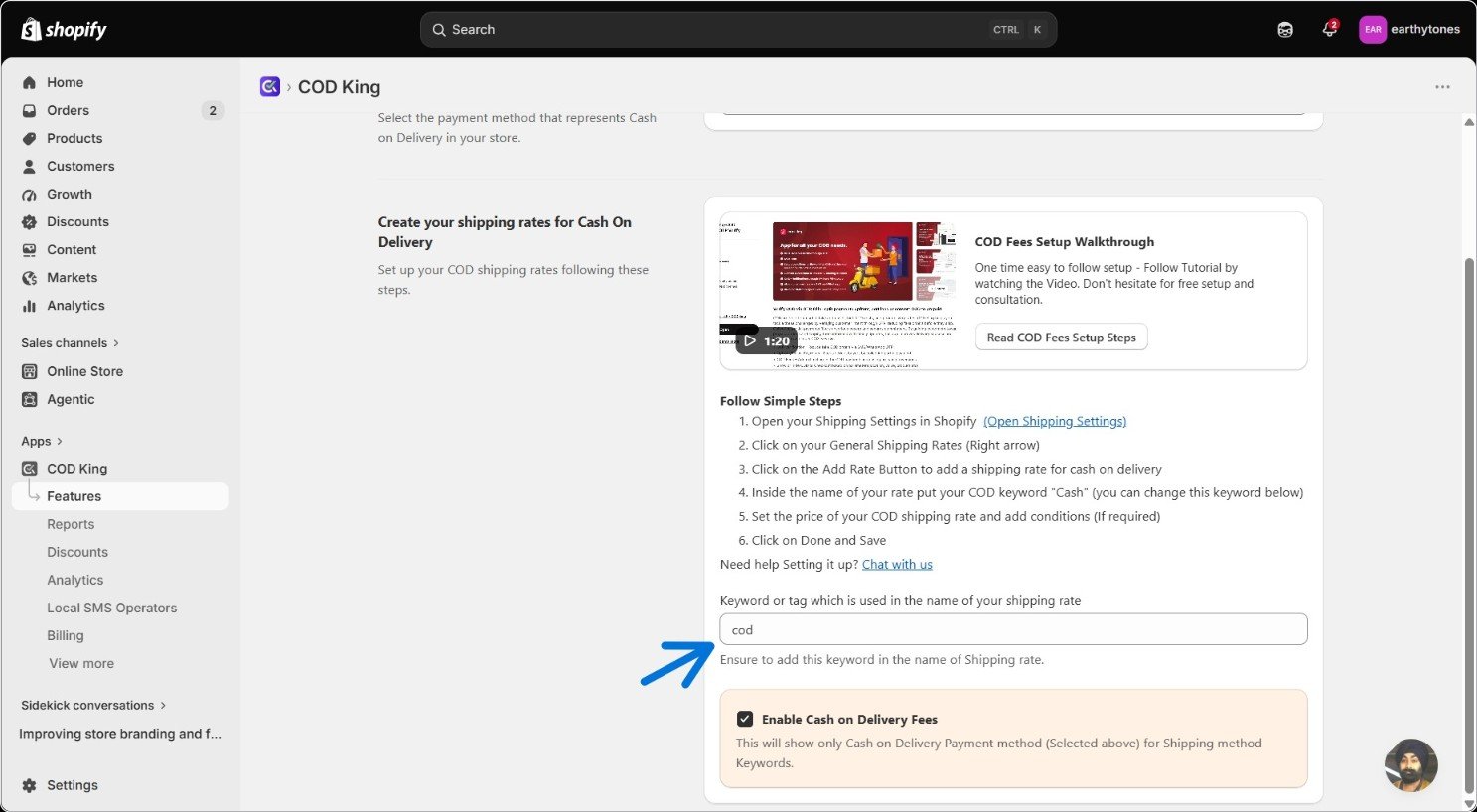
### 3. **Set Your Keyword**
The keyword is what connects your Shopify shipping rate to COD King's logic.
* **Default:** cash
* **How it works:** any shipping rate within its name gets recognized as a COD rate at checkout.
* **Customization:** change it to anything you like (e.g., "cod")—just make sure it matches exactly in your Shopify rate name.
In case partial payment is enabled: Make sure the rule configuration has a "cash on delivery rule set."
### 3. **Set Your Keyword**
The keyword is what connects your Shopify shipping rate to COD King's logic.
* **Default:** cash
* **How it works:** any shipping rate within its name gets recognized as a COD rate at checkout.
* **Customization:** change it to anything you like (e.g., "cod")—just make sure it matches exactly in your Shopify rate name.
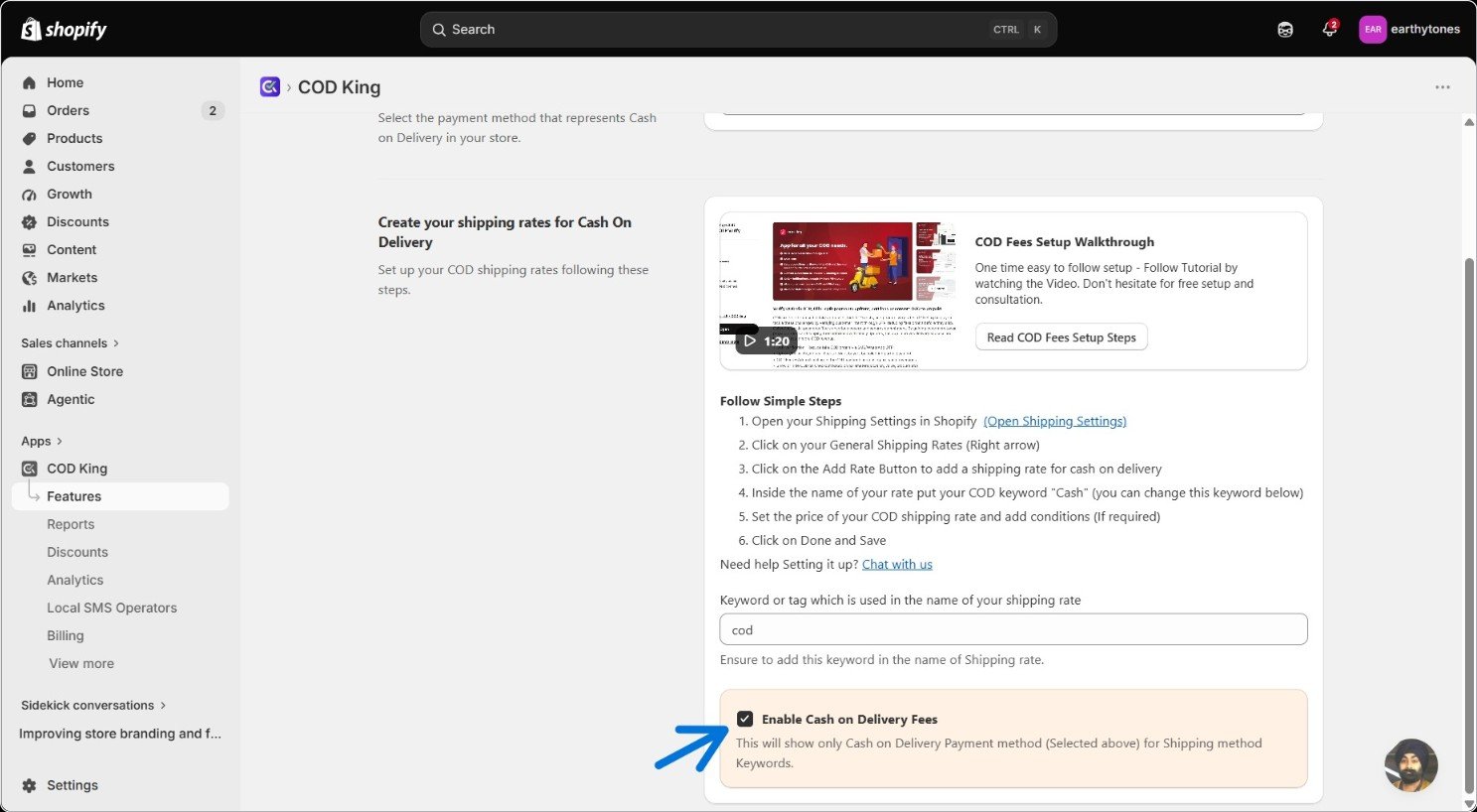
 ### 4. Enable Cash on Delivery Fees
* Check "Enable Cash on Delivery Fees."
* From here, COD King filters checkout automatically—if a customer picks a shipping rate with your keyword, they'll only see Cash on Delivery as the payment option, and your fee applies seamlessly.
### 4. Enable Cash on Delivery Fees
* Check "Enable Cash on Delivery Fees."
* From here, COD King filters checkout automatically—if a customer picks a shipping rate with your keyword, they'll only see Cash on Delivery as the payment option, and your fee applies seamlessly.
 ### 5. Check the flow
* Open your Shopify store and add a few products for checkout.
* This page must contain a "cash on delivery" option.
### 5. Check the flow
* Open your Shopify store and add a few products for checkout.
* This page must contain a "cash on delivery" option.
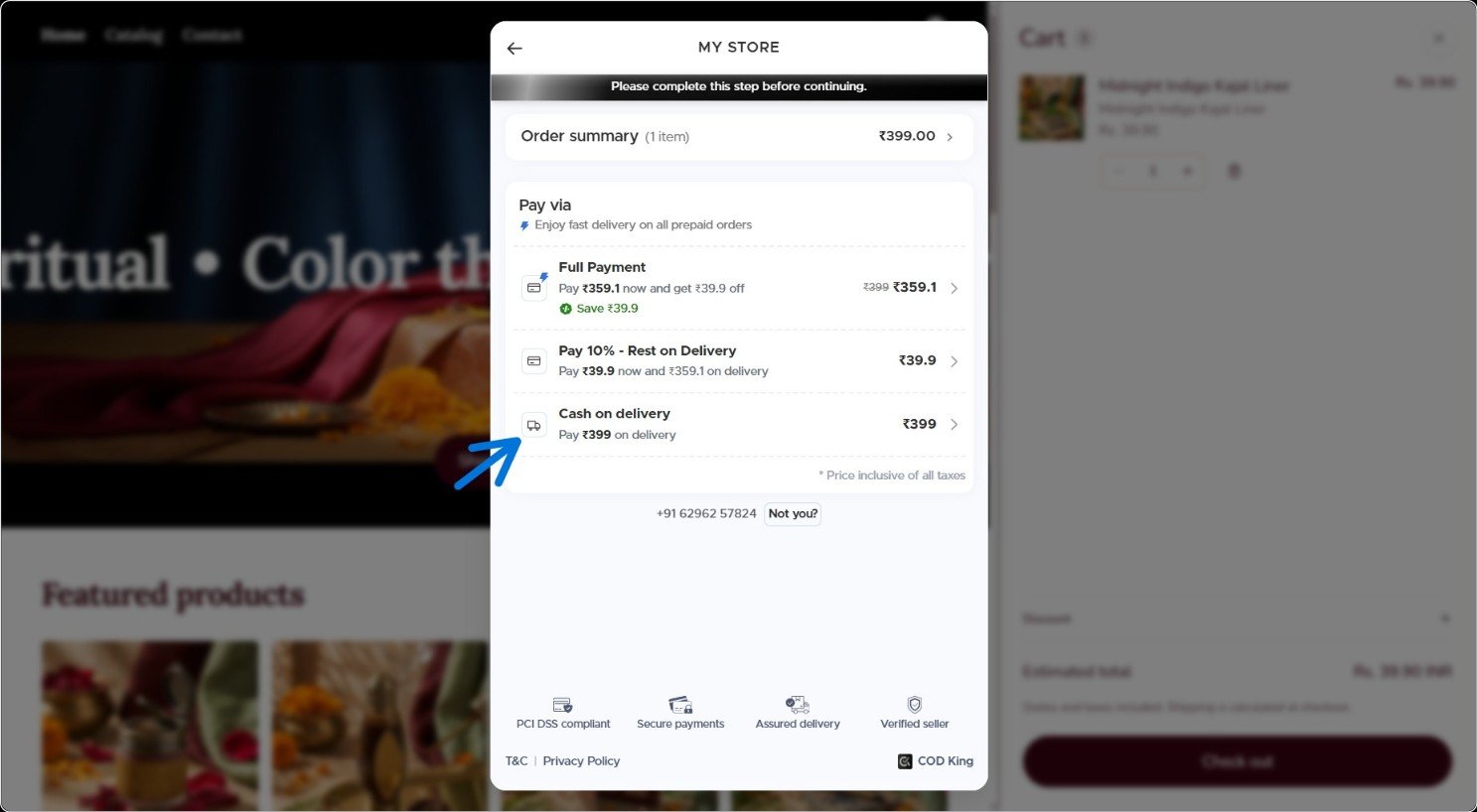 * Select cash on delivery, and you will be directed to the checkout page.
* The shipping rate added by you must show up under the shipping method.
* Select cash on delivery, and you will be directed to the checkout page.
* The shipping rate added by you must show up under the shipping method.
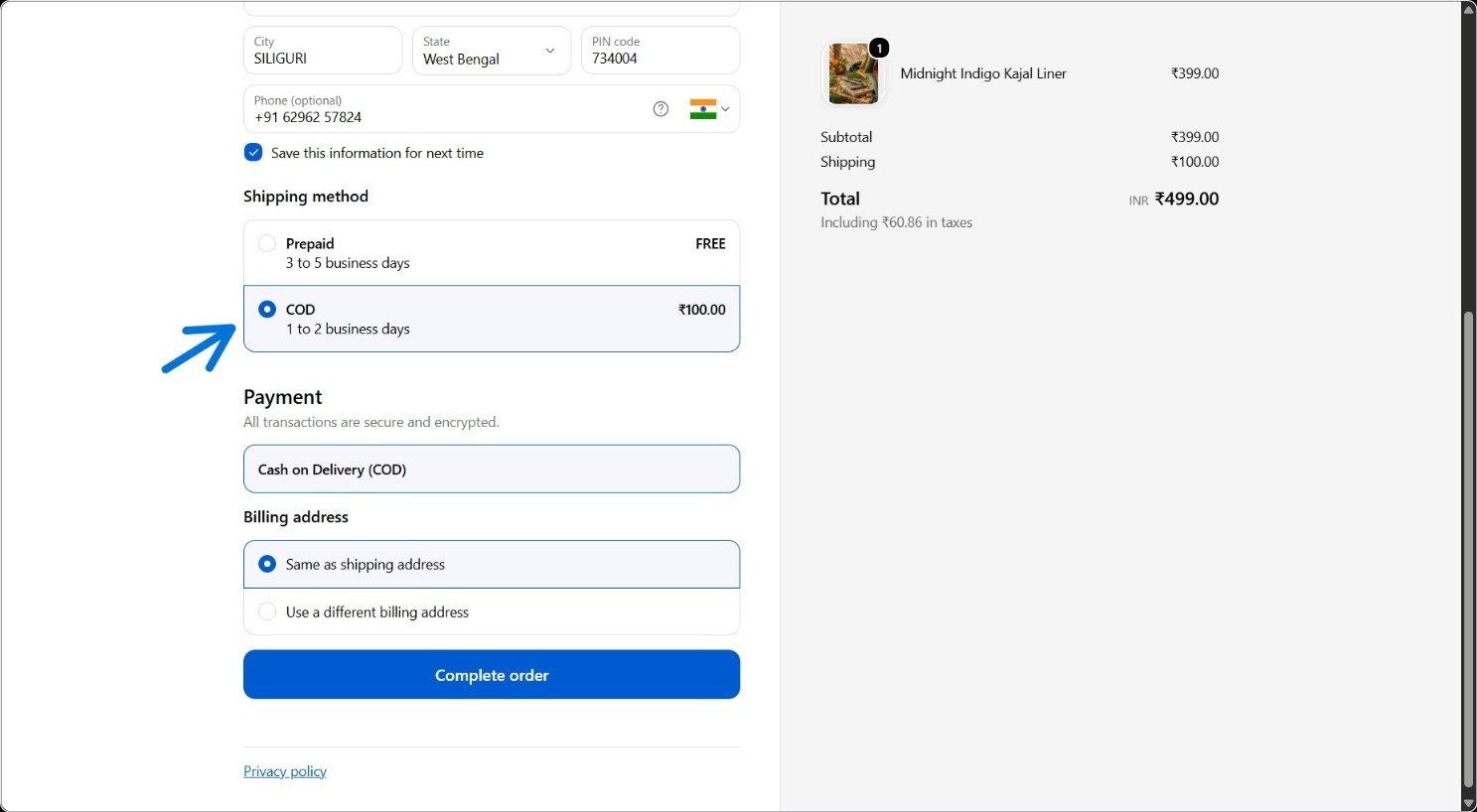 If the customer selects the Cash on Delivery shipping option, the COD payment option will be selected automatically. If the customer selects the prepaid shipping option, the COD payment option will be hidden, and only prepaid payment options will be available.
***
## Best Practices for Setting COD Fees
* **Keep It Fair:** Set a nominal fee (e.g., ₹50–₹200) that covers your extra expenses without discouraging potential buyers.
* **Be Transparent:** State the fee clearly at checkout so customers aren't surprised by additional charges at delivery.
* **Pair with Prepaid Discounts:** Offer a small discount on prepaid options alongside the COD fee to gently nudge customers toward paying upfront.
***
### What's Next?
* **Prepaid Discounts:** Learn how to incentivize customers to pay upfront and reduce RTO even further.
* **OTP Verification:** Add SMS verification to confirm COD orders before fulfillment.
For any inquiries or support, please email us at [support@notifiktech.com](mailto:support@notifiktech.com). We’ll make sure to get back to you as soon as possible.
If the customer selects the Cash on Delivery shipping option, the COD payment option will be selected automatically. If the customer selects the prepaid shipping option, the COD payment option will be hidden, and only prepaid payment options will be available.
***
## Best Practices for Setting COD Fees
* **Keep It Fair:** Set a nominal fee (e.g., ₹50–₹200) that covers your extra expenses without discouraging potential buyers.
* **Be Transparent:** State the fee clearly at checkout so customers aren't surprised by additional charges at delivery.
* **Pair with Prepaid Discounts:** Offer a small discount on prepaid options alongside the COD fee to gently nudge customers toward paying upfront.
***
### What's Next?
* **Prepaid Discounts:** Learn how to incentivize customers to pay upfront and reduce RTO even further.
* **OTP Verification:** Add SMS verification to confirm COD orders before fulfillment.
For any inquiries or support, please email us at [support@notifiktech.com](mailto:support@notifiktech.com). We’ll make sure to get back to you as soon as possible.