> ## Documentation Index
> Fetch the complete documentation index at: https://docs.codking.tech/llms.txt
> Use this file to discover all available pages before exploring further.
# Connect WinSMS SMS to COD King
> Learn how to connect WinSMS SMS with COD King for sending SMS notifications to customers in Tunisia.
WinSMS is an SMS messaging service for sending SMS notifications in Tunisia through an API-based integration.
This guide explains how to create and activate a WinSMS account, obtain the required API Key and Sender ID, configure WinSMS in COD King, and test the integration.
## Step 1: Create a WinSMS Account
Go to the official [WinSMS website](https://www.winsms.tn/).
Open the account creation or contact section and complete the required registration information.
WinSMS may request personal, contact, and business information during the account setup process.
> **Note:** Account activation and any required registration or verification information are handled by WinSMS.
After your account is activated, make sure you have access to the WinSMS customer area.
For more information about creating an account, visit the official [WinSMS Contact and Account Creation page](https://www.winsms.tn/contact/).
## Step 2: Add SMS Credits
Before testing the integration, make sure your WinSMS account has available SMS credits.
WinSMS requires available credits for sending SMS messages through the API.
You can manage your SMS balance from your WinSMS customer account.
For more information, see the official [WinSMS SMS API documentation](https://www.winsms.tn/tunisie-sms-api/).
## Step 3: Get Your API Key
Log in to your **WinSMS customer area**.
Locate the API or integration section where your API credentials are provided.
Copy your **API Key**.
The API Key is required by COD King to connect to your WinSMS account.
WinSMS's official documentation confirms that the API Key is available from your WinSMS account and is used when sending SMS through the API.
For more information, see the official [WinSMS API integration documentation](https://www.winsms.tn/integration-api-sms-tunisie/).
> **Security:** Never share your API Key publicly.
## Step 4: Get a Validated Sender ID
From your WinSMS customer account, locate the available **Sender IDs**.
Select a Sender ID that has been validated and is available for sending SMS.
The Sender ID is the name used as the sender of your SMS messages.
WinSMS's official documentation confirms that one or more validated Sender IDs are available from your WinSMS account.
For more information, see the official [WinSMS API integration guide](https://www.winsms.tn/sms_tunisie/integration-api-sms-tunisie-google-forms/).
> **Important:** Use the Sender ID exactly as it appears in your WinSMS account.
## Step 5: Configure WinSMS in COD King
In your Shopify admin, open:
**Apps → COD King → Settings → Local SMS Gateway**
Select **WinSMSpro (Tunisia)** from the **Network Provider** dropdown.
Enter the following details:
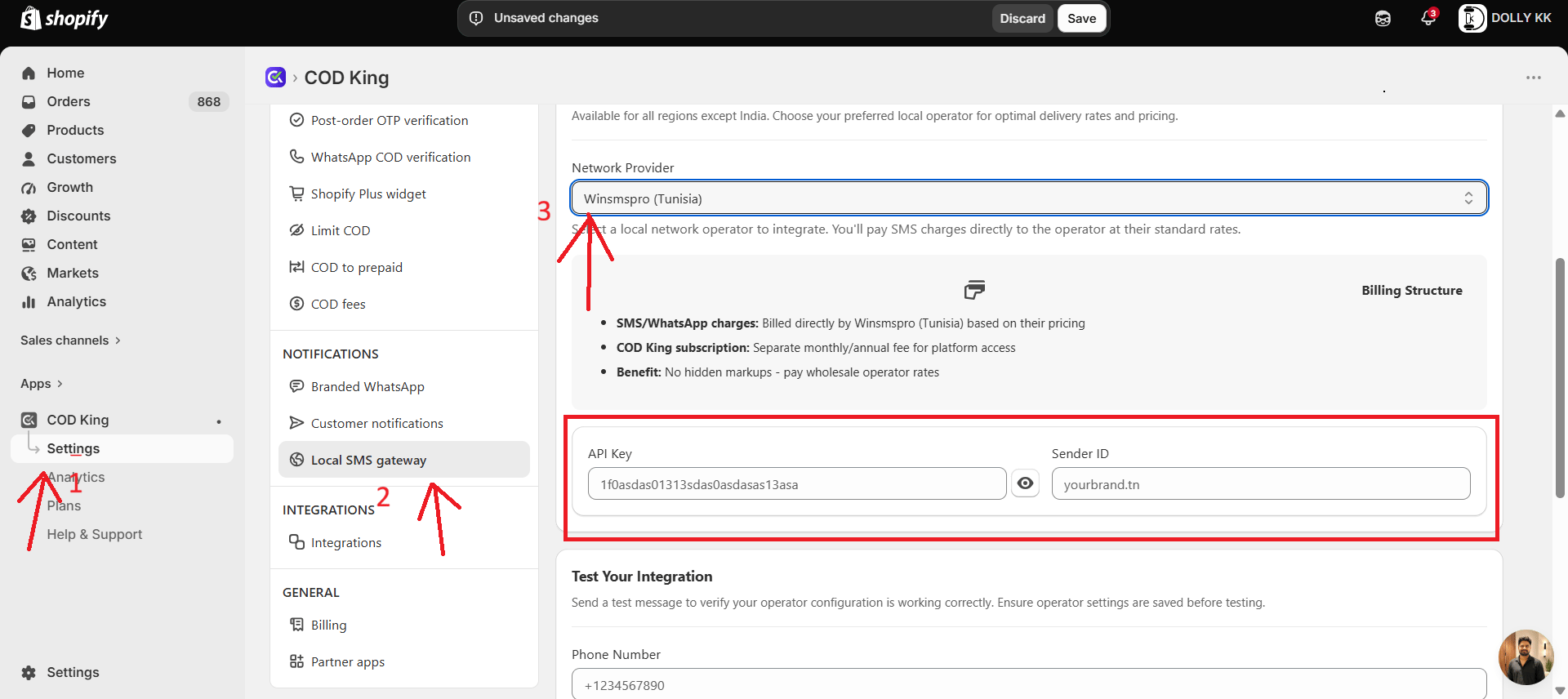 ### API Key
Enter the API Key obtained from your WinSMS customer account.
### Sender ID
Enter your validated WinSMS Sender ID.
Make sure the Sender ID matches the Sender ID available in your WinSMS account.
Save the operator configuration before testing.
## Step 6: Test Your Integration
After saving the WinSMS configuration, go to the **Test Your Integration** section.
Enter a valid phone number with the country code in the **Phone Number** field.
For example:
`+216XXXXXXXX`
Click **Send Test SMS**.
Check the recipient's phone to confirm that the SMS was delivered successfully.
If the SMS is delivered successfully, your WinSMS integration is configured correctly and ready to use.
### Testing Tips
* Make sure the operator configuration is saved before testing.
* Use a valid phone number with the country code.
* Make sure your WinSMS account has available SMS credits.
* Use a validated Sender ID.
* Verify the API Key if the test message fails.
## API Information
WinSMS provides an API for sending SMS messages through applications and other platforms.
The official API uses parameters including:
* API Key
* Recipient phone number
* SMS message
* Sender ID
A typical WinSMS API request uses the `send-sms` action together with the API Key, recipient number, message, and Sender ID.
For technical details, see the official [WinSMS API documentation](https://www.winsms.tn/tunisie-sms-api/).
## Need Help?
If you have issues creating your WinSMS account or configuring the integration, visit the official [WinSMS Contact page](https://www.winsms.tn/contact/).
### API Key
Enter the API Key obtained from your WinSMS customer account.
### Sender ID
Enter your validated WinSMS Sender ID.
Make sure the Sender ID matches the Sender ID available in your WinSMS account.
Save the operator configuration before testing.
## Step 6: Test Your Integration
After saving the WinSMS configuration, go to the **Test Your Integration** section.
Enter a valid phone number with the country code in the **Phone Number** field.
For example:
`+216XXXXXXXX`
Click **Send Test SMS**.
Check the recipient's phone to confirm that the SMS was delivered successfully.
If the SMS is delivered successfully, your WinSMS integration is configured correctly and ready to use.
### Testing Tips
* Make sure the operator configuration is saved before testing.
* Use a valid phone number with the country code.
* Make sure your WinSMS account has available SMS credits.
* Use a validated Sender ID.
* Verify the API Key if the test message fails.
## API Information
WinSMS provides an API for sending SMS messages through applications and other platforms.
The official API uses parameters including:
* API Key
* Recipient phone number
* SMS message
* Sender ID
A typical WinSMS API request uses the `send-sms` action together with the API Key, recipient number, message, and Sender ID.
For technical details, see the official [WinSMS API documentation](https://www.winsms.tn/tunisie-sms-api/).
## Need Help?
If you have issues creating your WinSMS account or configuring the integration, visit the official [WinSMS Contact page](https://www.winsms.tn/contact/).