> ## Documentation Index
> Fetch the complete documentation index at: https://docs.codking.tech/llms.txt
> Use this file to discover all available pages before exploring further.
# Connect Wavecell (8x8 Connect) to COD King
> Learn how to configure Wavecell (8x8 Connect) as a Local SMS Operator in COD King.
Wavecell is now part of **8x8 Connect**. You can use 8x8 Connect to send SMS notifications through COD King.
This guide explains how to get the required credentials from 8x8 Connect and add them to COD King.
## What You Need
Before you start, make sure you have:
* An 8x8 Connect account
* Access to your 8x8 Connect dashboard
* Company information for Sender ID registration
* Access to your COD King admin panel
***
## Step 1: Log in to 8x8 Connect
Open the 8x8 Connect login page:
[https://connect.8x8.com/login](https://connect.8x8.com/login)
Log in to your account.
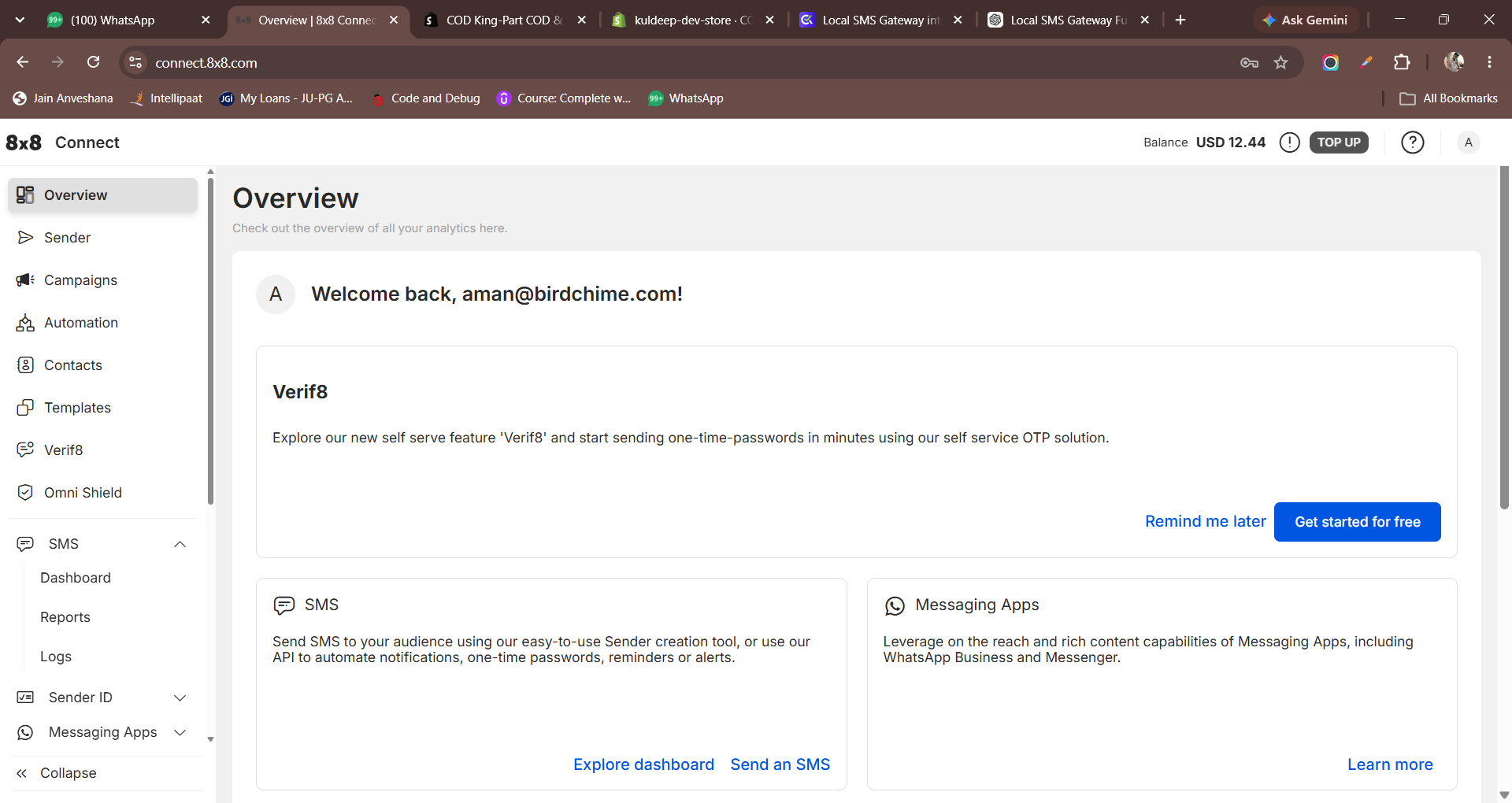
After logging in, you will see the 8x8 Connect dashboard.
>
>  >
***
## Step 2: Create an API Key
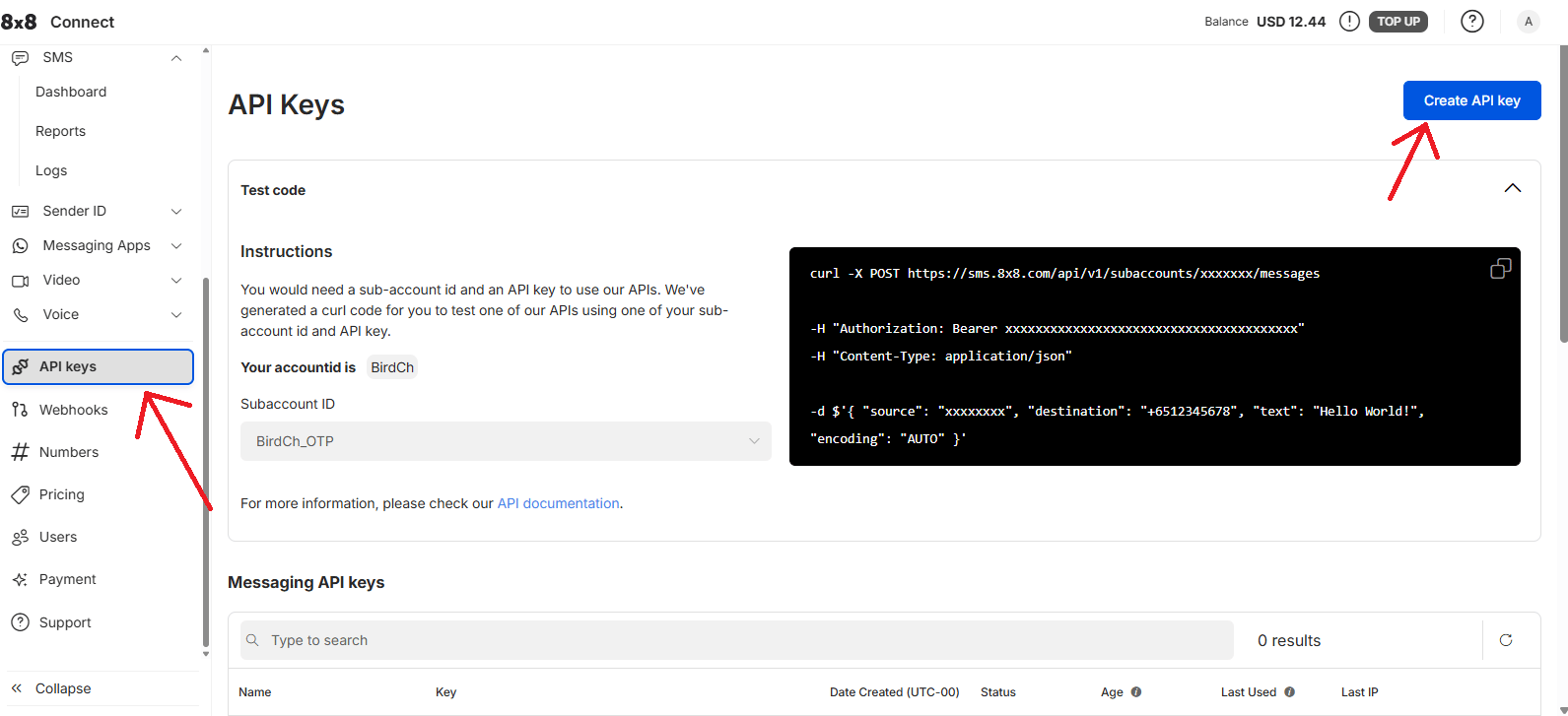
From the left-side menu, open **API Keys**.
Click **Create API key**.
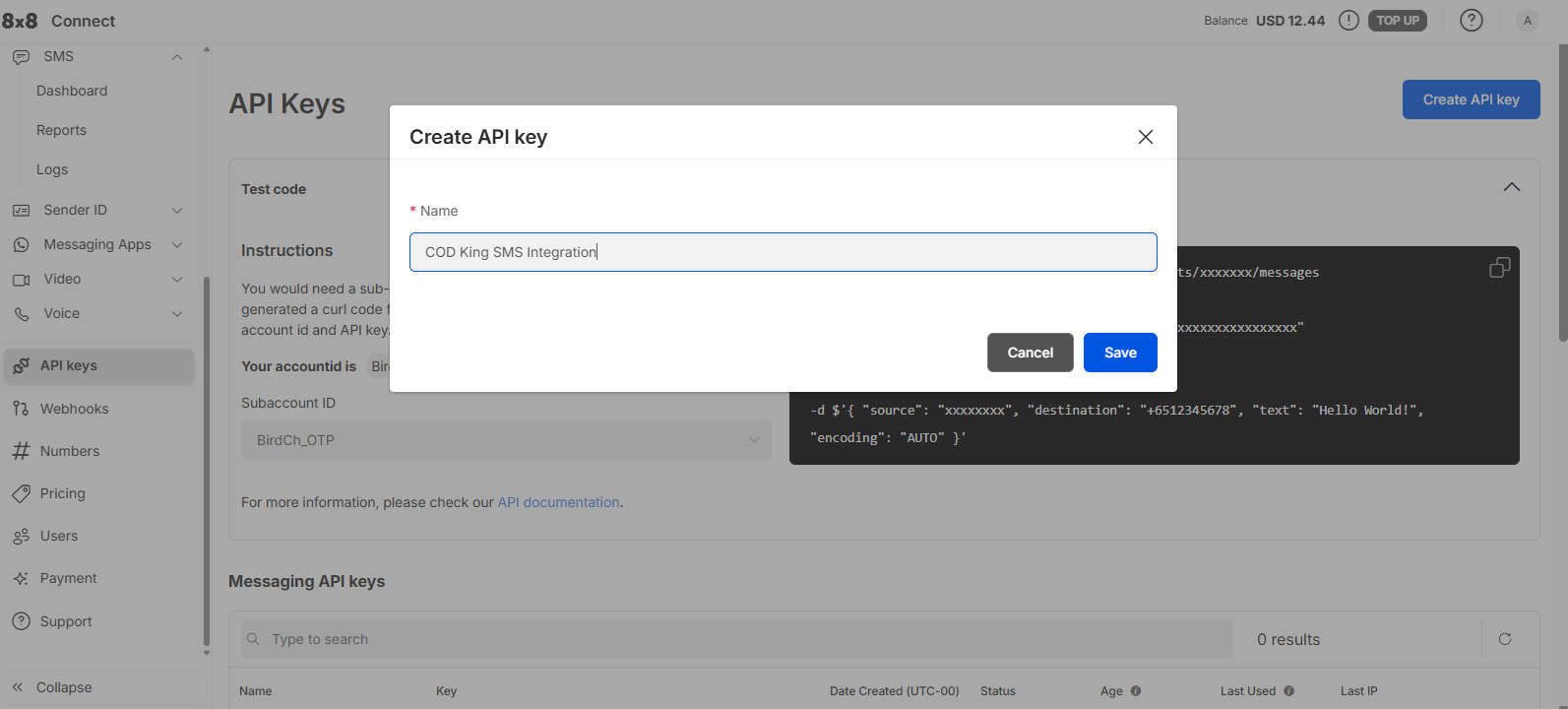
Enter a name for the API key.
For example:
`COD King SMS Integration`
Then create the API key.
>
>
>
***
## Step 2: Create an API Key
From the left-side menu, open **API Keys**.
Click **Create API key**.
Enter a name for the API key.
For example:
`COD King SMS Integration`
Then create the API key.
>
>  >
>
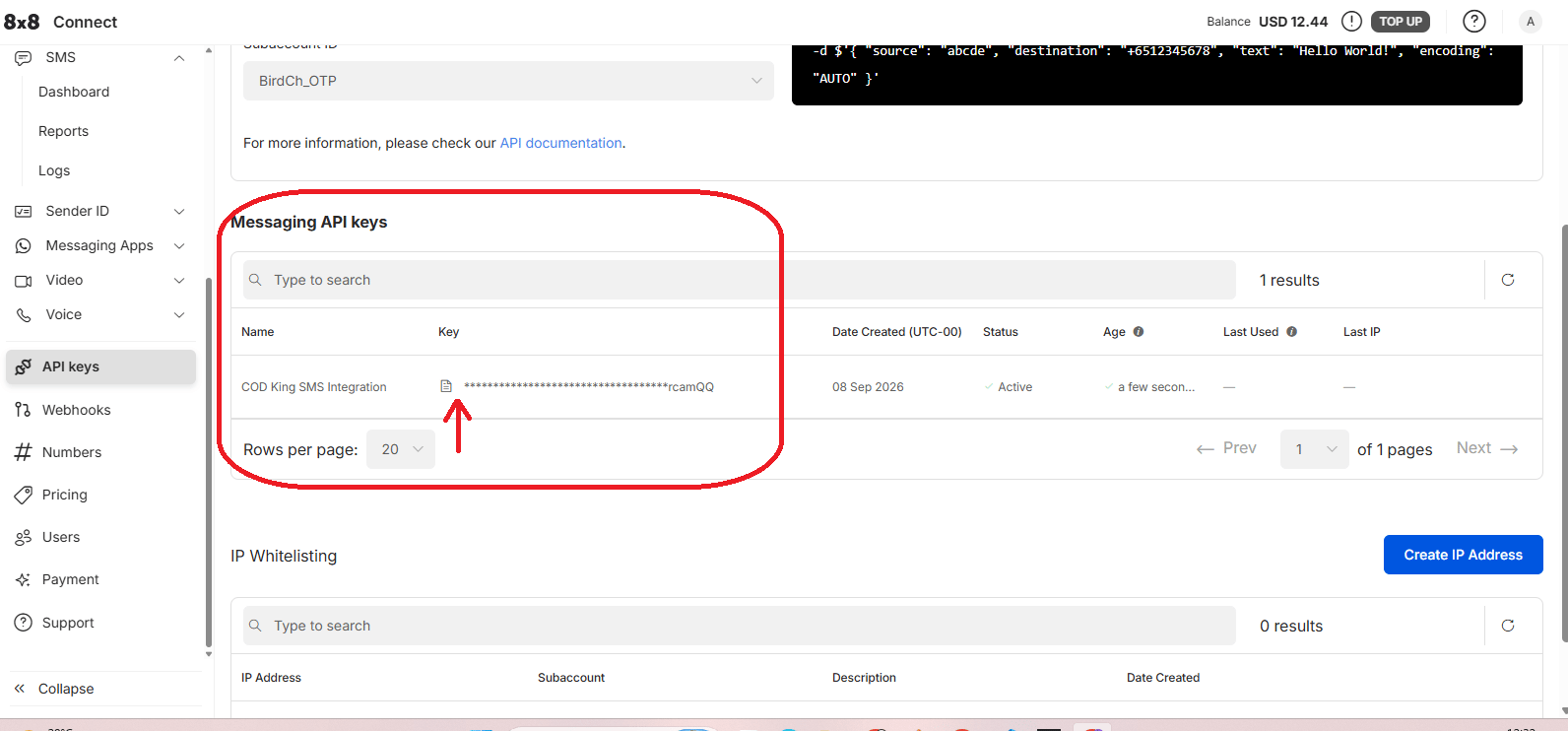 Once the API key is created, copy and save it securely.
**Important:** Do not share your API key or include the full key in screenshots.
***
## Step 3: Get the Sub Account ID
On the **API Keys** page, find the SMS Subaccount that you want to use.
Copy the **Subaccount ID**.
For example:
`BirdCh_OTP`
Your Subaccount ID may be different.
>
>
Once the API key is created, copy and save it securely.
**Important:** Do not share your API key or include the full key in screenshots.
***
## Step 3: Get the Sub Account ID
On the **API Keys** page, find the SMS Subaccount that you want to use.
Copy the **Subaccount ID**.
For example:
`BirdCh_OTP`
Your Subaccount ID may be different.
>
> 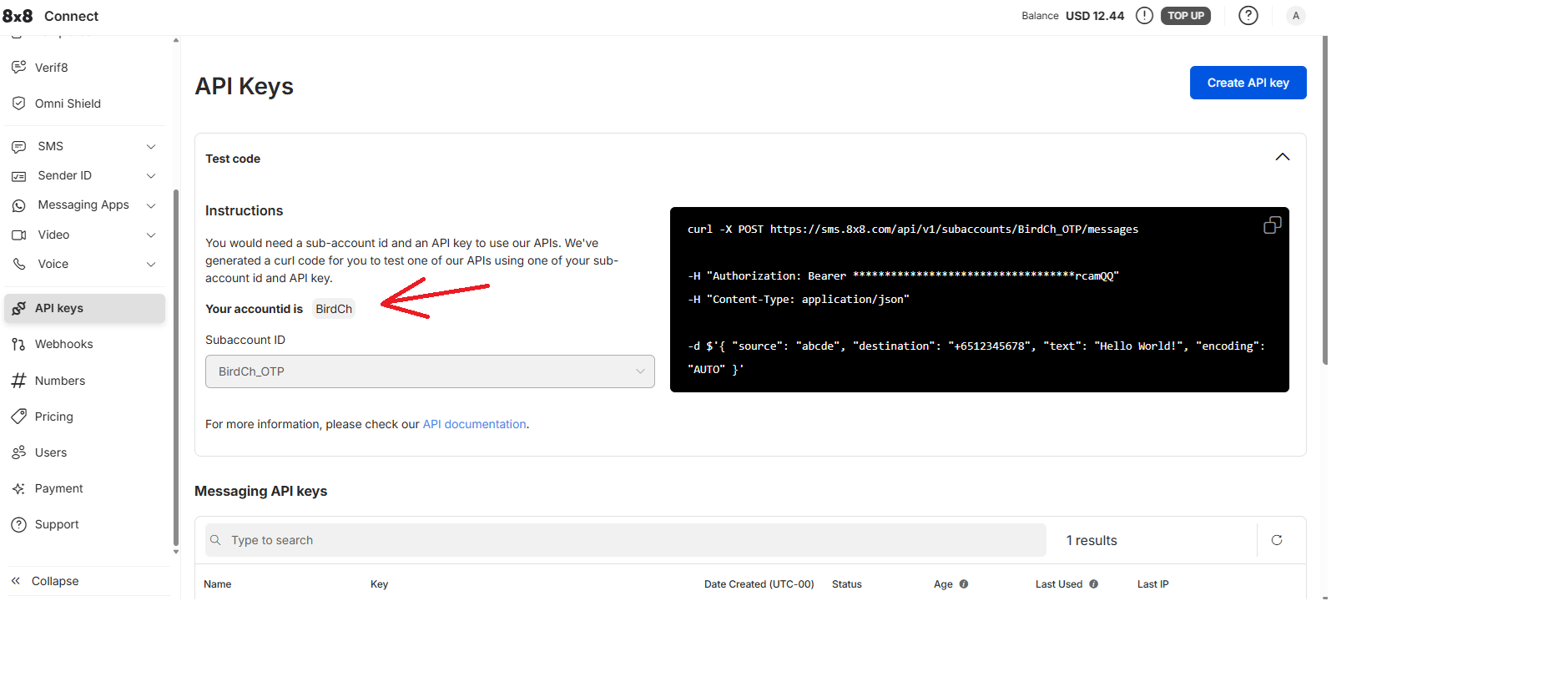 >
You will enter this value in COD King's **Sub Account ID** field.
***
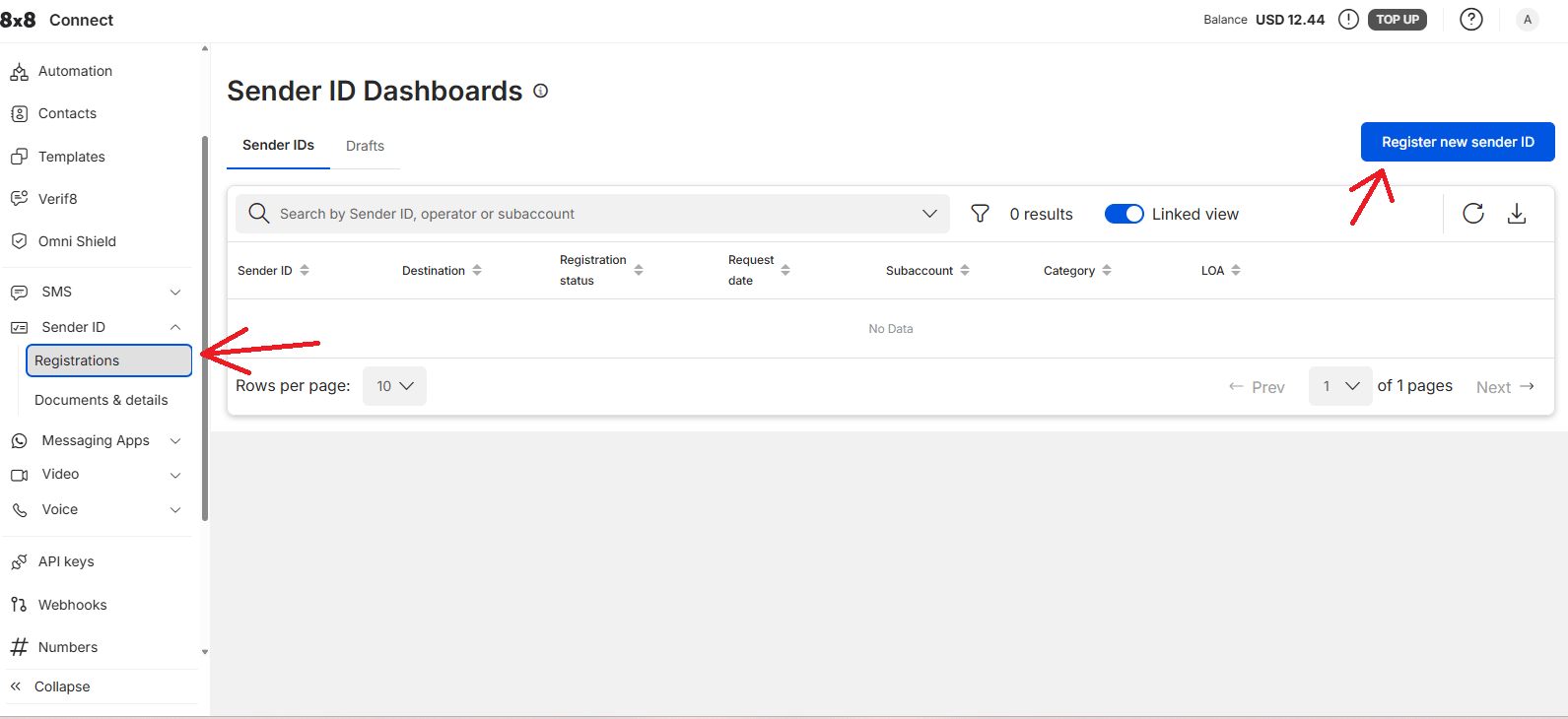
## Step 4: Register a Sender ID
From the 8x8 Connect menu, open:
**Sender ID → Registrations**
Click **Register new sender ID**.
>
You will enter this value in COD King's **Sub Account ID** field.
***
## Step 4: Register a Sender ID
From the 8x8 Connect menu, open:
**Sender ID → Registrations**
Click **Register new sender ID**.
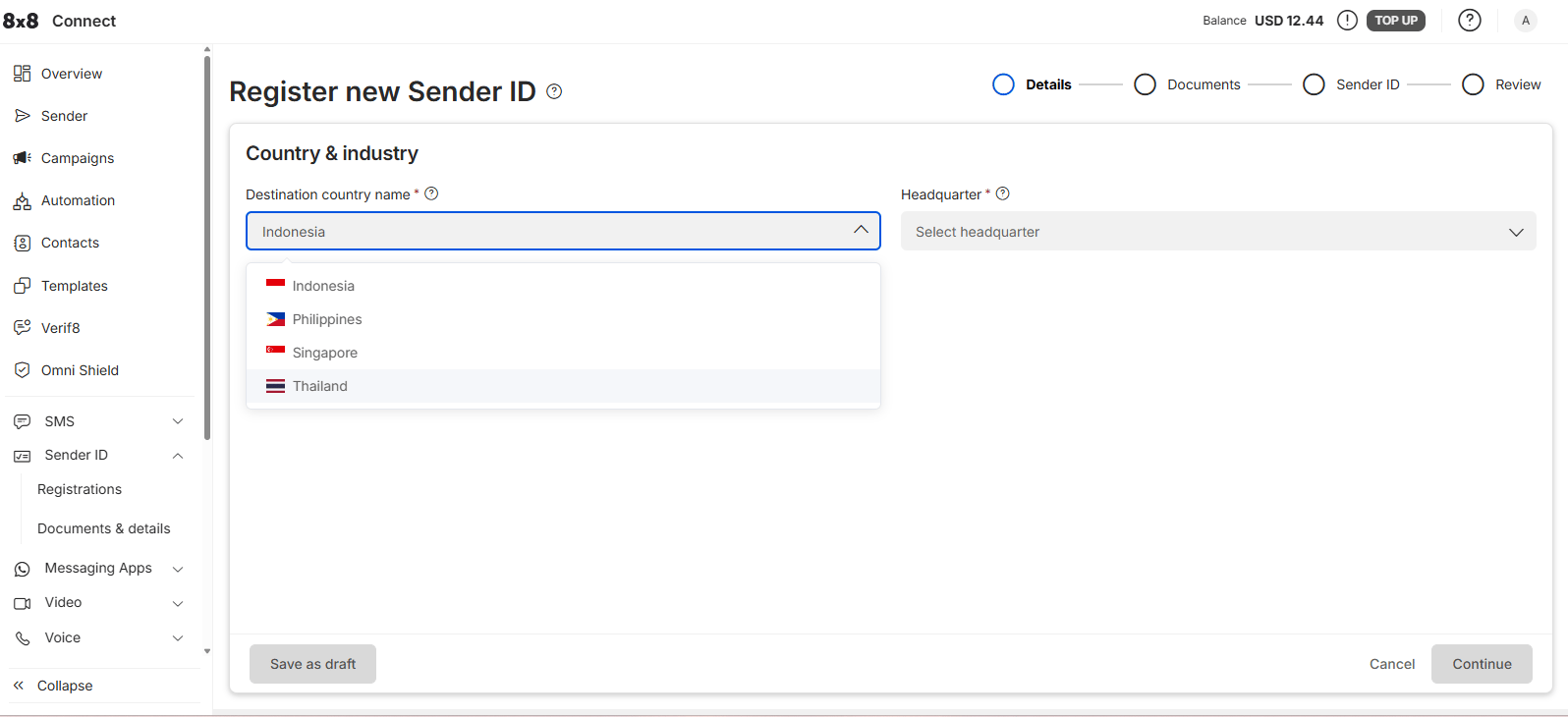
 Select the destination country where you will send SMS messages.
>
>
Select the destination country where you will send SMS messages.
>
>  >
***
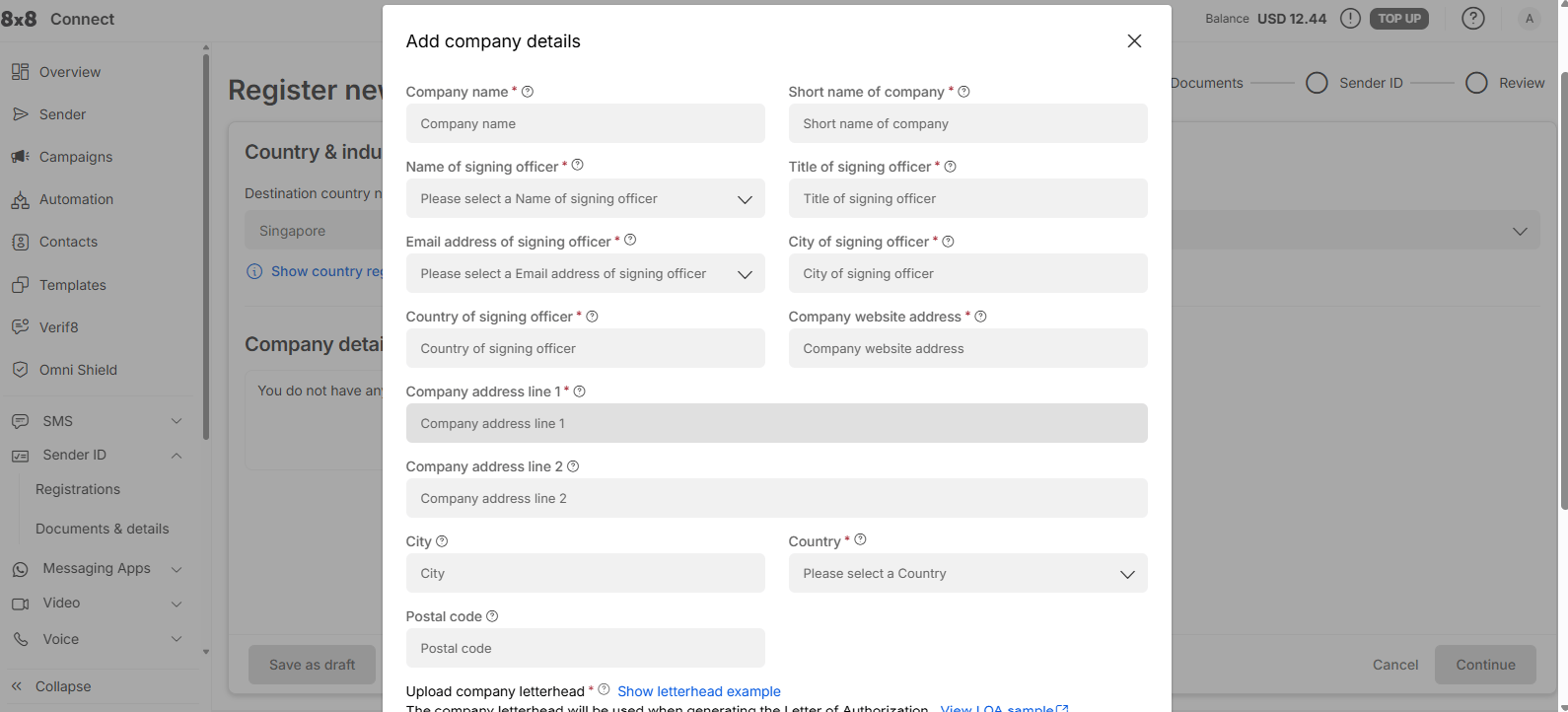
## Step 5: Add Company Details
8x8 Connect will ask for your company and business information.
Enter your actual:
* Company name
* Signing officer details
* Company website
* Company address
* Country and city
* Other required business information
>
>
>
***
## Step 5: Add Company Details
8x8 Connect will ask for your company and business information.
Enter your actual:
* Company name
* Signing officer details
* Company website
* Company address
* Country and city
* Other required business information
>
>  >
Upload the documents requested by 8x8 Connect.
**Use your real company information and documents. Do not use example information when submitting the registration.**
***
## Step 6: Add Your Sender ID
Enter the Sender ID that you want to use for sending SMS.
For example:
`CODKING`
Review the information and submit the registration.
Depending on the destination country, the Sender ID may need to be approved before it can be used.
***
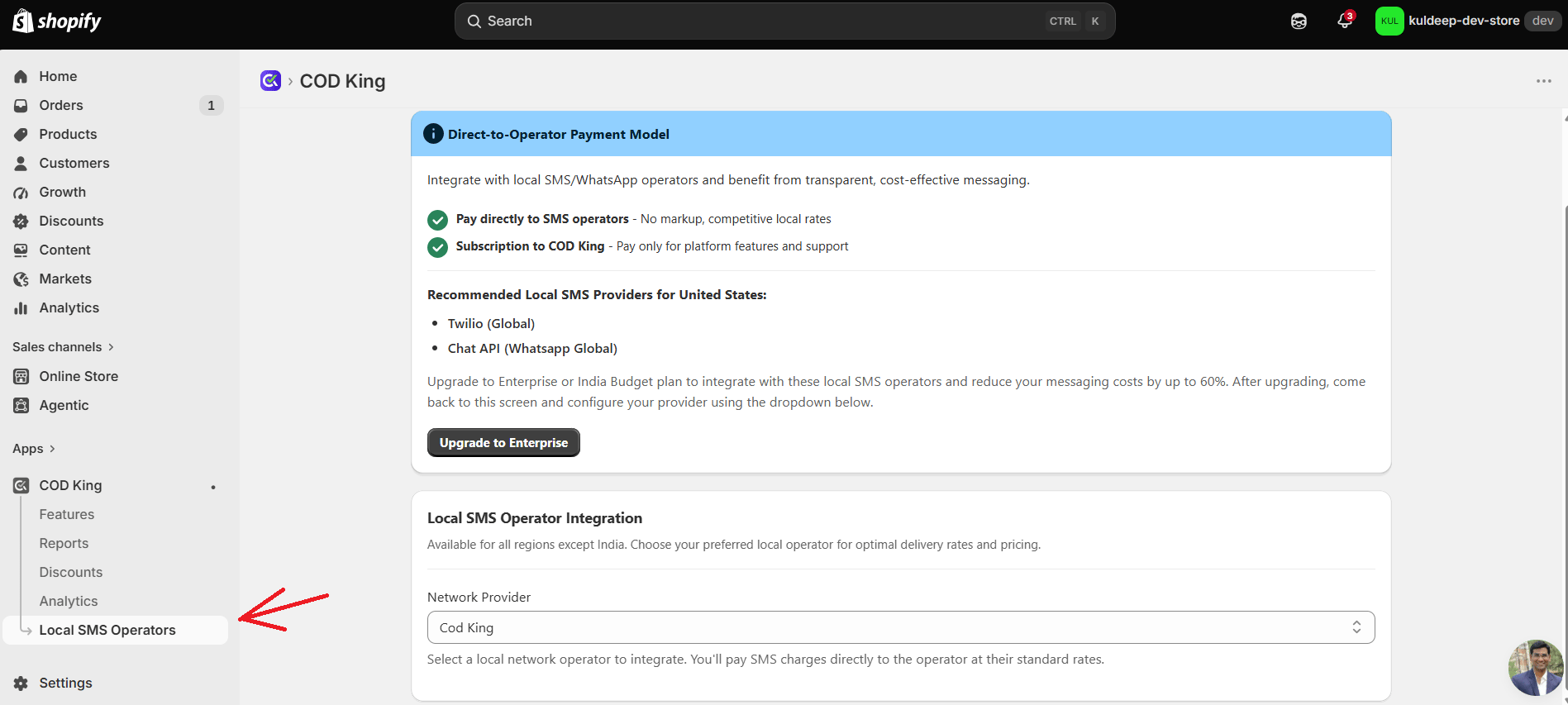
## Step 7: Open COD King
Once you have your:
* **Sub Account ID**
* **API Key**
* **Sender ID**
Log in to your Shopify admin and open **COD King**.
Go to:
**Local SMS Operators**
>
>
>
Upload the documents requested by 8x8 Connect.
**Use your real company information and documents. Do not use example information when submitting the registration.**
***
## Step 6: Add Your Sender ID
Enter the Sender ID that you want to use for sending SMS.
For example:
`CODKING`
Review the information and submit the registration.
Depending on the destination country, the Sender ID may need to be approved before it can be used.
***
## Step 7: Open COD King
Once you have your:
* **Sub Account ID**
* **API Key**
* **Sender ID**
Log in to your Shopify admin and open **COD King**.
Go to:
**Local SMS Operators**
>
>  >
Under **Network Provider**, select:
**Wavecell (Global)**
>
Under **Network Provider**, select:
**Wavecell (Global)**
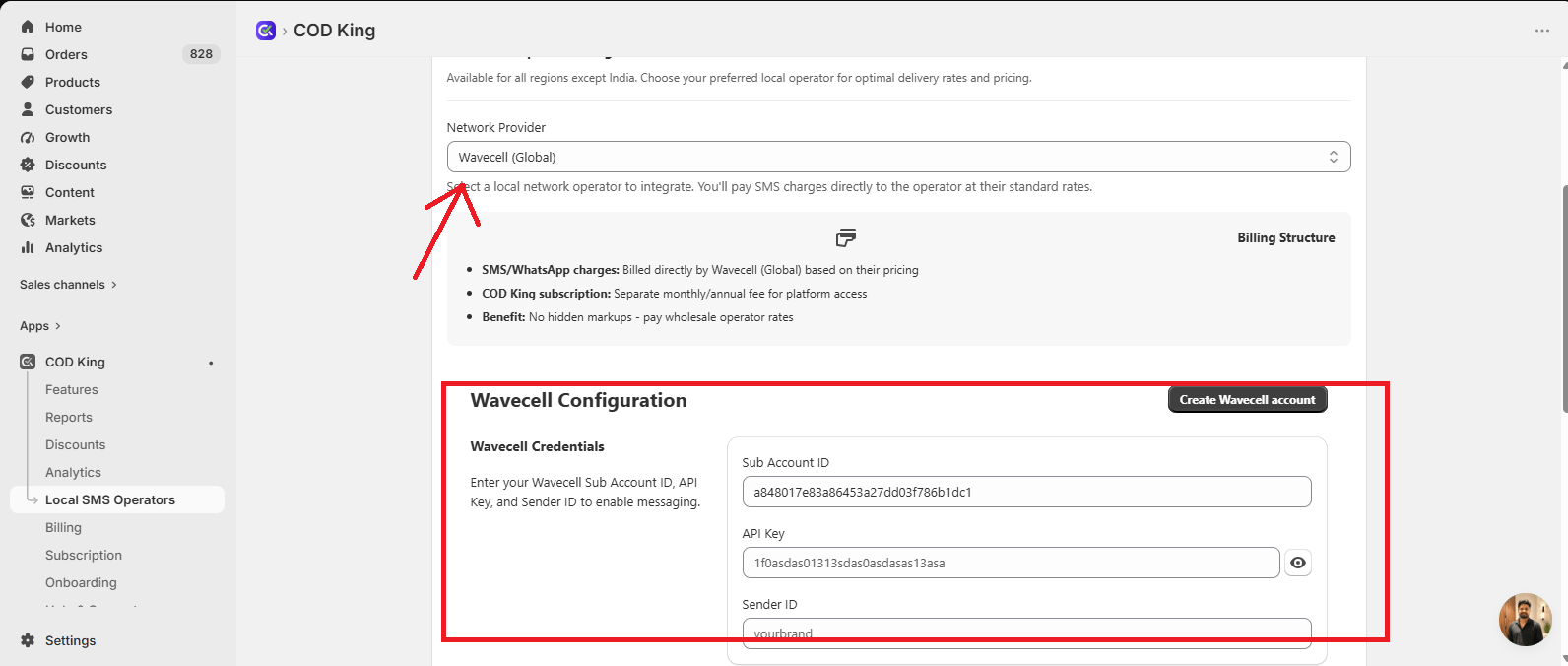 ***
## Step 8: Enter Wavecell Details
Enter the details obtained from 8x8 Connect.
| COD King Field | Enter |
| ------------------ | ---------------------------------- |
| **Sub Account ID** | Your 8x8 SMS Subaccount ID |
| **API Key** | Your 8x8 API Key |
| **Sender ID** | Your registered/approved Sender ID |
Make sure all three values are entered correctly.
Then click **Save**.
***
## Step 9: Test SMS
After saving the configuration, trigger an SMS notification from your Shopify store.
For example :-
Click **Send Test SMS** to send a test message to the entered phone number.
***
## Step 8: Enter Wavecell Details
Enter the details obtained from 8x8 Connect.
| COD King Field | Enter |
| ------------------ | ---------------------------------- |
| **Sub Account ID** | Your 8x8 SMS Subaccount ID |
| **API Key** | Your 8x8 API Key |
| **Sender ID** | Your registered/approved Sender ID |
Make sure all three values are entered correctly.
Then click **Save**.
***
## Step 9: Test SMS
After saving the configuration, trigger an SMS notification from your Shopify store.
For example :-
Click **Send Test SMS** to send a test message to the entered phone number.
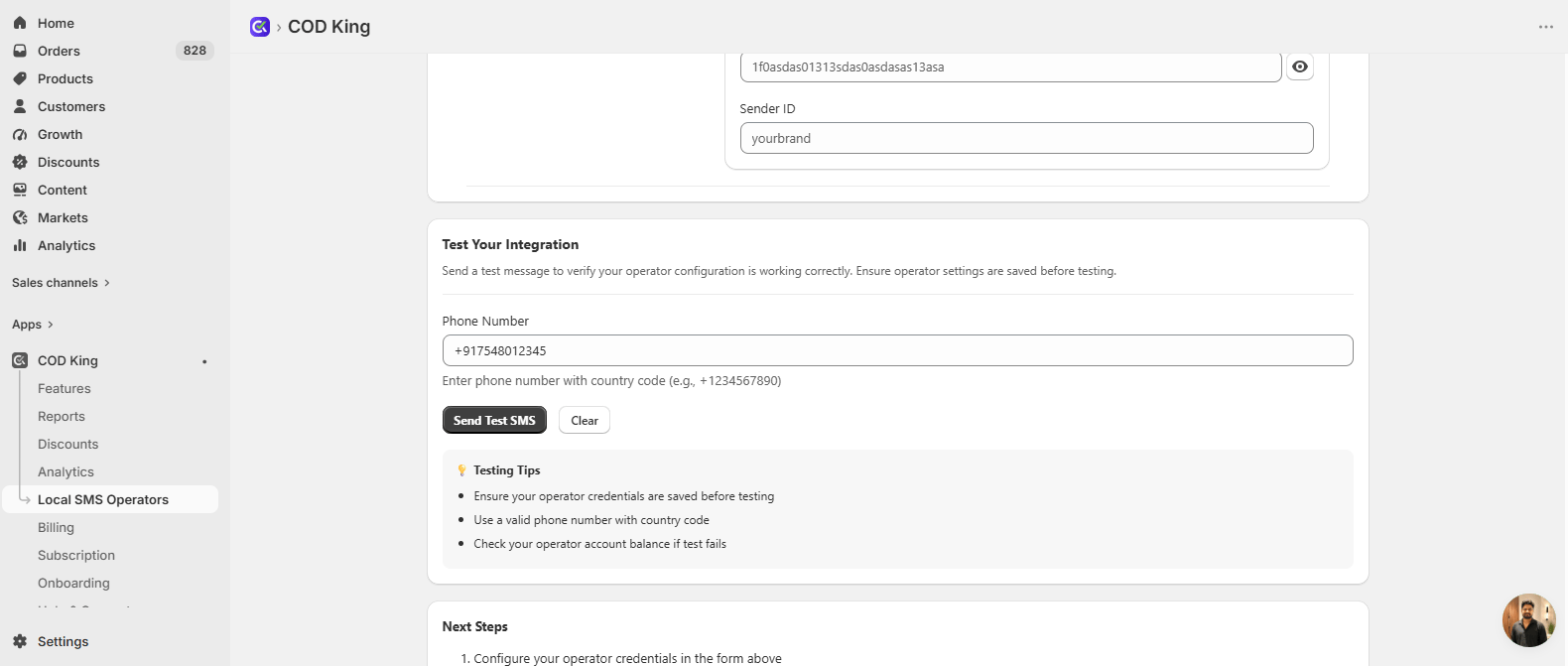 Check the recipient's phone to confirm that the test SMS was delivered successfully.
### Testing Tips
* Ensure your operator credentials are saved before testing.
* Use a valid phone number with the country code.
* Check your wavecell account balance if the test message fails.
If the test SMS is delivered successfully, your wavecell SMS integration is configured correctly and ready to use.
## Wavecell Configuration Summary
To connect Wavecell with COD King, you need these three values:
| Required Value | Where to Get It |
| ------------------ | ----------------------- |
| **Sub Account ID** | 8x8 Connect → API Keys |
| **API Key** | 8x8 Connect → API Keys |
| **Sender ID** | 8x8 Connect → Sender ID |
Once these details are entered and saved in COD King, Wavecell (8x8 Connect) is ready to send SMS notifications.
Check the recipient's phone to confirm that the test SMS was delivered successfully.
### Testing Tips
* Ensure your operator credentials are saved before testing.
* Use a valid phone number with the country code.
* Check your wavecell account balance if the test message fails.
If the test SMS is delivered successfully, your wavecell SMS integration is configured correctly and ready to use.
## Wavecell Configuration Summary
To connect Wavecell with COD King, you need these three values:
| Required Value | Where to Get It |
| ------------------ | ----------------------- |
| **Sub Account ID** | 8x8 Connect → API Keys |
| **API Key** | 8x8 Connect → API Keys |
| **Sender ID** | 8x8 Connect → Sender ID |
Once these details are entered and saved in COD King, Wavecell (8x8 Connect) is ready to send SMS notifications.